
Prerequisites: Gaia Installation, IP Addressing, Network Interfaces, Routing, Security Management and Basic Firewall Administration
Imagine an organization using a Check Point firewall to protect important business applications.
If the firewall fails, network connectivity may be interrupted.
How can the organization continue providing network security when one firewall becomes unavailable?
A common solution is Check Point ClusterXL High Availability.
ClusterXL allows two or more supported Check Point Security Gateways to operate together.
In a conventional two-member High Availability deployment, one gateway processes production traffic while another remains ready to take over.
A separate Security Management Server manages both gateways, their Security Policies and monitoring.
In this article, you will learn:
- What ClusterXL is and how High Availability works
- How to design a two-gateway cluster topology
- How to prepare the Management Server and cluster members
- How Secure Internal Communication (SIC) works
- How to create the ClusterXL object in SmartConsole
- How to configure Cluster Virtual IPs and synchronization
- How to install the Security Policy
- How to verify cluster health and failover readiness
Understanding ClusterXL High Availability and Network Topology
What Is Check Point ClusterXL?
ClusterXL is Check Point’s clustering technology.
It provides supported redundancy and, in applicable modes, traffic distribution between Security Gateways.
Two commonly encountered operating modes are:
| Mode | Description |
|---|---|
| High Availability | One member normally processes production traffic while another is available for failover |
| Load Sharing | Supported cluster members share traffic-processing responsibilities |
This tutorial focuses on High Availability (Active/Standby).
Required Components
Our deployment contains three systems.
| Component | Function |
|---|---|
| Security Management Server | Manages gateway objects, policies and administrative access |
| Gateway 1 | Cluster member, initially selected as Active |
| Gateway 2 | Cluster member, initially selected as Standby |
The members also require suitable management, production and synchronization connectivity.
Example ClusterXL Network Topology
The following values are illustrative.
| Network | Management Server | Gateway 1 | Gateway 2 | Cluster VIP |
|---|---|---|---|---|
| Management | 192.0.2.10 | 192.0.2.11 | 192.0.2.12 | — |
| Outside / eth1 | — | 198.51.100.11 | 198.51.100.12 | 198.51.100.10 |
| Inside / eth2 | — | 10.10.10.11 | 10.10.10.12 | 10.10.10.1 |
| Sync / eth4 | — | 172.16.255.1 | 172.16.255.2 | — |
Management and traffic examples use /24 masks; the synchronization network uses /30.
The documentation addresses must be replaced with actual network assignments.
Understanding the Interface Types
Management Interface: Each gateway uses its own unique IP address for administration and Management Server communication.
Cluster Interface: Carries production traffic using a Cluster Virtual IP (VIP) shared between the members.
Synchronization Interface: Carries cluster synchronization and communication between members.
The sync interface does not require a production traffic VIP.
In a conventional High Availability design, only the active member normally processes the cluster’s production traffic.

ClusterXL Prerequisites
| No. | Verification Item | Expected Result |
|---|---|---|
| 1 | Gateway hardware and software compatibility | Verified |
| 2 | Gateway OS builds and hotfix levels | Matching |
| 3 | Security Management Server | Installed and reachable |
| 4 | Management, inside, outside and sync IPs | Planned |
| 5 | Interfaces, cabling and network switches | Prepared |
| 6 | Licenses and required Software Blades | Available |
| 7 | SmartConsole administrative access | Working |
| 8 | Change approval and recovery plan | Available |
Installing the Management Server and Configuring Cluster Members
Step 1 — Prepare the Security Management Server
Install Gaia on the dedicated Management Server.
Open Gaia Portal and complete the First Time Configuration Wizard.
In the Installation Type window, select:
Security Gateway and/or Security Management
In the Products window:
- Enable Security Management.
- Leave Security Gateway disabled.
- Select Primary for the Management Server.
Configure:
- Management IP address
- Hostname and DNS
- Time zone and NTP
- Management administrator
- Permitted SmartConsole clients
Finish the wizard and allow the management services to initialize.
Step 2 — Connect Through SmartConsole
Install a SmartConsole package compatible with the Management Server release.
Open SmartConsole and enter:
| Parameter | Example |
|---|---|
| Management Server | 192.0.2.10 |
| Username | Configured administrator |
| Password | Authorized credentials |
Verify the Management Server’s certificate fingerprint during the first connection.
The Management Server is now ready to manage the cluster members.
Step 3 — Install Gaia on Both Gateways
Install the appropriate Gaia release on Gateway 1 and Gateway 2.
Complete the First Time Configuration Wizard on each member.
In the Products window:
- Select Security Gateway.
- Do not select Security Management.
- Enable Unit is a part of a cluster.
- Select ClusterXL.
Apply the gateway’s unique management IP address.
Repeat the procedure on the second gateway.
Step 4 — Configure SIC Activation Keys
SIC stands for Secure Internal Communication.
It establishes certificate-based trust between the Management Server and the managed gateways.
During initial gateway configuration, set a one-time SIC Activation Key.
Use an approved activation key for each gateway and retain it securely until trust initialization is complete.
The same key must be entered when initializing the corresponding gateway in SmartConsole.
Step 5 — Configure Gateway Network Interfaces
Configure the applicable Gaia interfaces before completing cluster topology setup.
For the example, each gateway has:
- A unique management IP
- An outside interface IP
- An inside interface IP
- A synchronization interface IP
From Gaia Clish, verify interfaces with:
show interfaces allCheck routing:
show routeVerify that the two sync interfaces can communicate and that both gateways can reach the Management Server.
A dedicated synchronization network is recommended.
For supported synchronization redundancy, Check Point documents appropriate bonding designs rather than unrestricted use of multiple independent sync networks.
Step 6 — Create the ClusterXL Object
In SmartConsole, navigate to:
Gateways & Servers
Choose:
New → Cluster → Cluster
Select Wizard Mode.
Enter:
| Setting | Example |
|---|---|
| Cluster Name | CP-CLUSTER |
| Main Cluster IPv4 | 198.51.100.10 |
| Cluster Solution | ClusterXL |
| Cluster Mode | High Availability |
The cluster’s main IP must follow the documented addressing design and be reachable by the Management Server.
Step 7 — Add Both Gateways and Initialize SIC
In the wizard, select Add → New Cluster Member.
For Gateway 1:
- Enter the member name.
- Enter management IP
192.0.2.11. - Enter the corresponding SIC Activation Key.
- Click Initialize.
- Confirm Trust established.
Repeat for Gateway 2 using 192.0.2.12 and its own activation key.
If trust initialization fails, verify connectivity and the matching activation key before attempting a controlled SIC reset.
Step 8 — Configure Cluster Topology and VIPs
In the wizard’s topology configuration, review the detected interfaces.
For traffic interfaces, select the appropriate Cluster Interface role and configure their VIPs.
For this example:
| Interface | Network Type | Cluster VIP |
|---|---|---|
| eth1 | Cluster | 198.51.100.10 |
| eth2 | Cluster | 10.10.10.1 |
| eth4 | Cluster Synchronization | Not required |
The member IPs remain unique.
Verify the inside and outside topology and anti-spoofing settings.
For the synchronization interface, select the appropriate dedicated Sync role.
Step 9 — Enable State Synchronization
In the cluster object’s ClusterXL settings, enable Use State Synchronization for the supported HA design.
State Synchronization shares applicable connection-state information between members.
This helps eligible connections survive a failover.
However, connection survival depends on the application, synchronization settings and timing.
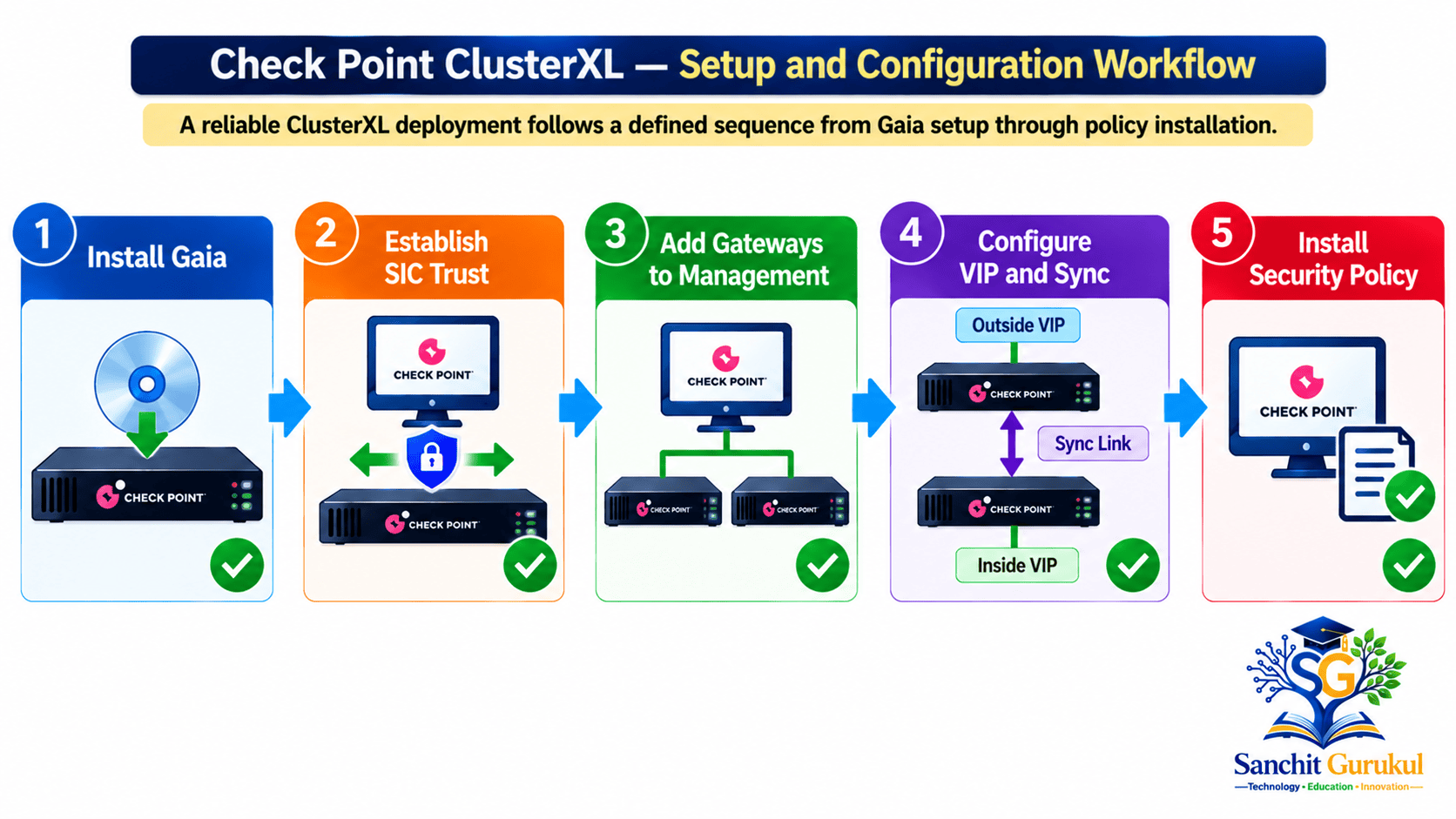
Installing Security Policy and Verifying ClusterXL Health
Step 10 — Configure and Install Security Policy
In SmartConsole, open:
Security Policies
Configure the required Access Control rules.
Review the selected policy package and installation targets.
Then:
- Publish the SmartConsole changes.
- Select Install Policy.
- Choose the ClusterXL object as the installation target.
- Use the approved cluster policy installation settings.
- Verify the policy installation completes successfully on the intended members.
Do not create unrestricted production access rules simply to bring the cluster online.
Step 11 — Verify Active and Standby Status
Log in to both gateways.
In Gaia Clish:
show cluster stateFrom Expert mode:
cphaprob stateFor a healthy conventional two-member HA cluster, the expected result is generally:
| Gateway | Expected State |
|---|---|
| Gateway 1 | ACTIVE |
| Gateway 2 | STANDBY |
The actual active member depends on member priority, health and recovery settings.
If both members show unexpected states, investigate before introducing production traffic.
Step 12 — Verify Cluster Interfaces and Synchronization
From Expert mode:
Check cluster interfaces:
cphaprob -a ifCheck synchronization statistics:
cphaprob syncstatCheck monitored cluster components:
cphaprob listReview interface status, synchronization health and reported Critical Devices.
Unexpected DOWN states or synchronization failures should be investigated.
Step 13 — Test Network Connectivity
After policy installation, verify the required network paths.
For example:
- Check routing toward the inside and outside networks.
- Confirm the expected cluster VIP is reachable.
- Test an approved application through the active member.
- Verify the matching Security Policy rule.
- Review traffic logs in Logs & Monitor.
Successful management connectivity does not prove that production forwarding is correct.
Step 14 — Perform an Approved Failover Test
A planned failover test helps confirm the cluster’s recovery behavior.
Before testing:
- Confirm both members are healthy.
- Verify synchronization is operating.
- Record the currently active member.
- Establish the expected application behavior.
- Obtain maintenance approval.
Perform the failover using a method supported by the specific cluster deployment.
Afterward, verify:
- The standby member becomes active when expected.
- The cluster VIP remains available.
- Required traffic resumes or continues within the accepted recovery target.
- Logs and monitoring show the expected state transition.
Do not reboot the active gateway as an informal failover test.
Post-Configuration Verification Checklist
| No. | Verification Item | Expected Result |
|---|---|---|
| 1 | Management Server and SmartConsole | Accessible |
| 2 | SIC trust on both gateways | Established |
| 3 | Gateway versions and licenses | Compatible |
| 4 | Interface addressing and routing | Correct |
| 5 | Cluster VIPs and network topology | Verified |
| 6 | Synchronization network | Healthy |
| 7 | Security Policy installation | Successful |
| 8 | Cluster member states | ACTIVE / STANDBY |
| 9 | Application and log tests | Passed |
| 10 | Failover testing, if approved | Passed or scheduled |
Common ClusterXL Problems
| Problem | Possible Cause |
|---|---|
| SIC initialization fails | Management connectivity or Activation Key mismatch |
| Both members report unexpected states | Cluster configuration, communication or monitored-device issue |
| Synchronization fails | Sync interface, network or compatibility problem |
| Cluster VIP unreachable | Interface topology, routing or Layer 2 issue |
| Policy installation fails | Management communication, gateway health or policy error |
| Application fails after failover | State synchronization, routing or application limitation |
Key Takeaways
ClusterXL Architecture
- ClusterXL provides High Availability and supported Load Sharing capabilities.
- A traditional HA cluster normally has an active member and standby member.
- The Management Server manages gateways and Security Policies.
- Each cluster member has a unique management address.
- Traffic interfaces use shared Cluster Virtual IPs.
Configuration Process
- Prepare compatible gateway software and network interfaces.
- Install the Security Gateway and ClusterXL components on both members.
- Establish SIC with the Management Server.
- Create the ClusterXL object in SmartConsole.
- Configure traffic VIPs and synchronization.
- Publish changes and install the intended Security Policy.
Verification and Operations
show cluster statedisplays cluster state through Gaia Clish.cphaprob stateverifies member state in Expert mode.cphaprob -a ifchecks cluster interfaces.cphaprob syncstatprovides synchronization information.cphaprob listhelps identify monitored cluster issues.- Failover testing requires a controlled, approved procedure.
Conclusion
Check Point ClusterXL helps organizations improve network security availability through redundant Security Gateways.
A successful deployment requires compatible gateway software, correct interface addressing, established SIC trust, properly configured Cluster Virtual IPs and a suitable synchronization network.
SmartConsole is used to create the cluster object and install the required Security Policy.
After configuration, administrators must verify cluster state, interface health, synchronization and application connectivity.
The cluster should not be considered production-ready until the appropriate validation and recovery checks have been completed.
Next in This Series: Check Point ClusterXL Troubleshooting — Failover Problems, Synchronization Errors, Interface Monitoring and Cluster State Analysis.
Useful Links and References
SanchitGurukul Static Resources
Official External References
Your feedback matters
Was this post helpful?
Discussion
2 approved comments
Leave a Comment
No login is required. Name and email are used for moderation/security. Your email is never displayed publicly. All comments require administrator approval.
Discover more from SanchitGurukul
Subscribe to get the latest posts sent to your email.