
Prerequisites: Basic TCP/IP, IPv4 Addressing, Network Interfaces, Firewall Fundamentals and Console Access
Imagine receiving a new Check Point firewall for your organization.
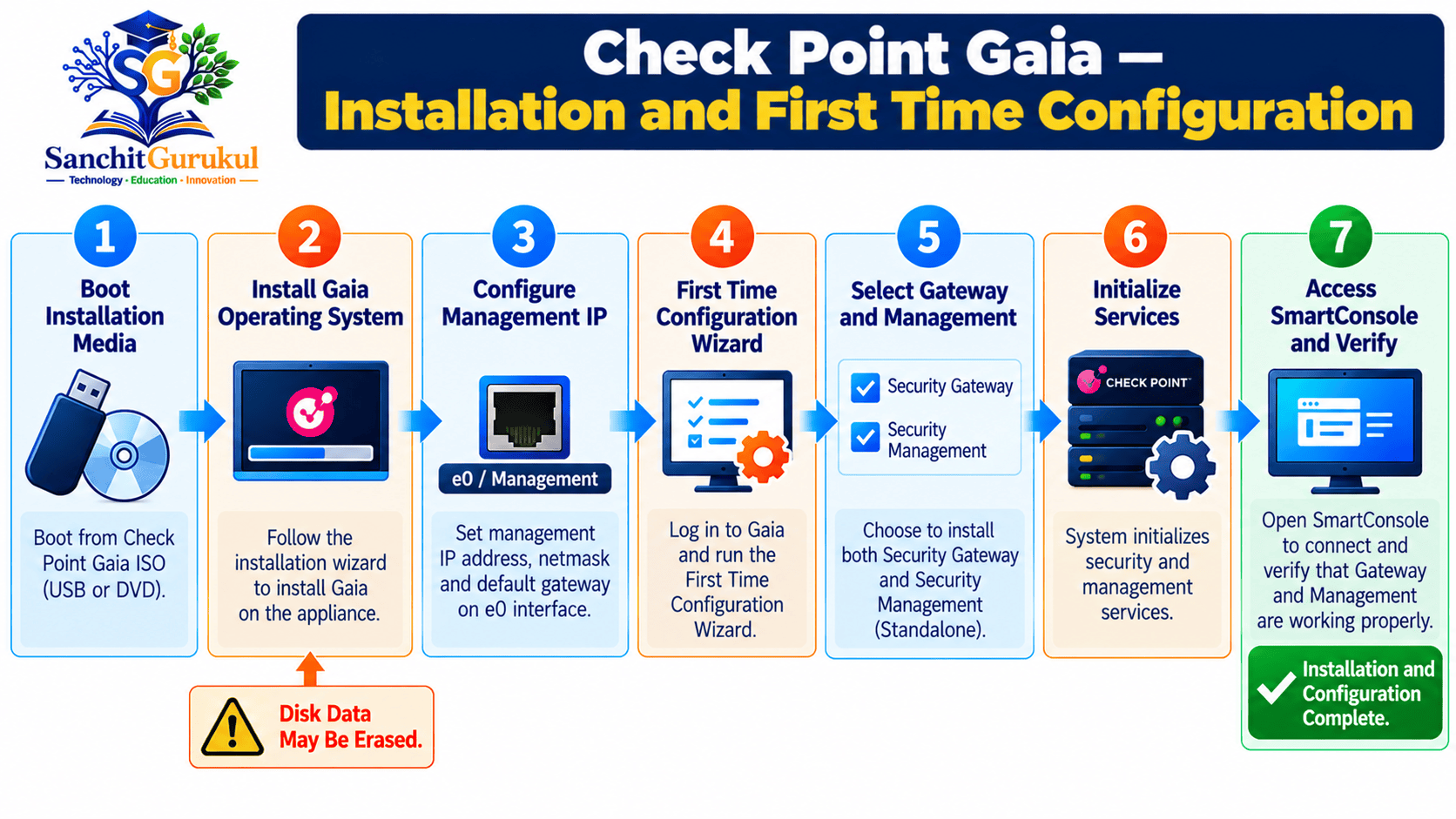
Before the firewall can protect your network, you must install or initialize its operating system, configure management connectivity, select the required security components and establish the management environment.
How do you perform these tasks?
Check Point uses an operating system called Gaia, which provides network configuration, system administration and management services.
After installing Gaia, administrators use the First Time Configuration Wizard to configure the Check Point products that will run on the system.
This article explains how to install and configure a Check Point firewall using a Standalone deployment, where the Security Gateway and Security Management Server run on the same system.
In this article, you will learn:
- What Check Point Gaia is
- How to prepare a firewall for installation
- How to perform a clean Gaia installation
- How to configure the Management Interface
- How to run the First Time Configuration Wizard
- How to select a standalone deployment
- How to configure network interfaces and licensing
- How to install and connect SmartConsole
- How to verify the firewall before production deployment
Understanding Check Point Gaia and Installation Requirements
What Is Check Point Gaia?
Gaia is Check Point’s security operating system.
It provides the foundation for Check Point Security Gateways, Management Servers and other supported products.
Gaia includes:
- Web-based management through Gaia Portal
- Command-line administration through Gaia Clish
- Network interface configuration
- Routing and DNS settings
- System monitoring
- Software updates and snapshots
- Administrative access control
Security Gateway and Security Management are separate Check Point products that can run on Gaia.
Understanding Deployment Types
Before installation, identify the required deployment architecture.
| Deployment Type | Description |
|---|---|
| Security Gateway | Inspects network traffic and enforces Security Policies |
| Security Management Server | Manages gateway objects, policies and administration |
| Standalone | Security Gateway and Management Server on one system |
| ClusterXL | Multiple gateway members providing supported high availability |
| Multi-Domain Server | Centralized management of multiple management domains |
For this tutorial, we will install a Standalone Security Gateway and Management Server.
This arrangement is useful for small deployments and suitable training environments, provided the platform meets Check Point’s standalone sizing and compatibility requirements.
Larger environments commonly use separate Management Servers and Security Gateways.
Example Installation Topology
Consider this simple setup.
| Component | Example Value |
|---|---|
| Check Point System | Supported physical appliance or lab VM |
| Gaia Version | R82.20 |
| Deployment Mode | Standalone |
| Management Interface | Selected during installation |
| Firewall Management IP | 192.0.2.10/24 |
| Administrator Computer | 192.0.2.20/24 |
| Management Gateway | 192.0.2.1, if required |
| Management Method | Gaia Portal and SmartConsole |
These addresses are illustrative documentation addresses. Replace them with actual addresses assigned to your installation network.
For a directly connected management computer on the same subnet, a default gateway is not required for local communication.

Pre-Installation Checklist
Complete these checks before installing Gaia.
| No. | Verification Item | Expected Result |
|---|---|---|
| 1 | Supported appliance or virtual hardware | Confirmed |
| 2 | Gaia release and installation image | Compatible |
| 3 | CPU, memory and disk requirements | Verified |
| 4 | Console or hypervisor access | Available |
| 5 | Management network IP details | Prepared |
| 6 | Administrator credentials | Securely planned |
| 7 | Licensing or evaluation entitlement | Confirmed |
| 8 | Existing configuration backup, if applicable | Safely exported |
Installing Gaia and Running the First Time Configuration Wizard
Step 1 — Prepare the Installation Media
Download the correct Gaia installation image from Check Point’s authorized software distribution source.
The installation method depends on the platform.
| Platform | Common Installation Method |
|---|---|
| Check Point Appliance | Supported recovery or bootable installation media |
| Open Server | Supported clean-install ISO |
| Virtual Machine | Supported ISO attached to the VM |
For Check Point appliances, follow the approved bootable USB or recovery procedure.
For virtual machines, configure the required virtual hardware and attach the installation image.
Step 2 — Connect to the Console
Connect to the physical appliance console or virtual machine console.
Boot the system using the approved Gaia installation media.
The installer presents the supported installation options.
Choose the clean Gaia installation option appropriate to the selected release.
Step 3 — Review Disk and Partition Settings
The installer prepares disk storage for Gaia.
Review the proposed disk layout carefully.
For a supported lab system, the default partition settings may be appropriate.
For production deployments, follow Check Point’s storage requirements for system files, logs, snapshots and upgrades.
Confirm that the correct installation disk is selected.
Step 4 — Configure Initial Administrator Access
Configure the required administrator credentials when prompted.
Use a strong password and store it securely.
Some installation methods also configure initial management access during this stage.
Follow the screens presented by the selected image rather than assuming every Check Point appliance has an identical installation sequence.
Step 5 — Select the Management Interface
Choose the physical or virtual interface that will provide initial Gaia management access.
For example:
eth0
The interface name depends on the appliance or virtual platform.
Configure the management address using the approved network information.
For the example topology:
Management Interface: eth0
IPv4 Address: 192.0.2.10
Subnet Mask: 255.255.255.0
Default Gateway: 192.0.2.1
These are illustrative settings, not commands or a captured device output.
Step 6 — Complete Gaia Installation
Confirm the installation settings.
Allow Gaia to install its operating-system components.
Installation time depends on the selected platform and hardware resources.
When the installer reports completion, follow the prompt to reboot.
Remove or disconnect installation media when required to avoid restarting the installer.
Step 7 — Open Gaia Portal
Connect the administrator computer to the configured management network.
Open:
https://192.0.2.10
Replace the address with your actual Gaia Management Interface IP.
Authenticate using the credentials established through the applicable installation procedure.
Check Point documentation also describes admin/admin as initial credentials for the unconfigured First Time Configuration Wizard in certain installations. Do not assume these apply after an administrator password has already been set.
If the browser displays an untrusted certificate warning, verify that you have reached the intended appliance before proceeding.
Step 8 — Start the First Time Configuration Wizard
After authentication, the First Time Configuration Wizard opens.
Depending on the platform, the Deployment Options screen can offer:
- Continue configuration of the installed release
- Install a supported version from Check Point Cloud
- Install from USB
- Import an existing Gaia snapshot
For this tutorial, select:
Continue with R82.20 configuration
Do not select snapshot recovery unless you are intentionally restoring an appropriate existing system.
Step 9 — Configure Management and Device Information
Configure or confirm:
- Management Interface and IP address
- Default gateway
- Hostname
- DNS servers
- Domain information, if required
- Time zone and NTP settings
- Expert and Maintenance Mode credentials, where presented
If the Management Interface address changes, the existing browser connection may be interrupted.
Reconnect through the new address.
Step 10 — Select the Installation Type
In the Installation Type window, select:
Security Gateway and/or Security Management
Do not select Multi-Domain Server for this standalone example.
Step 11 — Select Standalone Products
In the Products window:
- Enable Security Gateway.
- Enable Security Management.
- Leave Unit is a part of a cluster disabled.
- Set Security Management to Primary, where prompted.
This creates the standalone deployment.
The Gateway and Management components will run on the same supported system.
Step 12 — Configure Management Administration
The wizard presents applicable Management Server administration settings.
Choose the authorized SmartConsole administrator.
Configure the permitted SmartConsole client addresses.
For example, restrict access to the dedicated administrator workstation or management subnet.
Avoid allowing every IP address unless the deployment specifically requires it and compensating security controls are in place.
Review the remaining wizard summary and finish the configuration.
Allow the services to initialize. Reboot if prompted by the wizard.
Completing Interface, License and SmartConsole Configuration
Step 13 — Verify Gaia Interfaces
After the First Time Configuration Wizard, open Gaia Portal.
Navigate to:
Network Management → Network Interfaces
Review the interfaces that will be used for network connectivity.
Enable and configure only the required interfaces using your approved network design.
To examine interfaces in Gaia Clish:
show interfaces allTo check the current Management Interface:
show management interfaceTo view routing information:
show routeThese are read-only verification commands.
When changing configuration through Gaia Clish, use save config to persist applicable changes.
Step 14 — Verify Licensing
A production deployment requires appropriate licensing and support entitlements.
In Gaia Portal, navigate to:
Maintenance → Licenses
Install or activate the license using the approved Check Point procedure.
For CLI verification:
cplic printThis displays locally available Check Point license information.
A trial license may be available in certain circumstances, but its duration and features should not be assumed to be identical for every installation.
Step 15 — Download and Install SmartConsole
SmartConsole is the management application used to configure Security Policies and manage Check Point security objects.
For the standalone installation, download a compatible SmartConsole package.
In Gaia Portal:
Maintenance → Download SmartConsole
Alternatively, download the supported package through Check Point’s official software distribution source.
Install the desktop SmartConsole package on a supported Windows computer.
Some supported Management Server releases also provide Web SmartConsole.
Step 16 — Connect SmartConsole to the Firewall
Open SmartConsole.
Enter:
| Setting | Example |
|---|---|
| Management Server | 192.0.2.10 |
| Username | Configured management administrator |
| Password | Administrator password |
On first connection, verify the Management Server identity and certificate fingerprint using a trusted method.
After successful login, open:
Gateways & Servers
Locate the standalone server object.
Verify that the platform and installed product information match the deployment.
Step 17 — Configure and Install a Security Policy
The initial setup is not a complete production firewall configuration.
In SmartConsole:
- Review the standalone gateway object.
- Configure the required Security Zones or interface topology where applicable.
- Enable the intended licensed Software Blades.
- Open Security Policies.
- Create the required Access Control rules.
- Verify the policy.
- Publish the changes.
- Select Install Policy.
- Install the policy on the standalone gateway.
- Confirm that installation completes successfully.
Do not introduce broad production allow rules simply to make the firewall pass traffic during setup.
Post-Installation Verification Checklist
| No. | Verification Item | Expected Result |
|---|---|---|
| 1 | Gaia installation and reboot | Successful |
| 2 | Management IP and Gaia Portal | Accessible |
| 3 | Hostname, DNS, time and NTP | Verified |
| 4 | Security Gateway and Management roles | Correct |
| 5 | Cluster configuration | Disabled for standalone |
| 6 | Network interfaces and routing | Verified |
| 7 | License status | Valid for deployment |
| 8 | SmartConsole access | Successful |
| 9 | Security Policy installation | Successful |
| 10 | Application and log verification | Passed |
Common Installation Problems
| Problem | Possible Cause |
|---|---|
| Gaia Portal unavailable | Incorrect IP, interface or routing |
| First Time Wizard fails | Software, resource or configuration issue |
| SmartConsole login fails | Credentials, permitted clients or connectivity |
| Missing Security Gateway object | Management configuration not completed |
| License unavailable | Incorrect entitlement or activation |
| Policy installation fails | Policy, gateway health or communication problem |
| Application traffic fails | Routing, NAT, interface topology or security policy |
Key Takeaways
Gaia Installation
- Gaia is the operating system used by Check Point security products.
- Clean installation can overwrite existing system data.
- The installation image must match the supported platform.
- The Gaia management address is configured during installation.
First Time Configuration
- The wizard establishes the initial network and product configuration.
- Standalone deployment runs Security Gateway and Management Server together.
- Select both products and disable clustering for a standalone installation.
- Restrict permitted SmartConsole clients to authorized systems.
Management and Verification
- Gaia Portal manages operating-system settings.
- SmartConsole manages security objects and policies.
- Licenses must match the actual deployment.
show interfaces allchecks interface configuration.cplic printdisplays license information.- A Security Policy must be installed and validated before production use.
Conclusion
Installing a Check Point firewall requires more than loading an operating-system image.
The administrator must prepare the system, configure Gaia, select the correct deployment roles and establish reliable management connectivity.
For a standalone deployment, the Security Gateway and Security Management Server operate on the same supported system.
SmartConsole is then used to manage the firewall’s Security Policy and installed Software Blades.
The most important final step is verifying that the intended security policy and network connectivity are working before the appliance enters production.
Next in This Series: Check Point ClusterXL Installation and Initial Configuration — Active/Standby Members, Synchronization and SmartConsole Setup.
Useful Links and References
SanchitGurukul Static Resources
Official External References
Your feedback matters
Was this post helpful?
Discussion
3 approved comments
Leave a Comment
No login is required. Name and email are used for moderation/security. Your email is never displayed publicly. All comments require administrator approval.
Discover more from SanchitGurukul
Subscribe to get the latest posts sent to your email.