
Prerequisites: Basic Networking, TCP/IP, Firewall Fundamentals and Security Zones
Imagine a company with several network security requirements.
Employees need access to approved websites.
Administrators need SSH access to certain network devices.
Guest users must not access internal company servers.
How does a firewall decide which connections to permit and which to block?
It uses a Security Policy Rule Base.
In Check Point, a Rule Base contains rules describing which network connections are allowed, denied or subjected to additional security processing.
However, modern Check Point policies can contain multiple layers.
This introduces an important concept:
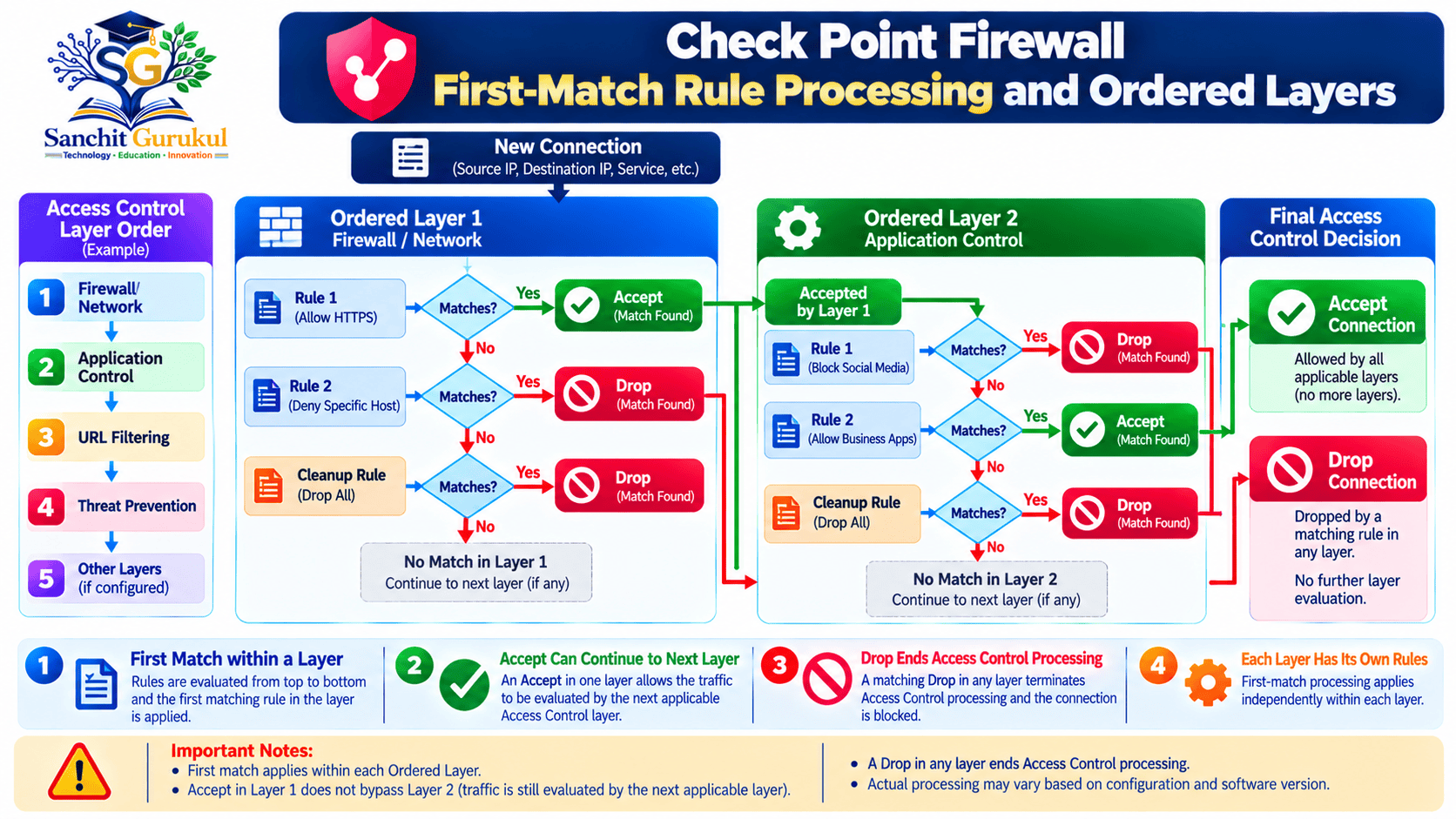
The first matching rule determines the decision within its current policy layer, but it does not always determine the final decision for the entire connection.
In this article, you will learn:
- What a Check Point Rule Base is
- How Security Policy rules are structured
- What first-match processing means
- Why an Accept rule may not be the final decision
- How Ordered Layers and Inline Layers work
- How cleanup and implied rules affect matching
- How to create, verify and troubleshoot Access Control rules
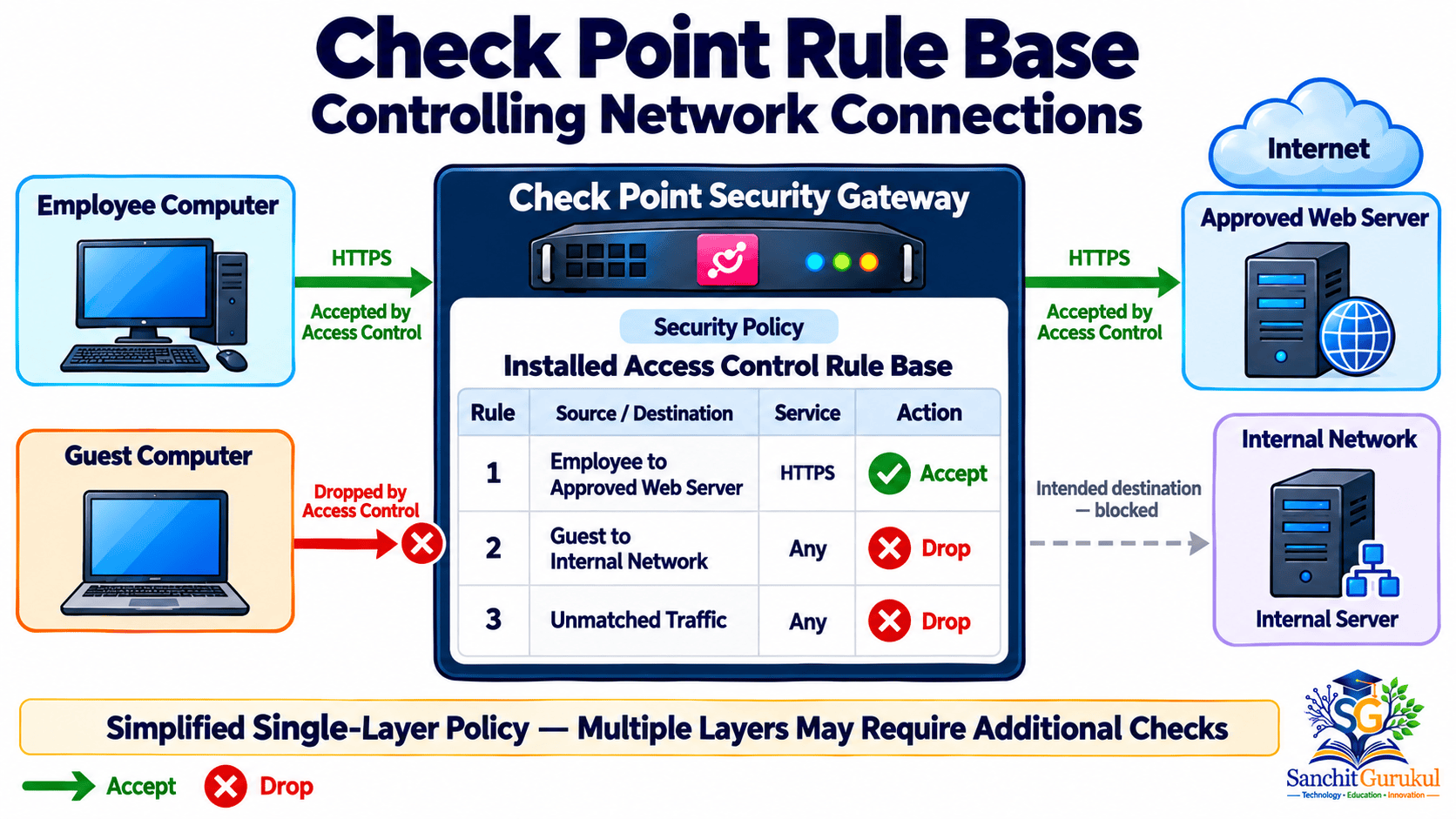
What Is a Check Point Rule Base?
A Rule Base, also called a Rulebase, is an organized collection of rules within a security policy.
Administrators use SmartConsole to create and maintain these rules.
The Security Management Server stores the policy configuration.
The Security Gateway enforces the installed policy.
Rule Base, Policy and Layer
| Term | Simple Explanation |
|---|---|
| Rule | Defines matching conditions and an action |
| Rule Base | Collection of security rules |
| Access Control Policy | Controls which network connections are permitted |
| Policy Layer | Organizes a separate set of Access Control rules |
| Policy Package | Groups applicable policies for installation |
| Security Gateway | Enforces installed policies |
A modern Check Point Access Control Policy can contain one or more Ordered Layers and may include Inline Layers.
Important Rule Base Columns
| Column | Purpose |
|---|---|
| No. | Rule position within the layer |
| Name | Descriptive rule name |
| Source | Where traffic originates |
| Destination | Where traffic is going |
| VPN | Applicable VPN conditions |
| Services & Applications | Service, protocol, application or website |
| Content | Applicable content conditions |
| Action | What the firewall should do |
| Track | Logging and tracking options |
| Install On | Applicable gateway or installation targets |
| Time | When the rule applies |
| Hits | Number of matching connections collected |
| Comment | Explanation of the rule |
Not every column is shown by default.
Available features depend on the enabled Software Blades and policy configuration.
Action vs Track
These fields must not be confused.
Action determines how the firewall handles matching traffic.
Common actions include:
- Accept
- Drop
- Reject
- Inline Layer
- Other supported actions such as Ask or Inform
Track determines how the event is recorded or reported.
Examples include:
- None
- Log
- Accounting
- Supported alerts
A rule with Action: Drop and Track: Log blocks matching traffic and creates the configured log information.
Are Rule Numbers Permanent?
No.
A rule number represents the rule’s current position in its layer.
Adding, moving or deleting rules can change their displayed numbers.
Use descriptive names and appropriate documentation rather than relying only on a rule number.
How First-Match Rule Processing Works
What Does First Match Mean?
In a simple Check Point Access Control layer, rules are evaluated in their configured order.
For a new connection, the firewall checks the conditions of the first applicable rule.
If those conditions do not match, it continues to the next rule.
When a rule matches, the firewall applies the action associated with that rule.
It does not continue searching for a more specific rule farther down the same normal rule sequence simply because that lower rule would be more restrictive.
This is the essential meaning of first-match processing.
Example — Single-Layer Rule Base
Consider this simplified Firewall/Network layer:
| No. | Name | Source | Destination | Service | Action |
|---|---|---|---|---|---|
| 1 | Allow_Admin_SSH | Admin_Net | Gateway_Objects | SSH | Accept |
| 2 | Block_Guest_Internal | Guest_Net | Internal_Net | Any | Drop |
| 3 | Allow_Employee_Web | Employee_Net | DMZ_Web_Server | HTTPS | Accept |
| 4 | Cleanup_Drop | Any | Any | Any | Drop |
Scenario 1 — Administrator SSH
An administrator starts an authorized SSH connection to a gateway.
Rule 1 matches.
The firewall applies Accept for the current layer.
Rules 2, 3 and 4 are not evaluated for this connection within that layer’s normal rule sequence.
If this is the only Access Control layer, the connection has satisfied that layer.
Other applicable security and system controls may still apply.
Scenario 2 — Guest Access to Internal Server
A guest computer attempts to reach an internal server.
- Rule 1 does not match.
- Rule 2 matches.
- Action is Drop.
Result: The connection is blocked.
Rules 3 and 4 are not evaluated.
Scenario 3 — Employee HTTPS Access
An employee attempts an HTTPS connection to the approved DMZ web server.
- Rule 1 does not match.
- Rule 2 does not match.
- Rule 3 matches.
- Action is Accept.
Result: The connection is accepted by the current layer.
If another Ordered Layer follows, matching continues in that next layer.
Scenario 4 — No Business Rule Matches
Suppose a guest attempts to connect to an unrelated destination using an unauthorized service.
None of the first three rules match.
Rule 4 is an explicit cleanup rule with:
Source: Any
Destination: Any
Service: Any
Action: Drop
The cleanup rule matches and blocks the connection.
First-Match Decision Summary
| Situation | Processing Result |
|---|---|
| Current rule does not match | Continue to the next rule in the current layer |
| Matching rule uses Drop | Block connection; stop further Access Control matching |
| Matching rule uses Accept | Stop checking other rules in that layer |
| Another Ordered Layer exists after Accept | Continue matching in that next Ordered Layer |
| Matching rule invokes an Inline Layer | Evaluate that Inline Layer’s sub-rules |
| No earlier rule matches | Apply the layer’s cleanup behavior |
Important — Accept Does Not Always Mean Final Allow
This is the most important distinction in modern Check Point Rule Base processing.
Example: Two Ordered Layers
An organization has:
Layer 1 — Firewall/Network
A rule permits employees to connect to the internet using HTTPS.
Layer 2 — Application Control
A rule blocks an unauthorized web application.
Now an employee attempts to access that application through HTTPS.
| Stage | Matching Rule | Action | Result |
|---|---|---|---|
| Layer 1 — Firewall/Network | Allow Employee HTTPS | Accept | Continue to Layer 2 |
| Layer 2 — Application Control | Block Restricted Application | Drop | Connection blocked |
Although Layer 1 accepted the connection, Layer 2 denied it.
Final Access Control result: Drop.
The connection must satisfy each applicable Ordered Layer.
For this reason, first-match means first matching rule within the current layer, not always first matching rule across the entire policy.
Two-Layer Example with Three Connections
| Connection | Network Layer | Application Layer | Final Access Control Result |
|---|---|---|---|
| Employee → Approved website | Accept | Accept | Accept |
| Employee → Restricted web application | Accept | Drop | Drop |
| Guest → Internal server | Drop | Not reached | Drop |
The table demonstrates how the same connection can be accepted at one stage but blocked at another.
Does Every Packet Repeat the Rule Search?
No.
Check Point is a stateful firewall.
It maintains connection-state information and supports acceleration technologies.
After a connection is established, subsequent packets do not necessarily repeat a complete new-connection Rule Base search.
Application-aware rules may also require additional connection data before an application can be identified.
The examples above describe the logical policy decision, not a guaranteed sequence of internal packet-processing operations.
Ordered Layers, Inline Layers and Cleanup Rules
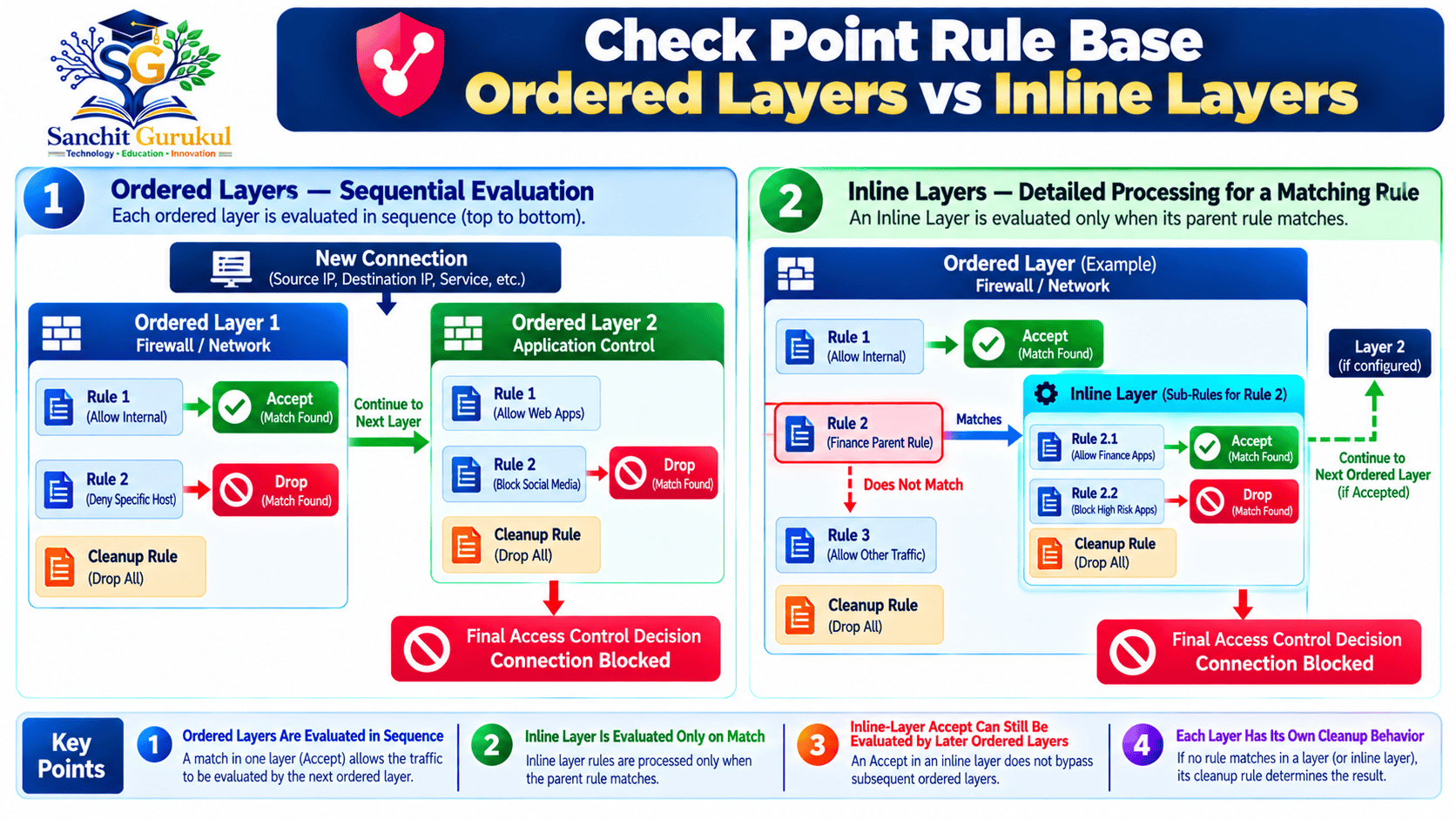
1. Ordered Layers
Ordered Layers divide Access Control into separate policy evaluations.
For example:
- Layer 1 — Firewall/Network
- Layer 2 — Application Control
- Layer 3 — Content Awareness
Each layer contains its own rules.
The firewall evaluates the applicable layers in order.
Within each layer, the first matching rule determines that layer’s action.
A matching Drop ends Access Control processing.
A matching Accept can continue to the next Ordered Layer.
2. Inline Layers
An Inline Layer works differently.
It is a sub-policy connected to a parent rule within an Ordered Layer.
For example:
| No. | Source | Destination | Service | Action |
|---|---|---|---|---|
| 1 | Admin_Net | Gateway_Objects | SSH | Accept |
| 2 | Finance_Net | Any | Any | Finance_Access Inline Layer |
| 2.1 | Any | Finance_App | HTTPS | Accept |
| 2.2 | Any | Any | Any | Drop |
| 3 | Any | Employee_Portal | HTTPS | Accept |
In this example:
If Rule 2 does not match:
The firewall continues to Rule 3 in the parent Ordered Layer.
If Rule 2 matches:
The firewall enters the Finance_Access Inline Layer.
It evaluates Rule 2.1, then Rule 2.2 if necessary.
If Rule 2.1 matches:
The Inline Layer applies Accept.
No additional sibling rules in the parent Ordered Layer are evaluated for that matched parent-rule path.
If another Ordered Layer follows, its checks can still apply.
If Rule 2.1 does not match:
The Inline Layer continues to Rule 2.2.
Rule 2.2 is the cleanup rule and drops the connection.
The firewall does not return to Rule 3 in the parent Ordered Layer.
Inline Layer Decision Summary
| Condition | Result |
|---|---|
| Parent rule does not match | Continue to next parent-level rule |
| Parent rule matches | Enter the Inline Layer |
| Sub-rule matches Accept | Accept within the Inline Layer; continue to any later Ordered Layer |
| Sub-rule matches Drop | Block the connection |
| No sub-rule matches | Apply Inline Layer cleanup behavior |
| Inline Layer processing completes | Do not resume at the next sibling rule in the parent layer |
This last point is important.
An Inline Layer is not simply a temporary detour that automatically returns to the next parent-level rule.
3. Explicit Rules
An explicit rule is created and configured by an administrator.
Examples include:
- Allow approved HTTPS traffic
- Block guest access to internal networks
- Restrict administrative SSH
- Drop unmatched traffic
4. Implied Rules
Check Point also provides implied rules controlled through supported Global Properties settings.
They support certain management and infrastructure communication requirements.
Their configured positions can include:
- First
- Before Last
- Last
Implied rules are separate from ordinary explicit rules.
Therefore, the statement “Rule 1 is always the first rule evaluated” is not universally accurate without considering applicable implied rules.
5. Explicit Cleanup Rules
An explicit cleanup rule is a visible rule that handles otherwise unmatched traffic.
Example for a Firewall/Network layer:
| Source | Destination | Service | Action | Track |
|---|---|---|---|---|
| Any | Any | Any | Drop | Log |
Check Point recommends an explicit cleanup rule at the end of each Access Control Layer.
For some Application Control layer designs, a cleanup Accept is appropriate to allow traffic not otherwise blocked by that application layer.
The cleanup action should reflect the intended purpose of the layer.
6. Implicit Cleanup Rules
Each layer also has an implicit cleanup rule.
It provides a fallback when no other applicable rule matches.
The implicit cleanup action can be configured as Accept or Drop in the layer settings.
An explicit cleanup rule should be consistent with the intended implicit cleanup behavior.
Cleanup Rule Comparison
| Layer | Illustrative Explicit Cleanup Action | Reason |
|---|---|---|
| Firewall/Network | Drop | Deny traffic not explicitly permitted |
| Application Control | Accept | Allow traffic not blocked by application restrictions |
| Inline Layer | Drop | Restrict unmatched traffic within a specific sub-policy |
These are illustrative designs, not mandatory cleanup actions for every environment.
[/SG-VISUAL]
Configuring, Verifying and Troubleshooting Rules
Step 1 — Open the Rule Base
- Open SmartConsole.
- Connect to the Security Management Server.
- Select Security Policies.
- Open the appropriate policy package.
- Navigate to Access Control → Policy.
- Select the required Ordered Layer.
Step 2 — Create Network Objects
For this example, assume the following objects are available:
| Object | Type | Value |
|---|---|---|
| Employee_Net | Network | 192.168.10.0/24 |
| Guest_Net | Network | 172.16.50.0/24 |
| Internal_Net | Network | 192.168.10.0/24 |
| DMZ_Web_Server | Host | 10.20.30.10 |
Step 3 — Add an Access Control Rule
Select the intended position in the Rule Base.
Choose New Rule Above or New Rule Below.
Configure:
| Field | Example |
|---|---|
| Name | Allow_Employee_DMZ_HTTPS |
| Source | Employee_Net |
| Destination | DMZ_Web_Server |
| Service | HTTPS |
| Action | Accept |
| Track | Log |
| Install On | Applicable Security Gateway |
| Time | Any |
Review the rules above it.
An earlier matching Drop rule could prevent the new Accept rule from being reached.
Step 4 — Review Policy Layers
Before publishing:
- Confirm the intended rule belongs to the correct Ordered Layer.
- Check whether the rule invokes an Inline Layer.
- Review relevant cleanup behavior.
- Check whether later Ordered Layers could restrict the connection.
- Confirm that implied rules and rule order are understood.
Step 5 — Publish and Install Policy
Click Publish to save the management changes.
Then:
- Select Install Policy.
- Confirm the required policy package.
- Select the intended Security Gateway or Cluster.
- Install the appropriate Access Control Policy.
- Confirm successful installation.
Publishing alone does not update the installed policy on the gateway.
Step 6 — Verify the Installed Policy
On a supported Security Gateway, enter Expert mode.
Run:
cpstat -f policy fwThis command displays information about the installed firewall policy.
Review the policy name and relevant installation information.
It does not show every individual rule match.
Step 7 — Test a Permitted Connection
From an authorized Linux client with Netcat installed:
nc -vz -w 3 10.20.30.10 443The destination must have a working HTTPS service on TCP port 443.
If the route and applicable security policies permit communication, the connection should succeed.
Illustrative expected output:
Connection to 10.20.30.10 443 port [tcp/https] succeeded!Step 8 — Test a Blocked Connection
From an authorized guest test client, attempt to connect to an internal test server:
nc -vz -w 3 192.168.10.50 443If a matching Drop rule applies, the TCP connection should not succeed.
Possible illustrative output:
nc: connect to 192.168.10.50 port 443 (tcp) timed outA timeout alone does not prove that a Check Point rule blocked the connection.
Routing, the target service or another security control may also cause the failure.
Step 9 — Review Logs and Rule Matches
In SmartConsole:
- Open Logs & Events.
- Search for the source and destination IP addresses.
- Review the connection’s action.
- Identify the matching rule and applicable policy layer.
- Check whether any later Ordered Layer blocked the connection.
For example, a connection may pass the Firewall/Network layer but be blocked in the Application Control layer.
The relevant log information should be interpreted with this layered behavior in mind.
Step 10 — Review Hit Count
In the Access Control Rule Base:
- Display the Hits column.
- Right-click the relevant rule number.
- Select Hit Count → Display.
- Select the required display method.
- Review the available timeframe.
- Refresh the Hit Count when needed.
Hit Count measures matching connections collected from supported gateways with Hit Count enabled.
It works independently of the rule’s Track setting.
Hit Count vs Logging
| Feature | Main Purpose |
|---|---|
| Hit Count | Shows how many connections matched a rule |
| Log | Records details of configured security events |
| Policy Status | Helps verify the installed policy |
| Rule Matching Review | Helps explain which rule or layer affected a connection |
Common First-Match Troubleshooting Problems
| Problem | Possible Cause | What to Review |
|---|---|---|
| Accept rule is never reached | Earlier matching Drop rule | Rule order |
| Connection matches Accept but still fails | Later Ordered Layer or another security control | All applicable policy layers |
| Inline Layer rule is unexpected | Parent rule matched and entered sub-policy | Parent and sub-rules |
| Lower parent-level rule never matches | Inline Layer already handled the connection | Inline Layer cleanup |
| Unmatched traffic is unexpectedly accepted | Cleanup action is Accept | Explicit and implicit cleanup settings |
| New rule has no effect | Policy not installed | Installation status |
| Rule Hit Count is zero | No collected matches or feature limitation | Timeframe, gateway and matching conditions |
| Application rule behaves differently than expected | Application classification requires deeper traffic inspection | Application logs and layer design |
Best Practices
- Use descriptive rule names.
- Keep restrictive network rules clear and easy to locate.
- Review all relevant Ordered Layers before treating an Accept as final.
- Use Inline Layers for logical organization when appropriate.
- Add an explicit cleanup rule to each layer.
- Keep cleanup actions consistent with the intended layer behavior.
- Check matching logs before changing rule order.
- Avoid broad
Any → Any → Acceptrules without a specific approved purpose. - Verify successful policy installation after changes.
- Document changes and maintain an approved rollback procedure.
Key Takeaways
First-Match Logic
- Rules are checked in order within the current Access Control layer.
- The first matching rule determines that layer’s decision.
- A matching Drop blocks the connection.
- A matching Accept stops normal rule matching within that layer.
- An Accept may continue into the next Ordered Layer.
Policy Layers
- Ordered Layers apply separate policy checks in sequence.
- Inline Layers are evaluated when their parent rule matches.
- Once an Inline Layer handles a matched parent rule, evaluation does not resume at the next sibling rule in that parent layer.
- Each layer has its own cleanup behavior.
- Implied rules may affect the effective order of rule evaluation.
Configuration and Verification
- SmartConsole manages the Rule Base.
- Publish saves changes to management.
- Install Policy deploys changes to the gateway.
cpstat -f policy fwverifies installed policy information.- Logs help identify matching rules and actions.
- Hit Count shows collected connection matches, not the total packet count.
The Check Point Rule Base controls how Security Gateways evaluate network communication.
The first-match principle is fundamental, but it must be understood within the context of modern layered policies.
In a single-layer Rule Base, the first matching rule determines the Access Control action for that layer.
When multiple Ordered Layers exist, a connection accepted in one layer can still be blocked by another.
Inline Layers introduce additional sub-rule evaluation through matching parent rules, and cleanup rules determine what happens when no other applicable rule matches.
Understanding these differences makes firewall policies easier to design, verify and troubleshoot.
Next Article: Check Point Firewall Policy Layers Explained — Ordered Layers, Inline Layers, Implied Rules and Cleanup Rules.
Useful Links and References
SanchitGurukul Static Resources
Official External References
Your feedback matters
Was this post helpful?
Discussion
0 approved comments
No approved comments yet. You can start the discussion below.
Leave a Comment
No login is required. Name and email are used for moderation/security. Your email is never displayed publicly. All comments require administrator approval.
Discover more from SanchitGurukul
Subscribe to get the latest posts sent to your email.