
Prerequisites: Basic Networking, Firewall Rules, Interfaces and Routing
Imagine a company with four different networks:
- An internal network for employees
- A separate network for public-facing servers
- A guest Wi-Fi network
- An internet connection
These networks have different security requirements.
Employees may need internet access, but guest users should not be able to connect to internal company servers.
Public users may need access to a web server in the DMZ, but they should not be able to access sensitive company resources.
How can the firewall administrator organize these access requirements without creating separate rules for every individual subnet?
One useful approach is to use Check Point Security Zones.
Security Zones allow administrators to group firewall interfaces into logical network areas and use those areas in security policies.
In this article, you will learn:
- What Check Point Security Zones are
- How predefined and custom zones differ
- How zones relate to firewall interfaces
- How zone-based Access Control rules work
- How NAT and routing affect zone identification
- How to create and assign zones in SmartConsole
- How to verify and troubleshoot zone-based policies
What Are Check Point Security Zones?
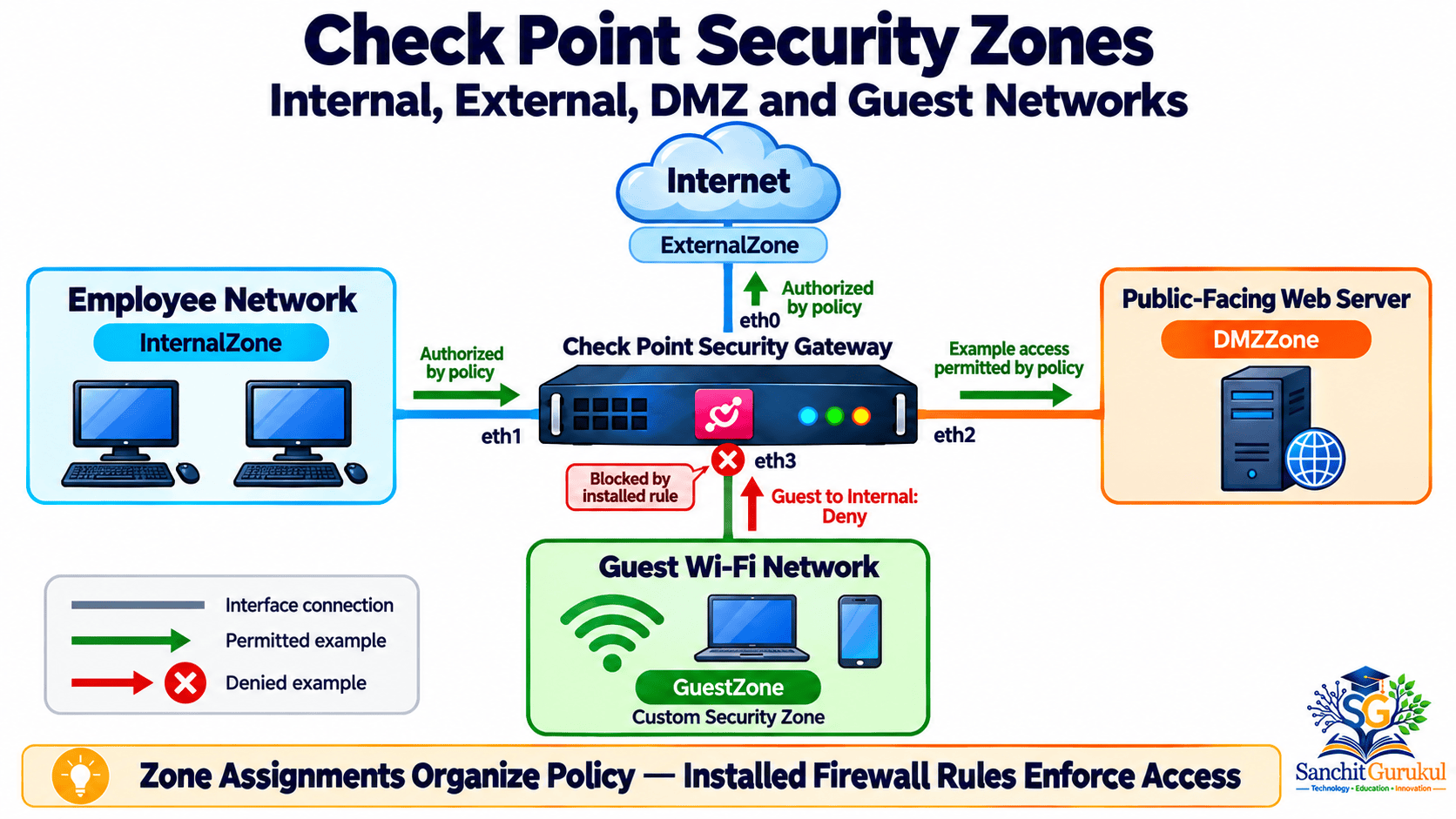
A Security Zone is a logical Check Point network object that represents a part of the network.
Administrators assign Security Zone objects to Security Gateway interfaces.
These zone objects can then be used in the Source and Destination columns of the Access Control Rule Base.
For example:
A firewall rule may allow traffic from InternalZone to ExternalZone using HTTPS.
Another rule may block traffic from GuestZone to InternalZone.
This makes firewall policies easier to understand and maintain.
Important Characteristics
- A firewall interface belongs to one Security Zone.
- Multiple interfaces can belong to the same Security Zone.
- A Security Zone can be used in supported Access Control rules.
- Zone assignments are associated with gateway interfaces.
- Security Zones do not automatically create permit or deny rules.
Predefined Security Zones
Check Point provides predefined Security Zone objects.
| Predefined Zone | Intended Purpose |
|---|---|
| InternalZone | Internal company networks |
| ExternalZone | Internet or other external networks |
| DMZZone | Network for controlled access to public-facing servers |
| WirelessZone | Wireless network environments |
Administrators can also create custom zones such as:
- GuestZone
- ManagementZone
- FinanceZone
- ServerZone
These are examples of custom names, not additional predefined Check Point zones.
Security Zones vs Network Objects
These two objects are related but different.
| Object | Represents |
|---|---|
| Network Object | A specific subnet, such as 192.168.10.0/24 |
| Host Object | A specific IP address |
| Security Zone | A logical network area associated with gateway interfaces |
| Network Group | A collection of network or host objects |
For example:
InternalZone may be assigned to several internal interfaces.
Each interface might connect to different subnets.
The Security Zone can represent the broader internal area without listing every subnet individually in the same rule.
How Zone-Based Firewall Policies Work
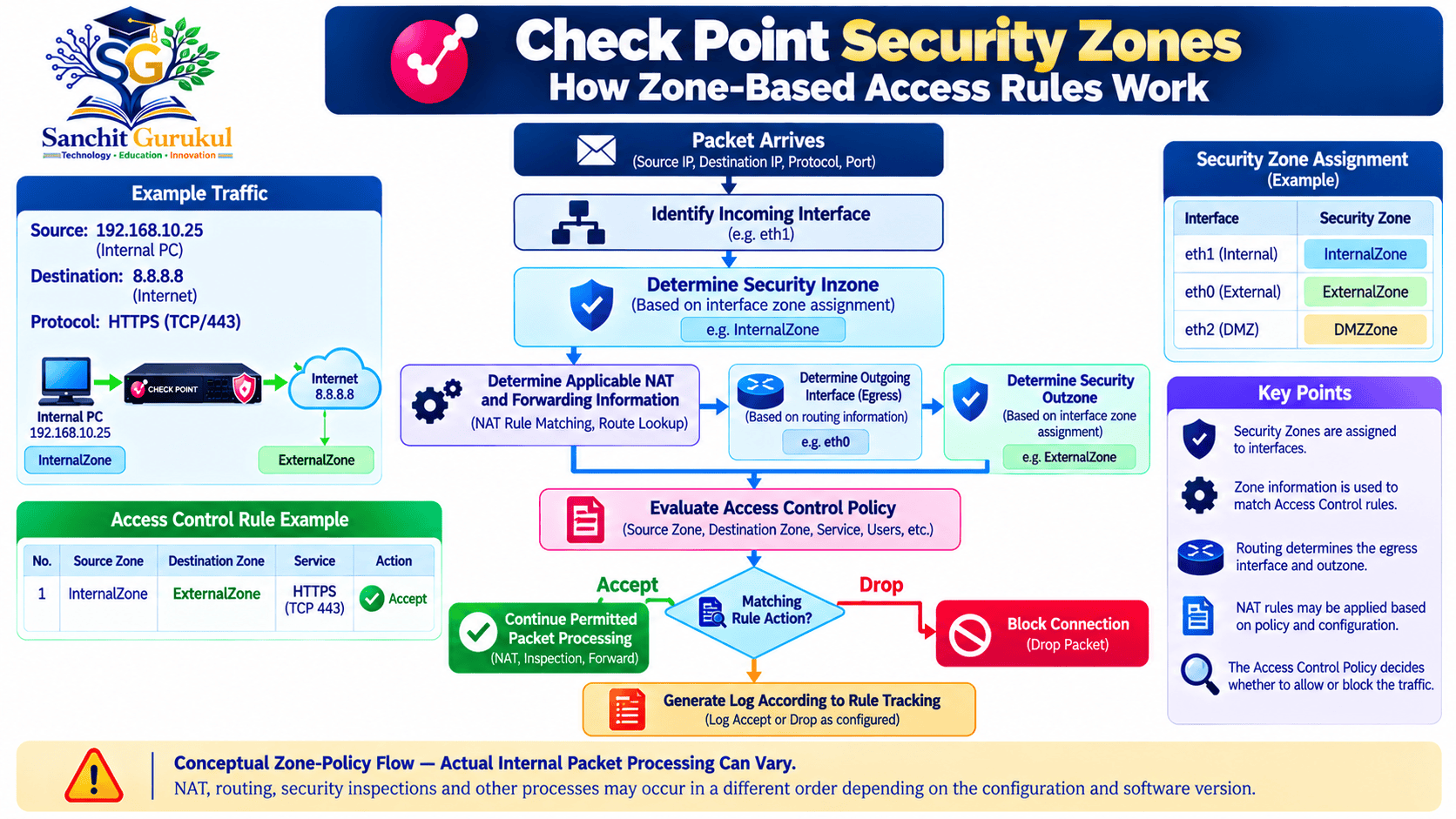
When a packet enters the firewall, the gateway can identify the Security Zone associated with the incoming interface.
The gateway also determines the appropriate outgoing interface for the connection.
The Security Zone associated with that outgoing interface can be used when evaluating a zone-based rule.
Example Network
Consider a Security Gateway with four interfaces.
| Interface | Network | Security Zone |
|---|---|---|
| eth0 | Internet connection | ExternalZone |
| eth1 | 192.168.10.0/24 | InternalZone |
| eth2 | 10.0.20.0/24 | DMZZone |
| eth3 | 172.16.50.0/24 | GuestZone |
These interface names and addresses are illustrative.
Example 1 — Employee Internet Access
An employee at 192.168.10.25 connects to a website.
The traffic enters through eth1.
The corresponding incoming zone is:
InternalZone
The permitted internet-bound route uses eth0.
The outgoing zone is:
ExternalZone
A matching policy rule can allow HTTPS communication.
Example 2 — Guest Access to Internal Resources
A guest device at 172.16.50.25 attempts to connect to an internal server.
The traffic enters through eth3.
Its source zone is:
GuestZone
The intended destination is located behind an interface assigned to:
InternalZone
A configured rule can deny the connection.
Example 3 — Internet Access to a DMZ Web Server
An external user attempts to reach a published web application.
The traffic enters through ExternalZone.
The forwarding path leads to a server in DMZZone.
A suitable firewall policy may permit HTTPS access to the specific published server.
The rule should be restricted to the required destination and service rather than automatically allowing all external HTTPS traffic to every server in the DMZ.
Example Access Control Policy
| Source | Destination | Service | Action |
|---|---|---|---|
| InternalZone | ExternalZone | HTTPS | Accept |
| ExternalZone | DMZ_Web_Server | HTTPS | Accept |
| GuestZone | InternalZone | Any | Drop |
| DMZZone | InternalZone | Any | Drop |
| GuestZone | ExternalZone | DNS, HTTP, HTTPS | Accept |
This is a simplified policy illustration, not a complete production rule base.
DMZ_Web_Server represents a host object for one approved web server.
The required rules must be placed in the appropriate order and installed on the correct gateway.
Why Rule Order Matters
Check Point evaluates Access Control rules according to the configured ordered Rule Base and its policy layers.
A broad Accept rule placed above a restrictive Drop rule may allow traffic that the lower rule was intended to block.
Therefore, zone-based policies should follow the principle of least privilege.
This means permitting only the network communication that users and applications need.
How NAT and Routing Affect Zone Identification
This is an important concept.
Suppose a public IP address is translated to an internal web server in the DMZ.
The firewall must determine the correct outgoing interface and associated Security Zone when evaluating the relevant policy.
Check Point’s documented R82.20 zone-processing logic considers NAT rule matching and routing information when identifying the outbound zone.
Therefore, zone-based policies must be reviewed carefully in environments using:
- Static NAT
- Destination NAT
- Multiple internet connections
- Policy-Based Routing
- VPN connectivity
- Asymmetric routing
Configuring Security Zones in Check Point SmartConsole
The following procedure describes Security Zone configuration on a supported centrally managed Check Point Security Gateway.
Prerequisites
Before making changes, confirm:
- SmartConsole connectivity to the Security Management Server
- Administrative permissions to edit objects and policies
- Existing gateway interfaces and their network roles
- Correct interface topology
- An approved Access Control Policy design
- A suitable maintenance or change window for production changes
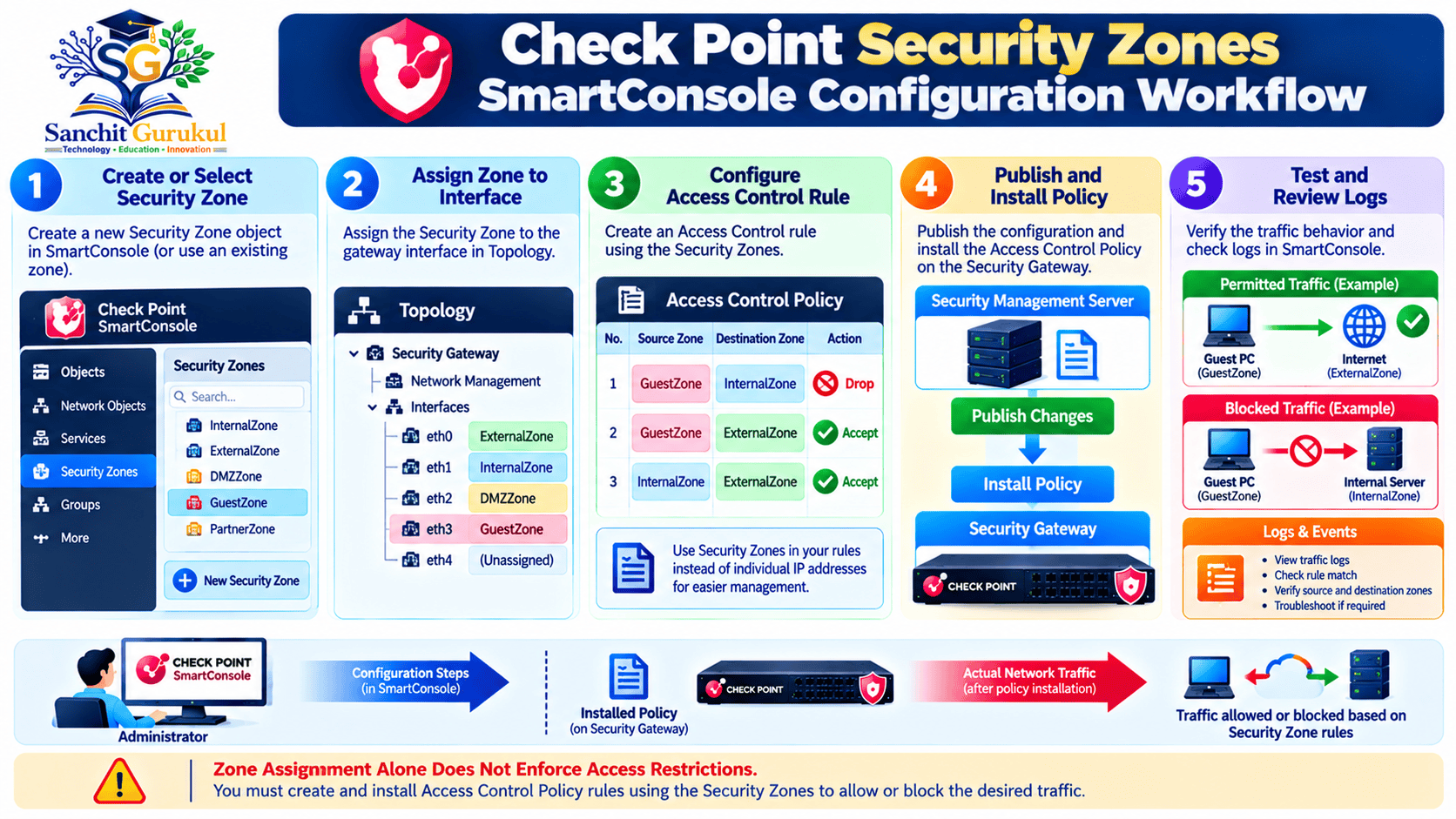
Step 1 — Review Existing Security Zones
Open SmartConsole.
Open the Objects bar using F11.
Review the available Security Zone objects.
Before creating a new zone, check whether a suitable predefined zone already exists.
For example, use InternalZone when it accurately represents the intended internal network area.
Step 2 — Create a Custom Security Zone
To create a custom Guest Zone:
- In the Objects bar, select New.
- Open More → Network Object → Security Zone.
- Enter the name
GuestZone. - Add a description such as Guest wireless network.
- Click OK.
The custom Security Zone object is now available for assignment.
Step 3 — Open Security Gateway Properties
- Select Gateways & Servers.
- Right-click the appropriate Security Gateway.
- Select Edit.
- Open Network Management.
Review the interface list.
Step 4 — Assign a Zone to an Interface
For the guest interface:
- Select or right-click
eth3. - Click Edit.
- In the General pane, find the Topology section.
- Click Modify.
- In the Security Zone section, select User Defined.
- Select Specify Security Zone.
- Choose
GuestZone. - Click OK to save the settings.
Repeat this process for other interfaces as required.
Example assignments:
| Interface | Security Zone |
|---|---|
| eth0 | ExternalZone |
| eth1 | InternalZone |
| eth2 | DMZZone |
| eth3 | GuestZone |
Step 5 — Create Zone-Based Access Control Rules
Open:
Security Policies → Access Control → Policy
Create the required rules.
For example, to prevent guest devices from accessing the internal network:
| Field | Value |
|---|---|
| Name | Block_Guest_To_Internal |
| Source | GuestZone |
| Destination | InternalZone |
| Service | Any |
| Action | Drop |
| Track | Log |
| Install On | Applicable Security Gateway or policy target |
Review the entire Rule Base to ensure that an earlier Accept rule does not unintentionally permit the same traffic.
Step 6 — Publish and Install Policy
- Save the required object and rule changes.
- Publish the SmartConsole session.
- Click Install Policy.
- Select the applicable Security Gateway or Cluster.
- Select the appropriate Access Control Policy.
- Complete the installation.
- Confirm a successful result.
The Security Gateway now enforces the installed policy containing the relevant zone-based rules.
Practical Verification and Troubleshooting
After configuring Security Zones, verify that the interface assignments, routing and firewall rules operate as intended.
Example Lab Topology
| Component | IP Address | Zone |
|---|---|---|
| Firewall eth1 | 192.168.10.1/24 | InternalZone |
| Firewall eth2 | 10.0.20.1/24 | DMZZone |
| Firewall eth3 | 172.16.50.1/24 | GuestZone |
| Internal Test Server | 192.168.10.50 | InternalZone |
| DMZ Web Server | 10.0.20.10 | DMZZone |
| Guest Test Client | 172.16.50.25 | GuestZone |
Lab prerequisites: A supported test gateway, correct interface assignments and routing, a test HTTPS service listening on TCP 443 on the target servers, and authorization to perform the connectivity tests.
The example addresses are illustrative. The tests are not results captured from a live gateway.
Step 1 — Verify Gateway Interfaces
On the Security Gateway, open Gaia Clish.
Run:
show interfaces allThis displays the gateway’s configured network interfaces.
For a specific interface:
show interface eth3Confirm that the guest network interface has the expected IP configuration.
These commands do not display SmartConsole Security Zone assignments.
Step 2 — Verify Routing
Run:
show routeReview the routes relevant to the lab networks.
Confirm that the gateway has the expected forwarding information.
Step 3 — Check the Installed Policy
In Expert mode, run:
cpstat -f policy fwReview the installed policy name and installation information.
This verifies policy status, not individual Security Zone membership.
Step 4 — Verify Zone Assignments
In SmartConsole:
- Open Gateways & Servers.
- Edit the Security Gateway.
- Open Network Management.
- Edit each relevant interface.
- Review Topology → Security Zone.
- Confirm the intended assignment.
For example:
eth3 → GuestZone
Step 5 — Test Permitted and Denied Connections
From the guest test client, try connecting to the internal test server’s known HTTPS service.
On a Linux client with Netcat installed:
nc -vz -w 3 192.168.10.50 443If the Guest-to-Internal Drop rule matches, the TCP connection should not succeed.
Depending on the Drop behavior, the client may report a timeout.
Next, from an authorized internal test client, connect to the DMZ web server:
nc -vz -w 3 10.0.20.10 443If the service is listening and the applicable policy permits HTTPS, the TCP connection should succeed.
Illustrative Expected Results:
| Test | Expected Result |
|---|---|
| Guest → Internal HTTPS | Blocked by the applicable Drop rule |
| Internal → DMZ HTTPS | Permitted when the relevant Accept rule exists |
| Internal → External HTTPS | Permitted when the relevant Accept rule and forwarding exist |
A failed TCP test alone does not prove that the firewall blocked the traffic. The target service, routing or another control may also be responsible.
Step 6 — Check Security Zone Logs
Open Logs & Events in SmartConsole.
Review the connections generated by the tests.
When zone objects are used in the matching Access Control rules, the relevant log details can include:
- Security Inzone: Zone associated with the incoming interface.
- Security Outzone: Zone associated with the outgoing interface.
These fields appear in the log’s additional details.
For example:
| Field | Illustrative Value |
|---|---|
| Source | 172.16.50.25 |
| Destination | 192.168.10.50 |
| Security Inzone | GuestZone |
| Security Outzone | InternalZone |
| Action | Drop |
| Rule | Block_Guest_To_Internal |
These are illustrative log values, not actual captured output.
Common Security Zone Problems
| Problem | Possible Cause | Recommended Check |
|---|---|---|
| Zone rule does not match | Incorrect zone assignment | Verify interface topology settings |
| Guest network reaches internal resources | Earlier Accept rule or traffic bypasses the gateway | Review rule order and actual traffic path |
| Expected traffic is blocked | Restrictive rule or incorrect destination zone | Review logs, NAT and routing |
| Wrong outbound zone | NAT or routing sends traffic through another interface | Examine forwarding decisions |
| Missing Security Zone details | Wrong log view, event type or rule context | Review Access Control log details |
| Changes appear ineffective | Policy not installed on the intended gateway | Verify installation targets and status |
Best Practices
Use Security Zones to simplify policy administration, but keep the following points in mind:
- Apply the principle of least privilege.
- Use descriptive names for custom zones.
- Avoid overly broad Internet-to-DMZ Accept rules.
- Confirm that relevant traffic actually traverses the firewall.
- Review NAT and routing when zone matching appears incorrect.
- Enable useful logging for sensitive communication paths.
- Review zone assignments after network topology changes.
- Test new rules before relying on them in production.
Key Takeaways
Security Zone Fundamentals
- A Security Zone represents a logical network area.
- Security Zones are assigned to Security Gateway interfaces.
- Each interface belongs to one zone.
- Multiple interfaces can share a zone.
- Check Point provides predefined Internal, External, DMZ and Wireless zones.
Zone-Based Access Control
- Security Zones can be used in Source and Destination rule columns.
- Rules determine which communications are permitted or denied.
- Zone assignment alone does not enforce access restrictions.
- NAT and routing can influence outbound zone identification.
- Rule order and other applicable policy conditions remain important.
Configuration and Verification
- Create custom zones in SmartConsole when needed.
- Assign zones through gateway interface topology settings.
- Publish changes and install the Access Control Policy.
- Verify interfaces and routing using read-only Gaia commands.
- Check
Security InzoneandSecurity Outzonein relevant Access Control logs.
Check Point Security Zones help administrators organize firewall policies around logical network areas.
Instead of writing every rule around individual IP subnets, administrators can use zones to represent internal, external, DMZ, guest and other networks.
This can simplify policy administration across multiple interfaces and gateways.
However, effective network segmentation still depends on correct interfaces, routing, NAT, appropriate firewall rules and successful policy installation.
By understanding how Security Zones interact with Access Control, administrators can create clearer and more manageable firewall policies.
Next Article: Check Point Zone-Based Firewall Policy Design — Internal, DMZ, Guest and Management Network Rules.
Useful Links and References
SanchitGurukul Static Resources
Official External References
Your feedback matters
Was this post helpful?
Discussion
0 approved comments
No approved comments yet. You can start the discussion below.
Leave a Comment
No login is required. Name and email are used for moderation/security. Your email is never displayed publicly. All comments require administrator approval.
Discover more from SanchitGurukul
Subscribe to get the latest posts sent to your email.