
Prerequisites: Basic Understanding of Computer Networks, IP Addresses and Network Protocols
Imagine you are working as a network administrator.
One morning, several employees report that they cannot access an important website.
Some users experience slow connectivity, while others cannot connect at all.
How do you identify the problem?
Is the network connection down?
Is DNS resolving the website correctly?
Is a firewall blocking the traffic?
Or is the application server unavailable?
To answer these questions, network professionals use different networking tools.
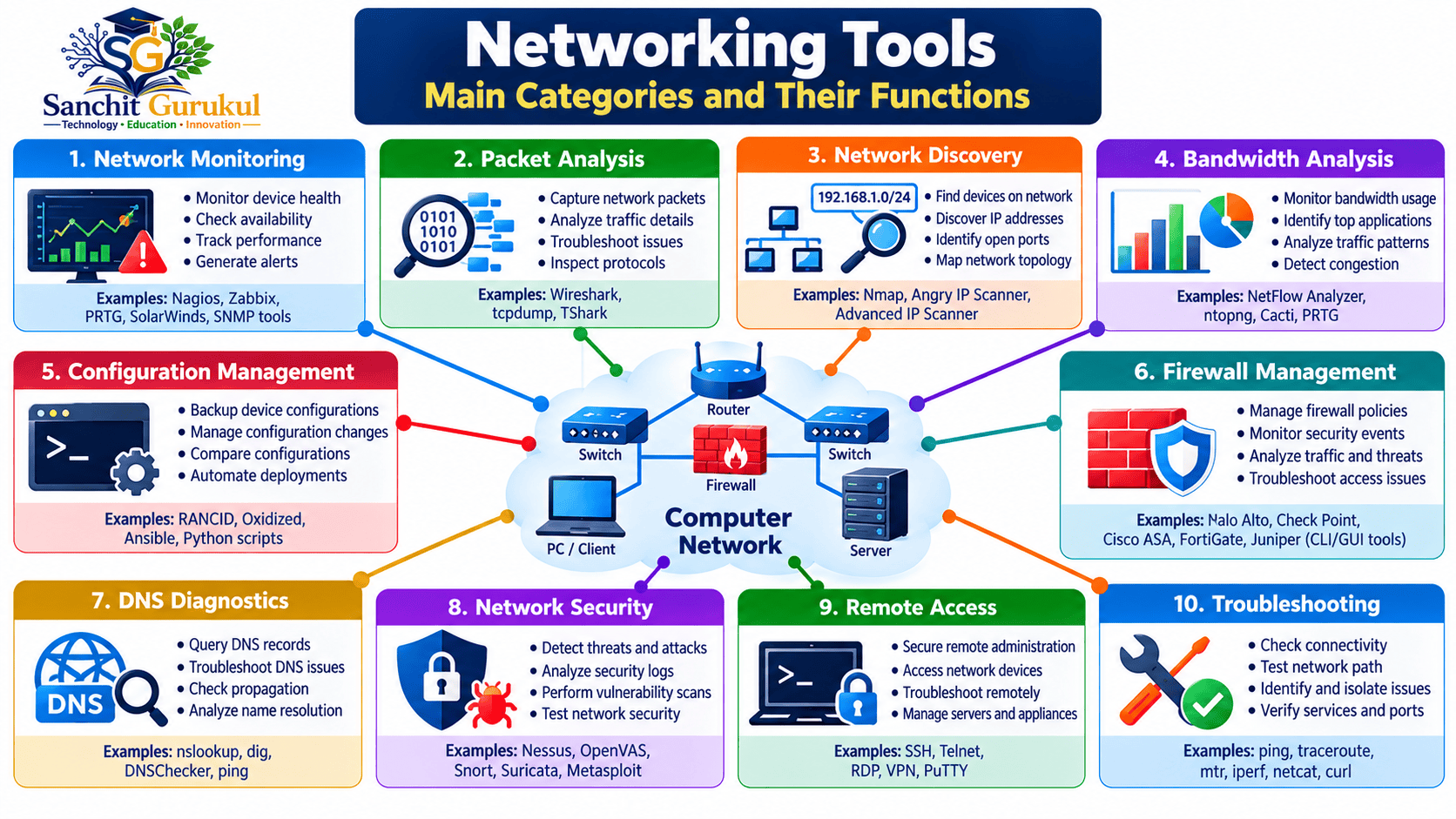
Networking tools help administrators monitor network devices, analyze traffic, identify connectivity problems, investigate security events and manage network infrastructure.
Some tools are simple commands available in operating systems, while others are complete monitoring or security platforms.
In this article, you will learn:
- What networking tools are and why they are used
- Different categories of networking tools
- Common software and command-line utilities
- How monitoring, packet analysis and security tools differ
- Essential commands for beginners
- How to select the appropriate tool for a network problem
What Are Networking Tools and Why Are They Important?
Networking tools are software applications, command-line utilities or management platforms used to operate, analyze, monitor, secure and troubleshoot computer networks.
They are used by:
- Network administrators
- Network engineers
- Security engineers
- System administrators
- IT support professionals
- Infrastructure and data center teams
Why Are Networking Tools Used?
Networking tools help organizations:
Monitor availability: Identify when a network device or service becomes unreachable.
Measure performance: Monitor bandwidth, latency, packet loss and device utilization.
Troubleshoot connectivity: Investigate routing, DNS, TCP connections and application failures.
Manage infrastructure: Access and configure network equipment.
Improve security: Detect suspicious activity and identify security weaknesses.
Collect diagnostic information: Capture packets, review logs and examine network statistics.
How Are Networking Tools Different?
Networking tools generally fall into three broad groups.
| Group | Purpose | Examples |
|---|---|---|
| Diagnostic Utilities | Investigate an individual problem | Ping, Traceroute, nslookup |
| Monitoring Platforms | Continuously observe network health | Zabbix, Nagios, PRTG |
| Analysis and Management Tools | Inspect traffic or administer infrastructure | Wireshark, tcpdump, PuTTY |
Some tools belong to multiple categories.
For example, Wireshark supports packet analysis and troubleshooting, while PRTG provides both monitoring and traffic visibility.
Different Types of Networking Tools
1. Network Monitoring Tools
Network monitoring tools continuously check devices, links, servers and services.
They help administrators identify failures and unusual performance conditions.
Common Tools:
- Nagios: Monitors host and service availability, with alerting and extensible checks.
- Zabbix: Collects performance metrics using agents, SNMP and other supported methods.
- Paessler PRTG: Monitors network devices, interfaces and applications using sensors and dashboards.
Example:
A switch becomes unreachable.
A monitoring platform detects the problem and generates an alert for the administrator.
2. Packet Analysis Tools
Packet analysis tools capture or inspect network packets.
They help engineers understand what communication is taking place between devices.
Common Tools:
- Wireshark: Graphical packet analyzer supporting many network protocols.
- tcpdump: Command-line packet capture and analysis utility.
- TShark: Command-line packet analyzer from the Wireshark project.
Example:
A TCP connection repeatedly fails.
Wireshark can help determine whether the client sends SYN packets, whether the server responds and whether retransmissions occur.
3. Network Scanning and Discovery Tools
Network discovery tools help identify devices, IP addresses, open ports and available services.
Common Tools:
- Nmap: Network discovery, port scanning and service identification.
- Angry IP Scanner: IP address and port scanning.
- Advanced IP Scanner: Network discovery and related administration features, primarily for Windows environments.
Example:
An administrator needs to identify active devices on an authorized office network.
A discovery tool can help locate responding devices.
4. Bandwidth and Traffic Monitoring Tools
These tools measure traffic utilization and help identify network congestion or unexpected bandwidth consumption.
Common Tools:
- Cacti: Collects and graphs network and system performance data.
- MRTG: Multi Router Traffic Grapher, used for graphical monitoring of traffic measurements.
- PRTG: Supports bandwidth monitoring through SNMP and flow-based sensors.
- SolarWinds Network Performance Monitor: Monitors network availability and performance.
Example:
Users report slow Internet access.
Traffic monitoring shows that a WAN interface is consistently operating near its capacity.
The administrator can investigate the usage pattern and possible bottleneck.
Traffic flow technologies such as NetFlow, sFlow and IPFIX can provide additional visibility into traffic sources and destinations.
5. Network Configuration and Management Tools
These tools support remote administration, configuration and infrastructure management.
Common Tools:
- PuTTY: SSH and terminal client commonly used for accessing remote systems.
- OpenSSH: Tools for secure remote administration and file transfer.
- Ansible: Automation platform that can manage supported network devices and configurations.
Related Learning Tool:
- Cisco Packet Tracer: Network simulation and learning software.
Packet Tracer is primarily an educational simulator, not a production network configuration management platform.
Example:
A network administrator uses an SSH client to access a router and inspect its interface configuration.
6. Firewall Management Tools
Firewall administration tools help configure and inspect traffic-filtering rules.
Common Tools and Platforms:
- nftables: Modern Linux packet-filtering framework administered using the
nftutility. - iptables: Linux firewall management utility retained for compatibility and legacy environments.
- pfSense: Firewall and routing software platform based on FreeBSD.
These examples are not identical types of products.
For instance, pfSense is a firewall platform, while nftables is a Linux packet-filtering framework.
Example:
A firewall administrator checks whether a security rule permits the required communication between two networks.
7. DNS Troubleshooting Tools
DNS stands for Domain Name System.
DNS allows applications to resolve domain names into IP addresses and retrieve other DNS information.
Common Tools:
- nslookup: Queries DNS servers for records.
- dig: Provides detailed DNS query and response information.
- Resolve-DnsName: PowerShell command for DNS queries on supported Windows systems.
Related DNS Server Software:
- BIND 9: DNS server implementation commonly used in Unix and Linux environments.
BIND is primarily DNS server software, not simply a DNS troubleshooting utility.
Example:
A website cannot be opened by its domain name.
The administrator uses nslookup or dig to investigate whether DNS is returning the expected records.
8. Network Security Tools
Network security tools help identify malicious activity, suspicious traffic and vulnerabilities.
Common Tools:
- Snort: Network intrusion detection and prevention software.
- Suricata: Intrusion detection, intrusion prevention and network security monitoring engine.
- Nessus: Vulnerability assessment platform used to identify known security weaknesses.
Example:
An intrusion detection system identifies network traffic matching a configured attack signature.
It generates an alert for security investigation.
An IDS primarily detects and reports suspicious activity. An IPS can also block selected traffic when appropriately deployed and configured.
9. Remote Access Tools
Remote access technologies allow administrators to manage systems from another location.
Common Tools:
- PuTTY: Terminal application supporting SSH connections.
- OpenSSH: Secure remote login and administration tools.
- Microsoft Remote Desktop Connection: Client used to access supported remote desktop services.
- Remmina: Remote desktop client supporting several connection protocols.
Important distinction:
SSH (Secure Shell) is a protocol and associated technology.
RDP (Remote Desktop Protocol) is also a protocol.
Tools such as OpenSSH clients and Microsoft Remote Desktop Connection use these protocols to provide remote access.
10. Network Troubleshooting Tools
Troubleshooting utilities help identify problems with connectivity, routing, DNS and services.
Common Tools:
- ping: Tests whether a destination responds to ICMP Echo Requests.
- traceroute / tracert: Helps investigate the network path toward a destination.
- ss: Displays socket information on Linux.
- netstat: Displays network connection and interface information on supported systems.
- curl: Tests HTTP and other supported application protocols.
- Test-NetConnection: Windows PowerShell utility for connectivity and TCP port testing.
Example:
A server is reachable by IP address, but an application cannot connect to TCP port 443.
A TCP connectivity test can help determine whether the destination port accepts a connection.
Essential Networking Commands for Beginners
The following commands provide a useful starting point for troubleshooting.
Windows Commands
| Command | Purpose |
|---|---|
ipconfig /all |
Display IP configuration |
ping example.com |
Test ICMP connectivity |
tracert example.com |
Trace the route toward a destination |
nslookup example.com |
Query DNS records |
netstat -ano |
View connections, listening ports and process IDs |
Test-NetConnection example.com -Port 443 |
Test TCP port connectivity in PowerShell |
Linux Commands
| Command | Purpose |
|---|---|
ip addr show |
Display interface IP addresses |
ip route |
Display the routing table |
ping -c 4 example.com |
Send four ICMP Echo Requests |
dig example.com |
Query DNS |
ss -tuln |
Display listening TCP and UDP sockets |
curl -I https://example.com |
Request HTTP response headers |
tracepath example.com |
Investigate path characteristics, where installed |
Some utilities may require installation depending on the operating system.
Example — Checking TCP Port 443
In Windows PowerShell:
Test-NetConnection example.com -Port 443Illustrative Output:
ComputerName     : example.com
RemotePort       : 443
TcpTestSucceeded : True
The output is simplified and illustrative.
If TcpTestSucceeded is True, the TCP connection test succeeded.
It does not automatically guarantee that HTTPS application requests will succeed.
Example — Checking DNS in Linux
dig example.com AThe command queries DNS for IPv4 address records associated with example.com.
If the query fails, investigate the response code, selected DNS resolver and network connectivity before concluding that the domain itself is unavailable.
How to Choose the Right Networking Tool
The correct tool depends on the problem being investigated.
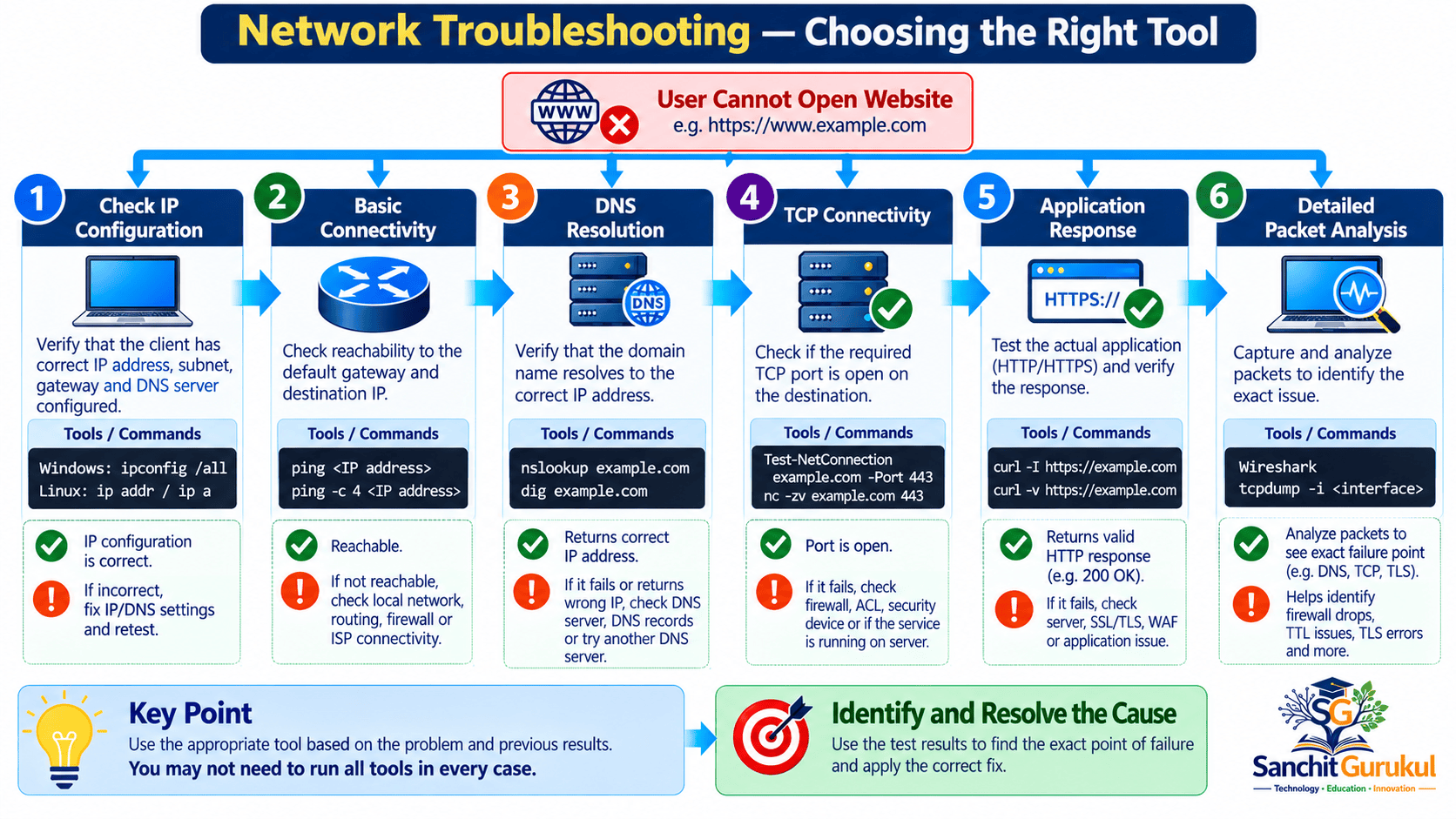
Example — A Website Is Not Working
Suppose a user reports that a website cannot be opened.
A simple troubleshooting approach is:
- Check network configuration: Use
ipconfigorip addrto inspect the local IP configuration. - Check basic connectivity: Use
ping, remembering that ICMP may be filtered. - Check DNS: Use
nslookupordigto inspect name resolution. - Check the TCP service: Use
Test-NetConnectionor another appropriate TCP connectivity utility. - Check application behavior: Use
curlor the browser’s diagnostic tools. - Analyze packets if needed: Use Wireshark or tcpdump to identify failed exchanges.
Networking Tools Comparison
| Requirement | Useful Tools |
|---|---|
| Monitor device availability | Nagios, Zabbix, PRTG |
| Inspect packets | Wireshark, tcpdump |
| Discover authorized devices | Nmap, Angry IP Scanner |
| Monitor bandwidth | Cacti, PRTG, MRTG |
| Manage devices remotely | PuTTY, OpenSSH |
| Manage Linux firewall rules | nftables, iptables |
| Troubleshoot DNS | dig, nslookup |
| Detect network threats | Snort, Suricata |
| Assess vulnerabilities | Nessus |
| Troubleshoot connectivity | ping, traceroute, curl |
Key Takeaways
Networking Tool Fundamentals
- Networking tools help monitor, manage, analyze and troubleshoot networks.
- Different tools have different responsibilities.
- Monitoring platforms continuously track network health.
- Packet analyzers inspect actual network communication.
- Scanning utilities help discover authorized devices and services.
Administration and Security
- SSH and RDP are protocols, while PuTTY and Remote Desktop Connection are client applications.
- BIND is DNS server software, while dig and nslookup are DNS troubleshooting utilities.
- Snort and Suricata support network threat detection.
- Firewall management tools and complete firewall platforms are different types of technology.
- Packet Tracer is primarily a network simulation and learning tool.
Practical Troubleshooting
- Ping helps test ICMP reachability.
- Traceroute helps investigate packet paths.
- DNS utilities help investigate name-resolution problems.
- TCP testing tools check whether a service port accepts connections.
- Wireshark and tcpdump provide detailed packet-level information.
Networking tools play an important role in maintaining reliable, secure and efficient computer networks.
From simple commands such as ping and traceroute to monitoring platforms such as Zabbix and PRTG, each tool provides a different type of network visibility.
Packet analyzers help engineers understand network communication, while security tools help identify suspicious traffic and vulnerabilities.
For beginners, learning basic connectivity, DNS and TCP troubleshooting commands is a practical starting point.
As networking knowledge grows, monitoring platforms, packet-analysis tools and configuration management systems become increasingly useful.
Understanding what each tool does—and when to use it—provides a foundation for effective network administration and troubleshooting.
Useful Links and References
SanchitGurukul Resources
Official External References
Your feedback matters
Was this post helpful?
Discussion
0 approved comments
No approved comments yet. You can start the discussion below.
Leave a Comment
No login is required. Name and email are used for moderation/security. Your email is never displayed publicly. All comments require administrator approval.
Discover more from SanchitGurukul
Subscribe to get the latest posts sent to your email.