
Introduction
Imagine your organization has purchased a Check Point Quantum Security Gateway to protect its corporate network.
The hardware or virtual machine has been deployed, but it has no configured security policy.
Before it can inspect production traffic, administrators must complete several tasks:
- Install the Check Point Gaia operating system.
- Configure the management IP address.
- Establish network connectivity.
- Select the correct Check Point product role.
- Configure Security Management.
- Establish secure communication between management and the firewall.
- Apply the appropriate license and software updates.
- Install an approved security policy.
This guide focuses on the first stage: deploying Gaia and completing the initial installation.
The examples use Check Point R82.20, released in September 2026.
The article covers a distributed deployment consisting of a dedicated Security Gateway and a separate Security Management Server.
A standalone deployment is also explained.
Prerequisites: TCP/IP, Routing Fundamentals, Hypervisor Administration, Linux Basics and Firewall Concepts
1. What Is a Check Point Firewall?
A Check Point Security Gateway enforces network security policies.
Depending on its licensed Software Blades and configuration, it can provide:
- Stateful firewall inspection
- Application Control
- Identity Awareness
- Intrusion Prevention
- Anti-Bot and Anti-Virus
- URL Filtering
- Site-to-Site VPN
- Remote Access VPN
- Additional threat-prevention functions
Not every capability is enabled automatically.
The available features depend on the deployed Check Point version, platform, subscription and Software Blades.
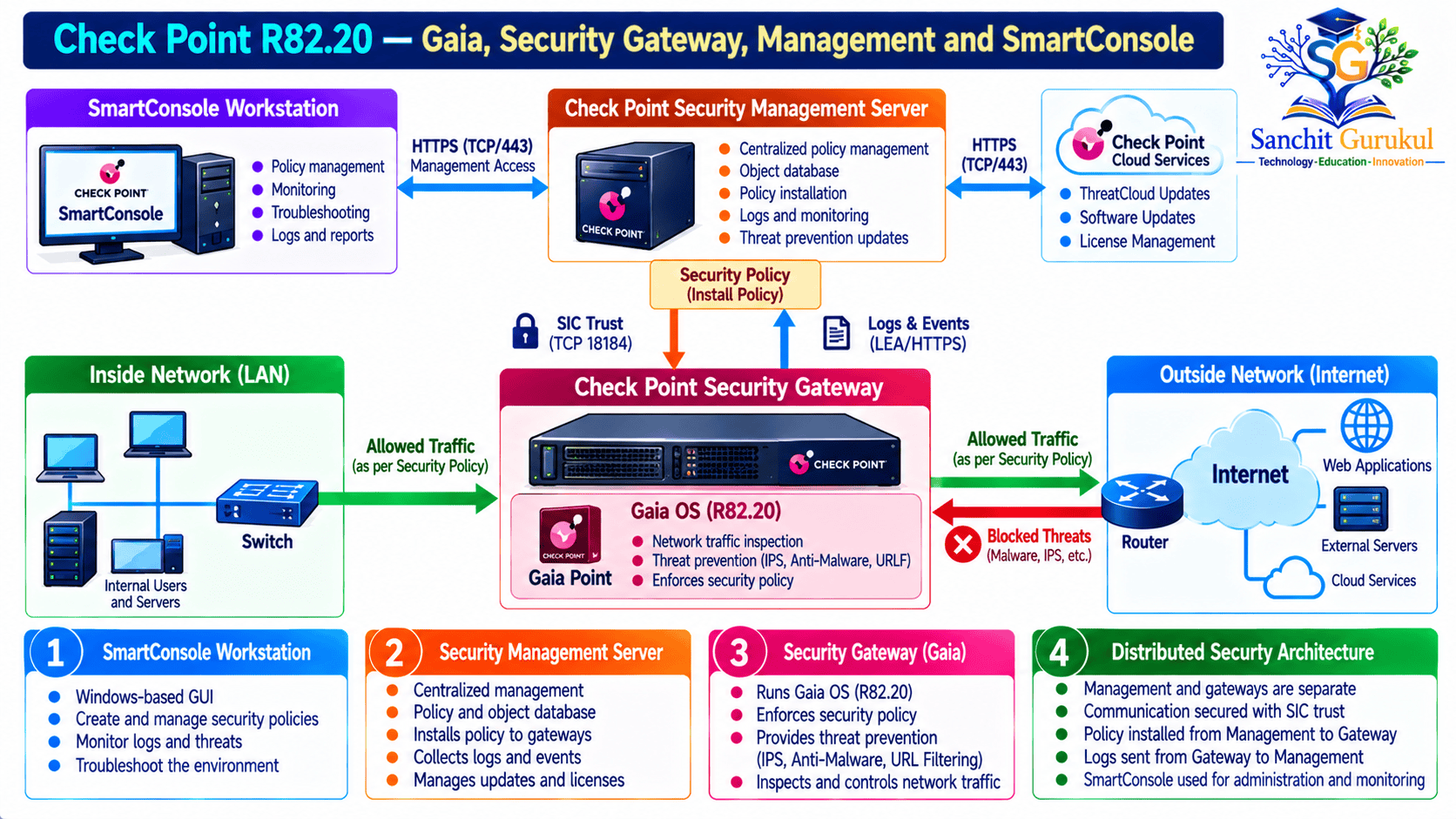
Core Components
| Component | Purpose |
|---|---|
| Gaia | Check Point security operating system |
| Security Gateway | Inspects and enforces traffic |
| Security Management Server | Stores and distributes security policy |
| SmartConsole | Management application for policies and objects |
| Smart-1 Cloud | Supported cloud-hosted management option |
| Secure Internal Communication (SIC) | Establishes trusted communication between Check Point components |
| Software Blades | Enable licensed security capabilities |
2. Understand Check Point Deployment Modes
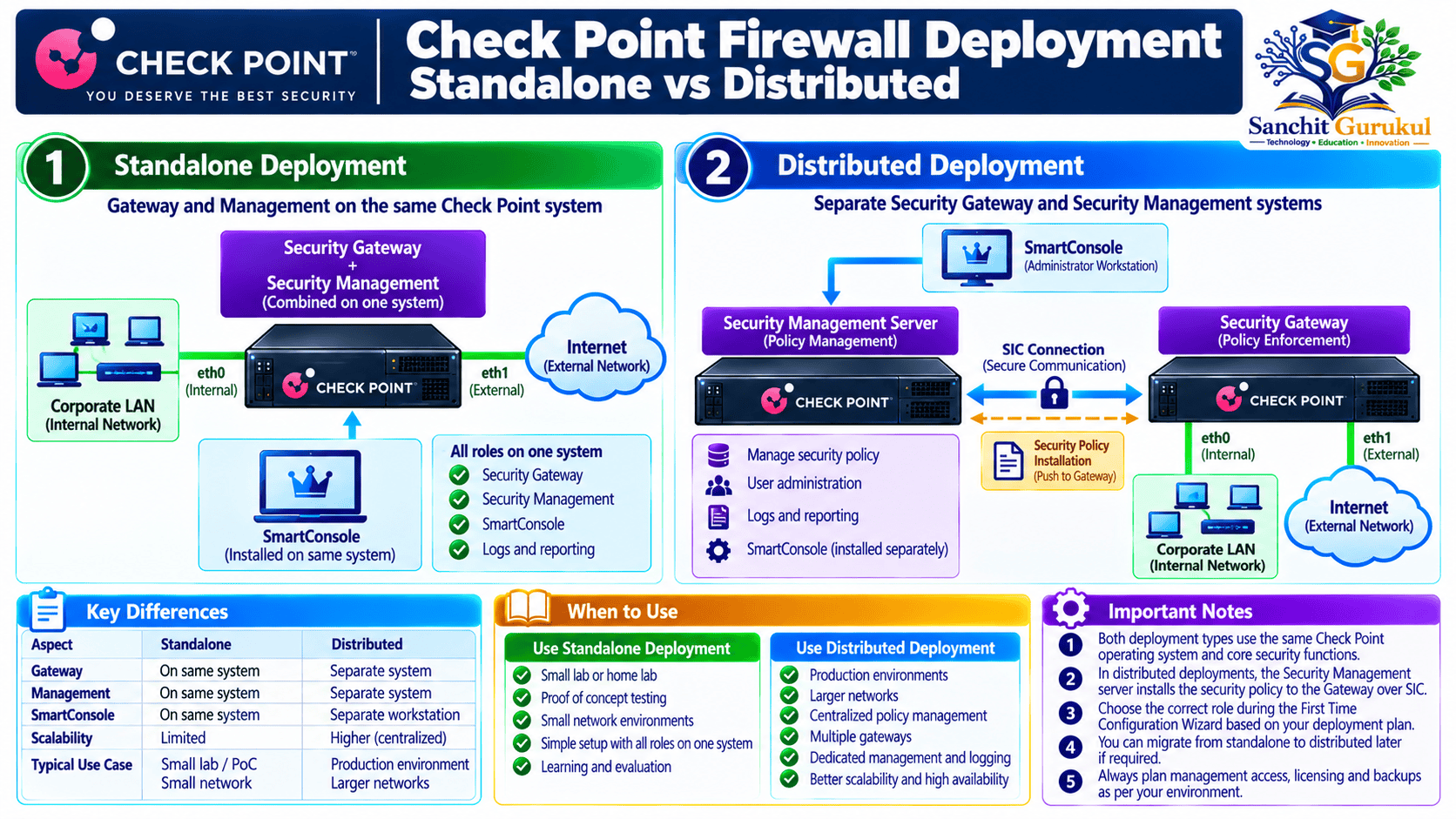
Before installation, decide how the Security Gateway will be managed.
Standalone Deployment
The Security Gateway and Security Management Server run on the same supported system.
This is convenient for smaller deployments, demonstrations and some laboratories.
Distributed Deployment
The Security Gateway and Security Management Server run on separate systems.
The management server can manage one or more compatible gateways.
This is the primary architecture used in this guide.
Smart-1 Cloud Management
A supported gateway can be managed using Check Point’s cloud-hosted management service instead of a dedicated local Security Management Server.
This requires the applicable supported enrollment, licensing and connectivity workflow.
Comparison
| Feature | Standalone | Distributed | Smart-1 Cloud |
|---|---|---|---|
| Management location | Same system | Separate server | Cloud management |
| Gateway enforcement | Local gateway | Dedicated gateway | Dedicated gateway |
| Separate management VM needed | No | Yes | No local management server |
| Typical application | Smaller deployments and labs | Enterprise environments | Supported cloud-managed deployments |
| Installation complexity | Lower | Moderate | Depends on enrollment |
3. Example Distributed Check Point Lab
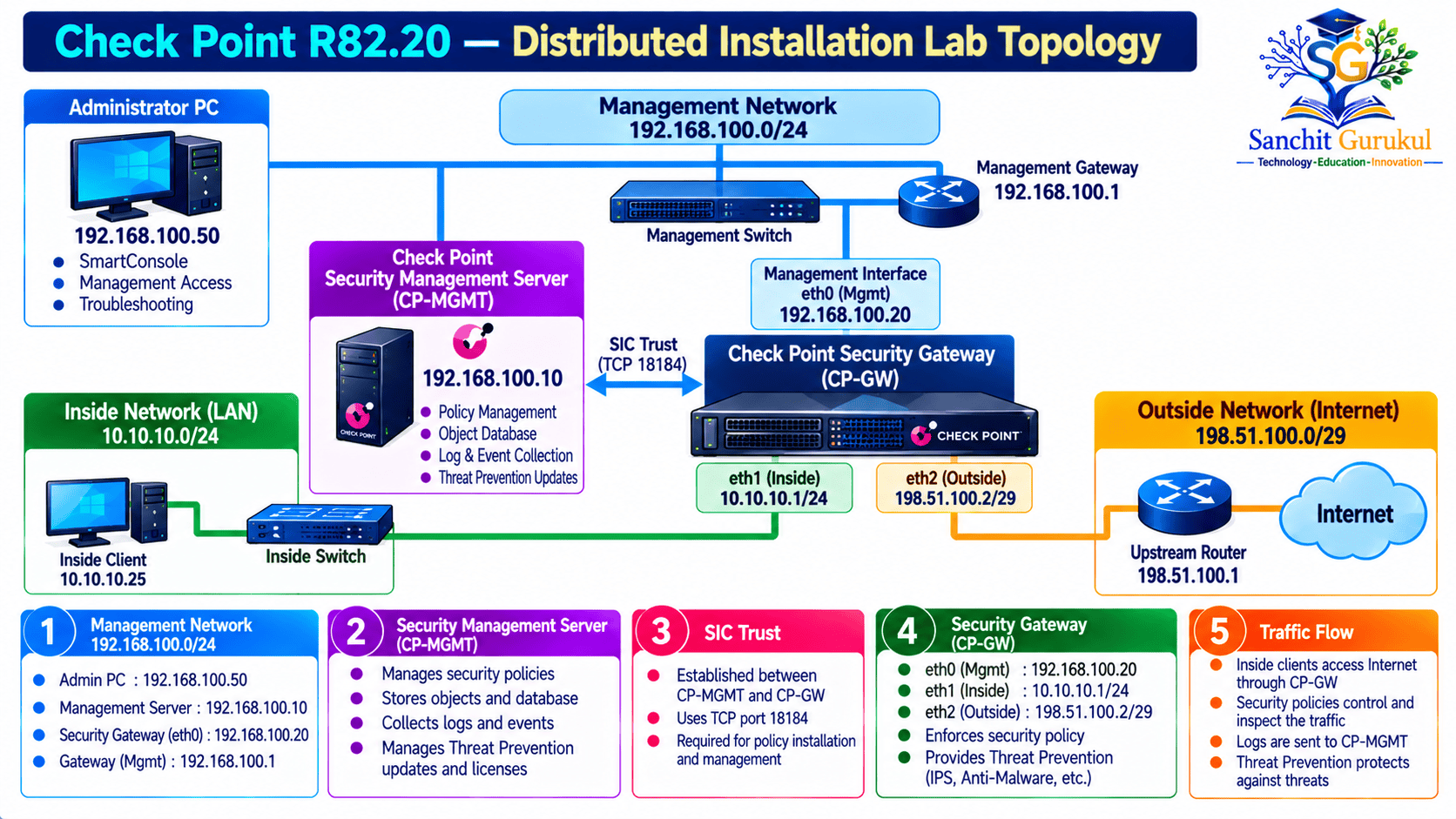
We will deploy two Check Point virtual machines.
Lab Components
| System | Function | IP Address |
|---|---|---|
| CP-MGMT | Security Management Server | 192.168.100.10/24 |
| CP-GW | Security Gateway management interface | 192.168.100.20/24 |
| CP-GW Inside | Internal network gateway | 10.10.10.1/24 |
| CP-GW Outside | External network gateway | 198.51.100.2/29 |
| Admin PC | SmartConsole workstation | 192.168.100.50/24 |
| Management Router | Management subnet gateway | 192.168.100.1 |
| Outside Router | Upstream network | 198.51.100.1 |
| Inside Client | Test workstation | 10.10.10.25/24 |
The external address range is reserved for documentation.
The example assumes three virtual network interfaces on CP-GW:
eth0for managementeth1for Insideeth2for Outside
Actual interface names depend on the hypervisor and installation.
Lab Objectives
- Install Gaia on both VMs.
- Configure management network access.
- Initialize a dedicated Security Management Server.
- Initialize a dedicated Security Gateway.
- Prepare the systems for SIC establishment.
- Complete policy management in the separate configuration article.
4. Verify Hardware and Virtual Machine Requirements
Check Point supports specific hardware, virtual-machine platforms and resource configurations.
The exact requirements depend on:
- Check Point release
- Security Gateway or Management role
- Licensed Software Blades
- Expected traffic and session capacity
- Logging requirements
- Number of managed gateways
- Platform compatibility
Illustrative Lab Resource Planning
| Resource | Gateway VM | Management VM |
|---|---|---|
| vCPU | 4 | 4–8 |
| RAM | 8–16 GB | 16–32 GB |
| Storage | 100 GB or as required | 200 GB or more |
| Network Interfaces | 3 | 1 |
| Hypervisor | Compatible supported platform | Compatible supported platform |
These are educational planning values, not vendor-certified minimum requirements for R82.20.
Use the R82.20 Release Notes and the appropriate sizing documentation before production deployment.
Additional Considerations
- Enable the CPU virtualization capabilities required by the selected hypervisor.
- Use reliable SSD or NVMe storage.
- Provide sufficient logging capacity.
- Ensure management and gateway systems can communicate.
- Use stable hostnames, IP addresses and synchronized clocks.
- Isolate the laboratory from production networks unless access is explicitly approved.
5. Step 1 — Download Check Point R82.20 Installation Media
Obtain the software from Check Point’s official Support Center.
Official website:
https://support.checkpoint.com/
Download Process
- Sign in using an authorized Check Point support account.
- Open the R82.20 release or downloads page.
- Identify the appropriate installation image.
- Select the correct software distribution for the target appliance, Open Server or virtual deployment.
- Download the supported installation media.
- Review its checksum and release documentation.
ISO vs Appliance Image
A virtual machine or supported Open Server can use an applicable Gaia clean-install ISO.
A physical Check Point appliance may use its factory-loaded software, a supported recovery image or a model-specific installation method.
Do not assume every hardware appliance should boot the same generic ISO.
Verify Download Integrity
On a Linux workstation:
sha256sum Compare the hash with the vendor-provided value for the exact file.
6. Step 2 — Create the Virtual Machines
This example uses a supported virtualization environment.
Create CP-MGMT
Create the management-server virtual machine:
- Name:
CP-MGMT - Guest operating system: Compatible 64-bit Linux selection
- CPU and memory: According to the verified system requirements
- Disk: Sized for management database and logs
- Network: Management subnet
- Installation media: Appropriate Gaia R82.20 image
Create CP-GW
Create the gateway virtual machine:
- Name:
CP-GW - Guest operating system: Compatible 64-bit Linux selection
- CPU and memory: According to the verified system requirements
- Disk: Sized according to the deployment
- Network Adapter 1: Management
- Network Adapter 2: Inside
- Network Adapter 3: Outside
- Installation media: Appropriate Gaia R82.20 image
Network Connections
Keep each virtual network connected to the correct hypervisor port group, virtual switch or lab bridge.
An incorrect adapter assignment can make an apparently successful firewall installation unable to pass the intended traffic.
7. Step 3 — Install Gaia OS on CP-MGMT
Power on the CP-MGMT VM and boot from the installation media.
Installation Procedure
- Start the Gaia installer.
- Select the applicable installation option.
- Confirm the target disk.
- Configure the initial operating-system installation settings.
- Set the administrative password when prompted.
- Configure the initial management interface information.
- Complete the installation.
- Remove the installation media as required.
- Reboot into Gaia.
The specific installer screens vary by image and deployment platform.
Important Disk Warning
A clean installation can overwrite data on the selected installation disk.
Perform the procedure only on the intended new VM or approved target device.
After Reboot
Confirm that Gaia starts normally.
Use the console to check the configured management address.
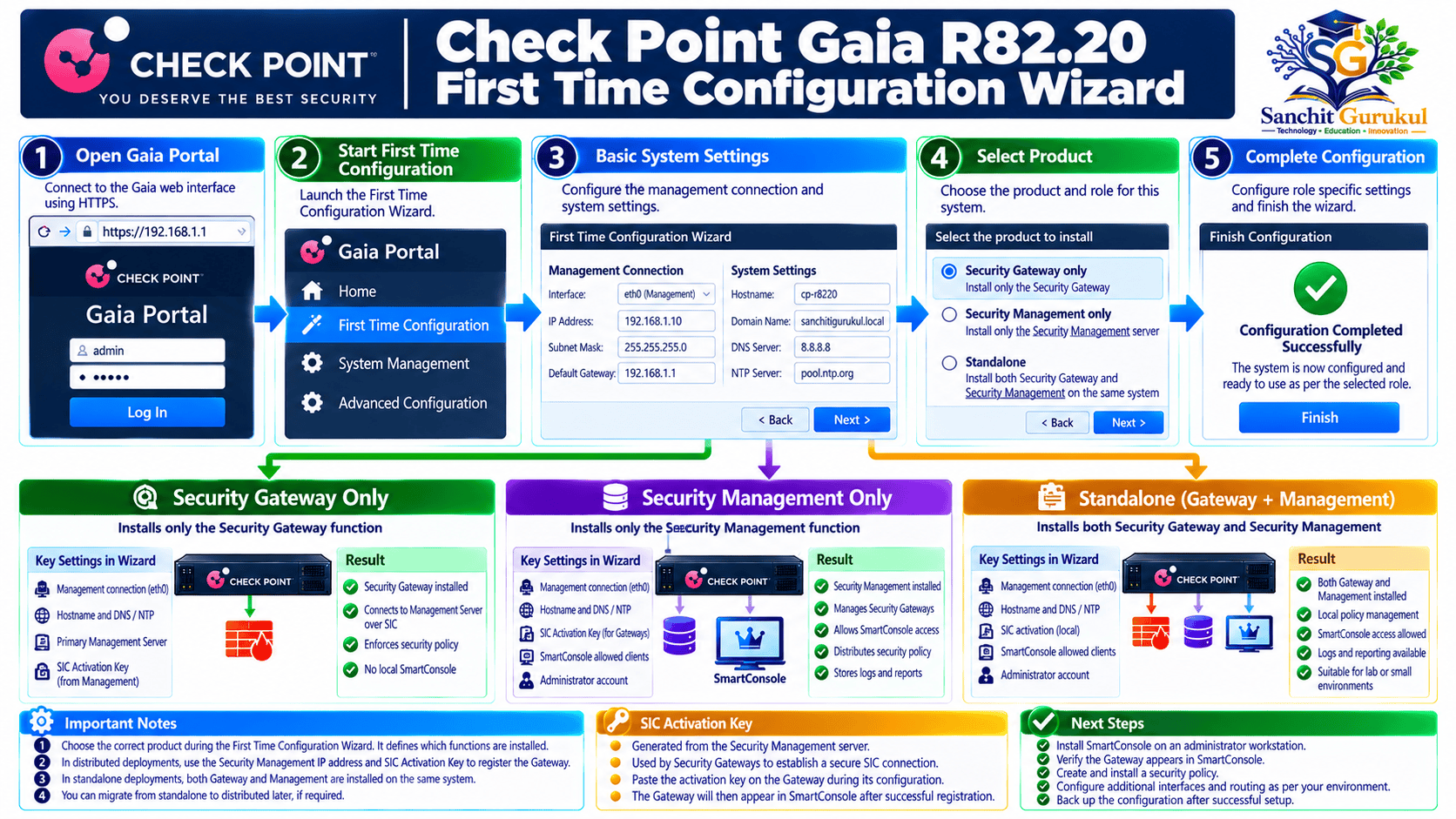
8. Step 4 — Run the Gaia First Time Configuration Wizard
From a trusted management workstation, open:
For a fresh installation, use the initial credentials specified by the official guide for that image.
Check Point’s R82.20 First Time Configuration Wizard documentation describes an initial admin account with the documented factory password for applicable installations.
Change factory credentials immediately and do not retain them for normal administration.
Configure the Management Server
Complete the wizard with:
- Continue with R82.20 configuration.
- Configure the management network.
- Set hostname
CP-MGMT. - Configure DNS servers.
- Configure NTP and time settings.
- Select the appropriate installation type.
- Select Security Management only.
- Select Primary management server.
- Configure the management administrator.
- Restrict SmartConsole GUI clients to approved management hosts.
- Review the summary.
- Apply the configuration.
Recommended GUI Client Restriction
For the example:
192.168.100.50
Restrict management-client access to this workstation or an appropriately approved management subnet.
Do not select Any IP Address merely for convenience in a production environment.
First-Time Configuration Completion
Allow the management initialization process to finish.
Some services can require additional startup time.
Do not assume the system is ready for SmartConsole the moment the Gaia browser page becomes reachable.
9. Step 5 — Install Gaia OS on CP-GW
Now configure the dedicated firewall VM.
Install the Operating System
- Boot the CP-GW VM from the supported Gaia image.
- Complete installation.
- Configure its initial management interface.
- Set the administrative password.
- Reboot.
- Open Gaia Portal.
Example URL:
Run the Gateway First Time Configuration Wizard
Choose:
Security Gateway and/or Security Management
Then select:
Security Gateway only
For this example, do not select the option identifying the unit as a cluster member.
Configure Gateway Settings
- Hostname:
CP-GW - Management IP:
192.168.100.20 - DNS: Approved DNS server
- NTP: Same trusted time source as CP-MGMT
- Gateway role: Security Gateway
- Cluster configuration: Not a cluster member
- Secure Internal Communication: Configure a strong, one-time activation key
SIC Activation Key
The wizard requires a one-time activation key for establishing trust with the management server.
Store this secret securely because it will be entered again when creating the gateway object in SmartConsole.
The documented key length for the relevant wizard is 4–127 characters.
10. Step 6 — Configure Gaia Interfaces and Routing
After the Gateway wizard completes, configure its production-facing interfaces.
Lab Addressing
| Gaia Interface | Role | IP Address |
|---|---|---|
| eth0 | Management | 192.168.100.20/24 |
| eth1 | Inside | 10.10.10.1/24 |
| eth2 | Outside | 198.51.100.2/29 |
Confirm that the interface names correspond to the intended virtual networks.
Gaia Clish Example
The following illustrates the general Gaia Clish syntax.
set interface eth1 ipv4-address 10.10.10.1 mask-length 24
set interface eth1 state on
set interface eth2 ipv4-address 198.51.100.2 mask-length 29
set interface eth2 state on
save config
Configure a Default Route
In a clean lab requiring the example upstream gateway:
set static-route default nexthop gateway address 198.51.100.1 on
save config
Do not add this route blindly on an existing managed system.
Verify Networking
show interfaces all
show route
show configuration
Test Local Connectivity
Where permitted:
ping 198.51.100.1If ping is blocked, validate the intended connectivity with appropriate approved tests.
11. Step 7 — Confirm System Time, DNS and Connectivity
Before establishing SIC, both systems should have consistent time and working management connectivity.
Check Time
show time
show ntp active
Check DNS
Review the Gaia DNS configuration through Gaia Portal or supported Clish commands.
Check Management Reachability
From an authorized system:
- Verify CP-MGMT reaches CP-GW.
- Verify CP-GW reaches CP-MGMT.
- Verify management access restrictions allow the required traffic.
- Check relevant intervening firewalls.
Why Time Matters
Check Point SIC uses certificates.
Significant time differences can interfere with certificate validation and trust establishment.
Use a reliable NTP source for both systems.
12. Step 8 — Review Licensing and Software Updates
Both the Security Gateway and Security Management Server require applicable entitlements.
The licensing model varies by product and subscription.
License Verification
From Gaia Portal, review the installed license status.
On systems where the relevant CLI tools are available:
cplic printSoftware Updates
Check Point provides CPUSE for supported software updates and hotfix management.
Use Gaia Portal’s software update functions and the release-specific documentation.
Before Updating
- Confirm platform compatibility.
- Review the required Jumbo Hotfix Accumulator.
- Check release notes.
- Take approved backups.
- Consider management and gateway dependencies.
- Plan a maintenance window.
13. Step 9 — Verify the Initial Installation
At this stage, both systems should be installed and reachable.
Security Management Server
Verify:
- Gaia boots normally.
- Management IP is correct.
- DNS and NTP are configured.
- Security Management role was selected.
- Management services have initialized.
- License and software-update requirements are reviewed.
Security Gateway
Verify:
- Gaia boots normally.
- Management IP is correct.
- Inside and Outside interfaces are correctly assigned.
- Routing is appropriate.
- Security Gateway role was selected.
- SIC activation key is securely recorded.
- Licensing status is reviewed.
Useful Commands
show version all
show interfaces all
show route
show configuration
Additional Check Point diagnostic commands available in the relevant expert environment include:
cpstat os
cpwd_admin list
The output and command availability depend on platform, access role and release.
Expected State
Illustrative deployment checklist:

CP-MGMT:
Gaia R82.20 running
Security Management configured
Management IP reachable
Time and DNS correct

CP-GW:
Gaia R82.20 running
Security Gateway configured
Management, Inside and Outside interfaces correct
Routing configured
SIC key ready

Next:
Install SmartConsole
Create Security Gateway object
Initialize SIC
Configure and install the Access Control Policy
This is a checklist, not literal command output.
14. Common Installation Problems
| Problem | Possible Cause | Recommended Check |
|---|---|---|
| ISO does not boot | Incorrect VM image or boot settings | Installation media and VM settings |
| Gaia Portal unreachable | Management interface or routing issue | IP, subnet and virtual network |
| Wrong product role selected | Incorrect wizard options | Installation role |
| Management services unavailable | Initialization incomplete | Services and system logs |
| Gateway cannot reach management | IP routing or security control | Network path and permitted ports |
| SIC initialization will fail | Wrong key or clock mismatch | Activation key and NTP |
| No internet connectivity | Missing route or upstream policy | Gaia routing |
| Check Point blade unavailable | License or platform issue | Entitlement and provisioning |
| Unexpected interface names | Hypervisor adapter mapping | Interface MAC addresses |
| Upgrade required after installation | Old image or missing fixes | CPUSE and hotfix guidance |
15. Installation Security Best Practices
- Use officially supported installation media.
- Check the platform compatibility matrix before deployment.
- Separate management traffic from application forwarding where feasible.
- Replace factory credentials immediately.
- Restrict Gaia Portal and SmartConsole access to trusted sources.
- Use strong, unique administrative passwords.
- Synchronize system clocks.
- Install approved licenses and security updates.
- Maintain secure backups and change records.
- Verify the interface topology before enforcing traffic policies.
Key Takeaways
- Gaia is the Check Point security operating system.
- R82.20 is a current supported software release, but deployment suitability is platform-specific.
- Security Gateway and Security Management are separate product roles.
- Standalone deployments combine these roles on one supported system.
- Distributed deployments use separate systems.
- The First Time Configuration Wizard determines the installed role.
- The management IP, DNS, routing and NTP must be correct.
- A one-time SIC activation key is required for a separately managed gateway.
- Interface configuration and policy topology are different tasks.
- Completing Gaia installation is not the same as installing a working firewall policy.
Conclusion
A successful Check Point firewall installation begins with selecting the correct deployment architecture.
In a distributed environment, the Security Gateway and Security Management Server are installed separately and configured for their respective roles.
After deploying Gaia, administrators must complete the First Time Configuration Wizard, configure interfaces, establish management connectivity and prepare Secure Internal Communication.
The installation is not complete from an operational security perspective until the Gateway is registered in management, the appropriate security rules are configured and a policy is successfully installed.
Keeping these phases separate makes deployment easier to verify and troubleshoot.
Useful Links and References
SanchitGurukul Static Resources
Official Check Point References
Your feedback matters
Was this post helpful?
Discussion
0 approved comments
No approved comments yet. You can start the discussion below.
Leave a Comment
No login is required. Name and email are used for moderation/security. Your email is never displayed publicly. All comments require administrator approval.
Discover more from SanchitGurukul
Subscribe to get the latest posts sent to your email.


