
Prerequisites: Basic Gaia Administration, Backup Concepts and Clish Commands
Validation Note: Procedures and commands reviewed against official Check Point Gaia documentation, including R82.20. Not tested on a live firewall. Available scheduling and retention features may differ by release.
Imagine managing several Check Point firewalls.
You manually create a configuration backup before every major maintenance activity.
But what happens if a firewall fails and the most recent backup is several months old?
You may lose important configuration changes made since that backup.
Check Point Gaia Scheduled Backup helps reduce this risk by creating backups automatically according to a configured schedule.
Instead of remembering to create backups manually, administrators can configure Gaia to perform recurring backup operations.
In this article, you will learn:
- What Gaia Scheduled Backup is
- Available backup frequencies
- How to configure scheduled backups using Gaia Portal
- How to configure scheduled backups using Clish
- How backup retention policies work
- How to verify scheduled backup operations
- Common backup failures and troubleshooting methods
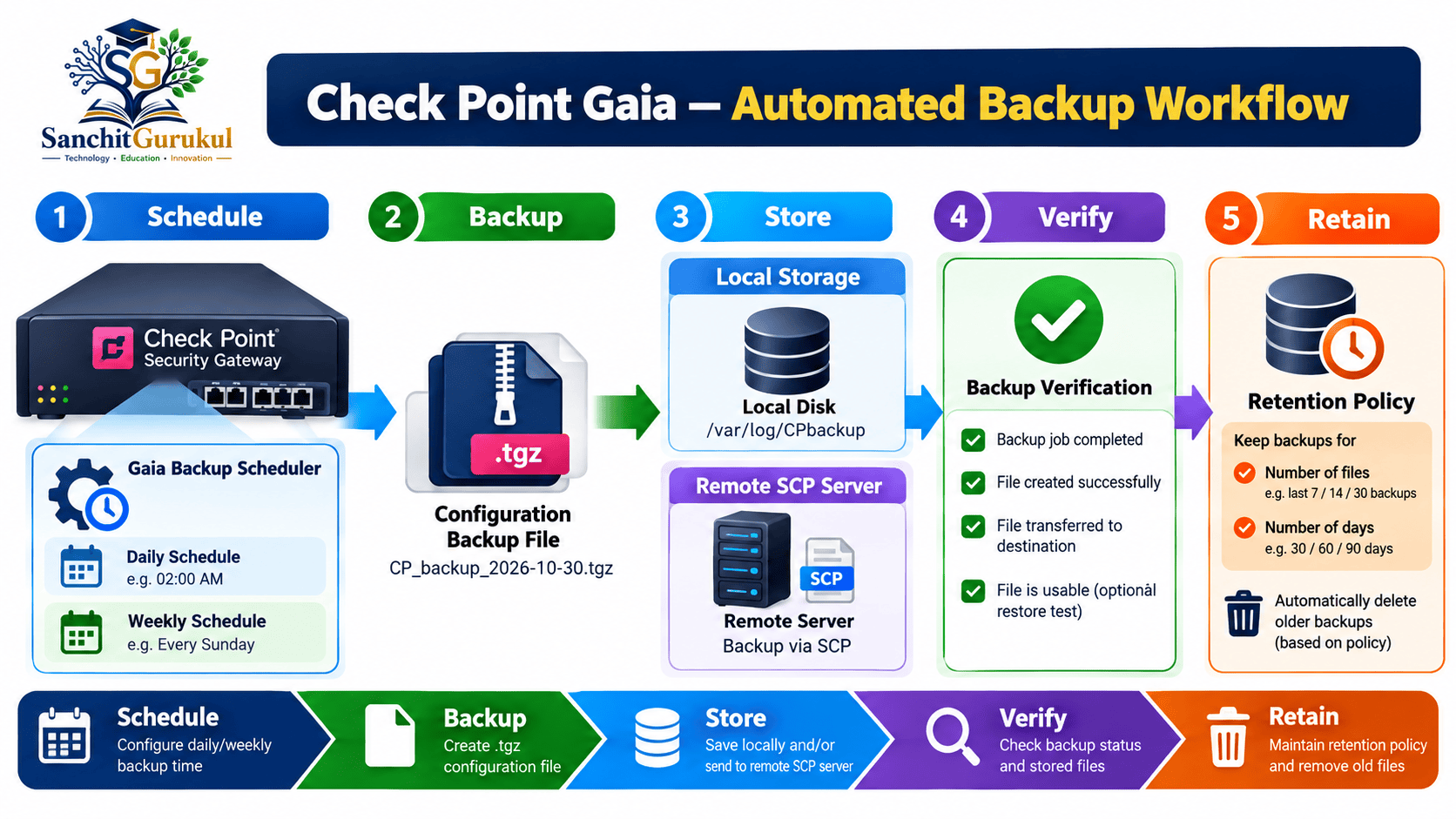
What Is a Scheduled Backup in Check Point Gaia?
A scheduled backup is an automated Gaia system backup operation.
It allows administrators to create recurring configuration backups without manually starting each operation.
The backup content follows the applicable Gaia Backup functionality.
Available Backup Frequencies
Depending on the Gaia release, the following scheduling options are available:
| Schedule | Description |
|---|---|
| Daily | Once every day |
| Weekly | On selected weekdays |
| Monthly | On selected calendar days |
| Hourly | At selected hours |
| Minute Interval | Repeatedly at configured minute intervals |
In R82.20, yearly scheduling is not listed as a separate recurrence option.
For example, a monthly schedule can be configured to run during a selected month, but this should not be confused with a dedicated yearly scheduling setting.
Where Are Scheduled Backups Stored?
Scheduled backup files can be saved locally or transferred to a supported remote destination.
Local backup directory:
/var/log/CPbackup/backups/
Scheduled backup filenames include the backup schedule name and a timestamp.
Example:
backup_-DailyBackup-_GW01.example.com_2026_Oct_20_02_00_00.tgz
The example filename is illustrative.
A corresponding .info metadata file is also created in applicable recent releases.
Configuring Scheduled Backups Using Gaia Portal
Gaia Portal provides a graphical method for creating backup schedules.
Step 1 — Open System Backup
Log in to Gaia Portal.
Navigate to:
Maintenance → System Backup
Find the Scheduled Backup section.
Step 2 — Add a Scheduled Backup
Click:
Add Scheduled Backup
Enter a descriptive name.
Example:
DailyBackup
In the documented R82.20 implementation, the schedule name can contain letters, numbers and underscores, with a maximum length of 15 characters.
Step 3 — Select Backup Destination
Select the required backup location.
For this example, choose:
This appliance
Gaia will save the backup locally.
A remote destination such as an SCP server can also be configured where supported.
Step 4 — Configure the Schedule
Select the Daily scheduling option.
Set the time to:
02:00
This example configures a backup to run every day at 2:00 AM according to the firewall’s configured system time.
Choose a suitable maintenance or low-activity period.
Step 5 — Configure Retention
If your release supports retention settings, configure an appropriate policy.
For example:
- Maximum backups to keep: 7
- Review available disk space
- Retain additional protected off-device backups according to organizational requirements
The exact interface and retention options depend on the Gaia release.
Step 6 — Save and Verify
Click Add to create the schedule.
Verify that the scheduled backup appears in the Scheduled Backups table.
After its first scheduled execution, confirm that a backup file was created successfully.
Configuring Scheduled Backups Using Gaia Clish
Gaia Clish provides commands for creating and managing scheduled backup jobs.
Step 1 — Create a Local Backup Schedule
Connect to Gaia Clish.
Run:
add backup-scheduled name DailyBackup localThis creates a scheduled backup definition called DailyBackup.
The backup destination is the local appliance.
Step 2 — Configure the Daily Schedule
Run:
set backup-scheduled name DailyBackup recurrence daily time 02:00This configures the backup to run every day at 2:00 AM.
Step 3 — Save the Configuration
Run:
save configThis saves the Gaia configuration changes permanently.
On applicable Scalable Platforms, configuration-saving behavior differs because those platforms automatically save the changes.
Step 4 — Verify the Schedule
Run:
show backup-scheduled DailyBackupThe displayed configuration should indicate the local destination and the daily execution time.
Illustrative Output:
The scheduled backup is performed locally.
Every day at 02:00
The output format may differ by Gaia release.
Configuring Other Scheduling Frequencies
Weekly Backup — Syntax:
set backup-scheduled name DailyBackup recurrence weekly days timeMonthly Backup — Syntax:
set backup-scheduled name DailyBackup recurrence monthly month days timeHourly Backup — Syntax:
set backup-scheduled name DailyBackup recurrence hourly hours all at 30The hourly example schedules a backup at minute 30 of each hour.
Interval Backup — Example:
set backup-scheduled name DailyBackup recurrence interval minutes 30This schedules execution every 30 minutes.
These commands change the recurrence of the existing DailyBackup schedule. They are alternative examples, not commands to execute consecutively.
Frequent system backups are not automatically better. Consider system workload, file size and available storage.
Creating a Scheduled SCP Backup
Official command syntax:
add backup-scheduled name RemoteBackup scp ip path username passwordThe documented scheduled SCP command requires authentication parameters.
Because command-line credentials can be exposed in command history or operational records, use approved credential-handling procedures and restrict access to backup administration.
Before configuring SCP, complete the applicable SSH trusted-host setup required by Check Point.
Deleting a Scheduled Backup
To remove a schedule that is no longer required:
delete backup-scheduled DailyBackup
save config
This example deletes the schedule named DailyBackup.
It is a configuration-changing command and should not be run while following the earlier schedule-creation example.
Backup Retention and Troubleshooting
Scheduled backups can consume increasing amounts of storage.
A retention policy helps control how many backup files are retained.
Configuring Backup Retention
For Gaia R82.20, an example maximum backup count is:
set backup-scheduled name DailyBackup retention-policy max-backups-to-keep 7
save config
This configures the schedule to retain a maximum of seven applicable backup files.
Gaia also supports minimum-backup-count and disk-space-related retention settings.
The keep-occupied-disk-space-in-MB setting is used to maintain the configured amount of available disk space according to the documented retention behavior.
Important limitations:
- Retention settings apply to eligible new backup files, not automatically to older files outside their scope.
- Retention enforcement can delete older eligible backups.
- A backup job may fail if it cannot satisfy its retention requirements.
- Retention policies are not supported for TFTP destinations in the documented R82.20 implementation because TFTP does not provide the required remote file deletion capability.
Do not configure retention without understanding which backup files may be deleted.
Common Backup Problems
| Problem | Possible Cause | Recommended Check |
|---|---|---|
| Backup does not start | Schedule or management-session restriction | Check schedule and active SmartConsole sessions |
| Backup fails | Insufficient disk space | Check available storage |
| SCP upload fails | Credentials, permissions or SSH trust | Verify remote access and SCP trust |
| Backup file is missing | Job failed or destination is incorrect | Check backup status and storage location |
| Old files are not deleted | Retention limitation or file scope | Review retention configuration |
| Scheduled job stops | Retention constraints cannot be satisfied | Review free space and retention limits |
Useful Verification Commands
Check backup status:
show backup statusCheck the last successful backup:
show backup last-successfulView locally available backups:
show backupsInspect the scheduled job:
show backup-scheduled DailyBackupReview backup logs:
show backup logsWhen investigating scheduler problems, administrators can also review /var/log/messages from Expert mode, as recommended in the Gaia documentation.
Pre-Change Checklist
| No. | Check | Status |
|---|---|---|
| 1 | Verify Gaia release and supported scheduling options | Pending |
| 2 | Check free disk space and destination permissions | Pending |
| 3 | Select a suitable backup schedule | Pending |
| 4 | Review existing schedules and retention rules | Pending |
| 5 | Confirm secure backup storage requirements | Pending |
Post-Change Checklist
| No. | Check | Status |
|---|---|---|
| 1 | Verify the scheduled job configuration | Pending |
| 2 | Confirm the settings were saved | Pending |
| 3 | Check the first completed scheduled backup | Pending |
| 4 | Verify the backup file and destination | Pending |
| 5 | Review retention behavior and backup logs | Pending |
Key Takeaways
Scheduled Backup Fundamentals
- Gaia supports automated configuration backups.
- Scheduled jobs can be configured using Gaia Portal or Clish.
- Daily, weekly, monthly, hourly and interval options are available in supported releases.
- Backups can be stored locally or on supported remote destinations.
Backup Verification and Retention
- Always verify that scheduled backup jobs complete successfully.
- Keep secure, independent copies of important backups.
- Retention policies help manage backup storage.
- Retention limitations vary by Gaia release and backup destination.
- Periodically review backup status and recovery readiness.
Check Point Gaia Scheduled Backup is an important feature for maintaining recoverable firewall configurations.
It enables administrators to automate backups and reduce dependence on manual operations.
However, backup scheduling should be combined with secure off-device storage, monitoring, retention management and periodic recovery validation.
For production environments, administrators should select schedules according to business requirements and verify that every critical firewall has a recent, usable backup.
Useful Links and References
SanchitGurukul Resources
Official External References
Your feedback matters
Was this post helpful?
Discussion
0 approved comments
No approved comments yet. You can start the discussion below.
Leave a Comment
No login is required. Name and email are used for moderation/security. Your email is never displayed publicly. All comments require administrator approval.
Discover more from SanchitGurukul
Subscribe to get the latest posts sent to your email.


