
Prerequisites: Basic TCP/IP, Network Interfaces, Firewall Policies and CLI Commands
Imagine a user reporting that they cannot access an application through a Check Point firewall.
You check the firewall policy, and the required access rule appears to allow the connection.
However, the application still does not work.
Where is the packet being lost?
Does it reach the firewall? Is it being dropped during inspection? Does it leave through the expected network interface?
To answer these questions, network administrators use packet-capturing and debugging tools.
Packet capturing records network traffic so administrators can examine communication between devices.
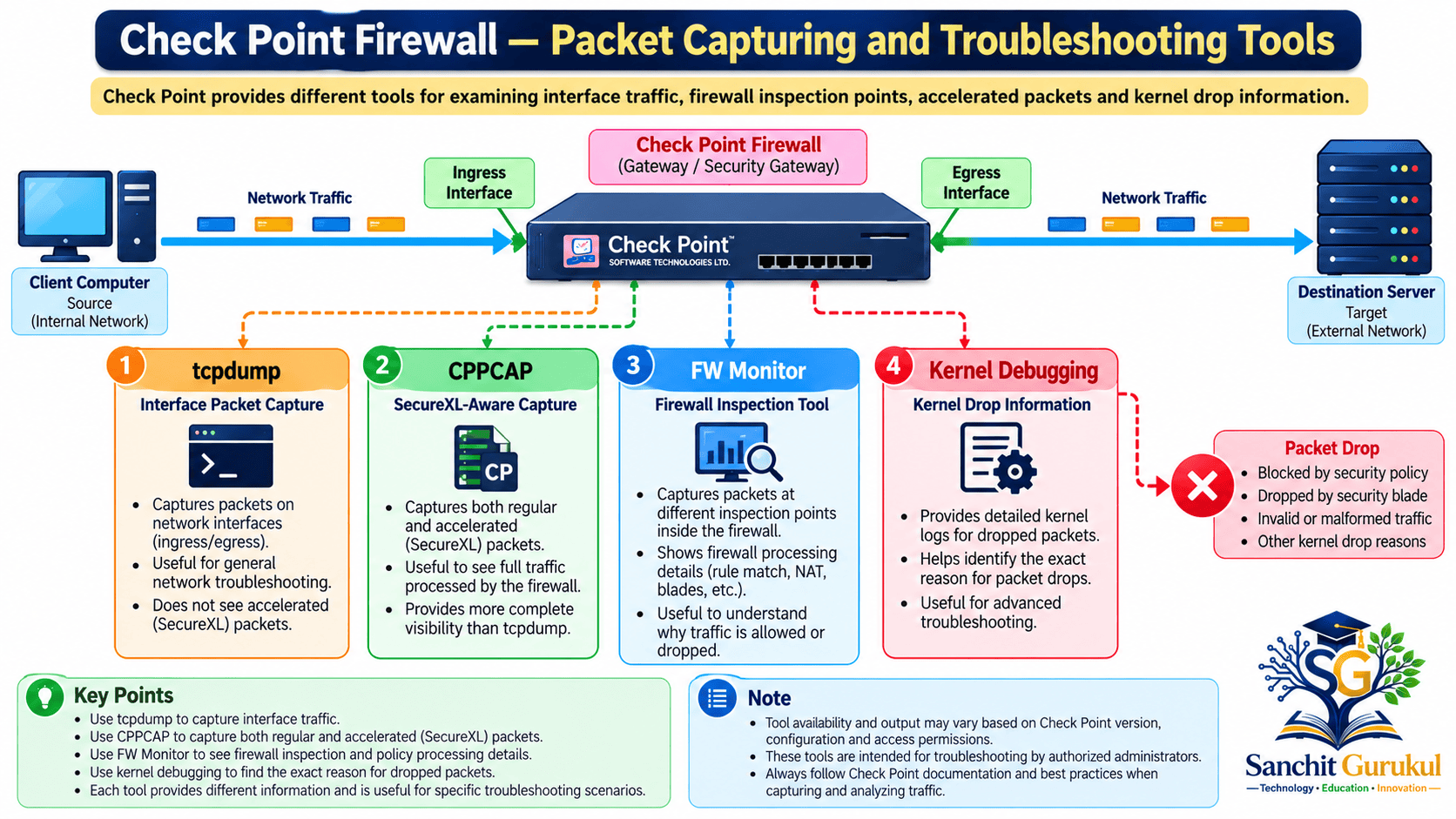
Check Point provides several useful tools:
- FW Monitor: Captures packets at different firewall inspection points.
- tcpdump: Captures traffic observed on network interfaces.
- CPPCAP: Provides Check Point-optimized interface packet capturing with SecureXL awareness.
- fw ctl zdebug: Displays selected firewall kernel debugging information, including reported packet drops.
These tools have different purposes. Knowing when to use each one helps administrators troubleshoot network problems more efficiently.
In this article, you will learn:
- How packet capturing works on Check Point firewalls
- The differences between FW Monitor, tcpdump and CPPCAP
- What FW Monitor inspection points
i,I,oandOmean - How SecureXL affects packet capturing
- How to capture and save traffic for Wireshark analysis
- How to investigate firewall packet drops
- How to troubleshoot a connection failure step by step
1. Understanding Check Point Packet-Capturing Tools
What Is FW Monitor?
FW Monitor is a built-in Check Point packet-capturing tool.
Its main advantage is the ability to capture traffic at different positions within the firewall inspection chains.
An inspection chain is a sequence of processing modules that may examine or modify traffic passing through the gateway.
For example, packet processing can involve firewall inspection, NAT, VPN processing and other enabled security functions.
FW Monitor helps administrators observe packets at selected locations relative to these processing modules.
Unlike a conventional interface capture, FW Monitor can show multiple observations of the same packet as it progresses through the firewall.
It is useful for investigating:
- Packet drops
- Firewall processing behavior
- NAT changes
- Traffic forwarding
- Inspection-chain visibility
- Connectivity failures
FW Monitor is available on supported Check Point Security Gateways without requiring installation of a separate packet-capturing application.
Understanding the Four FW Monitor Inspection Points
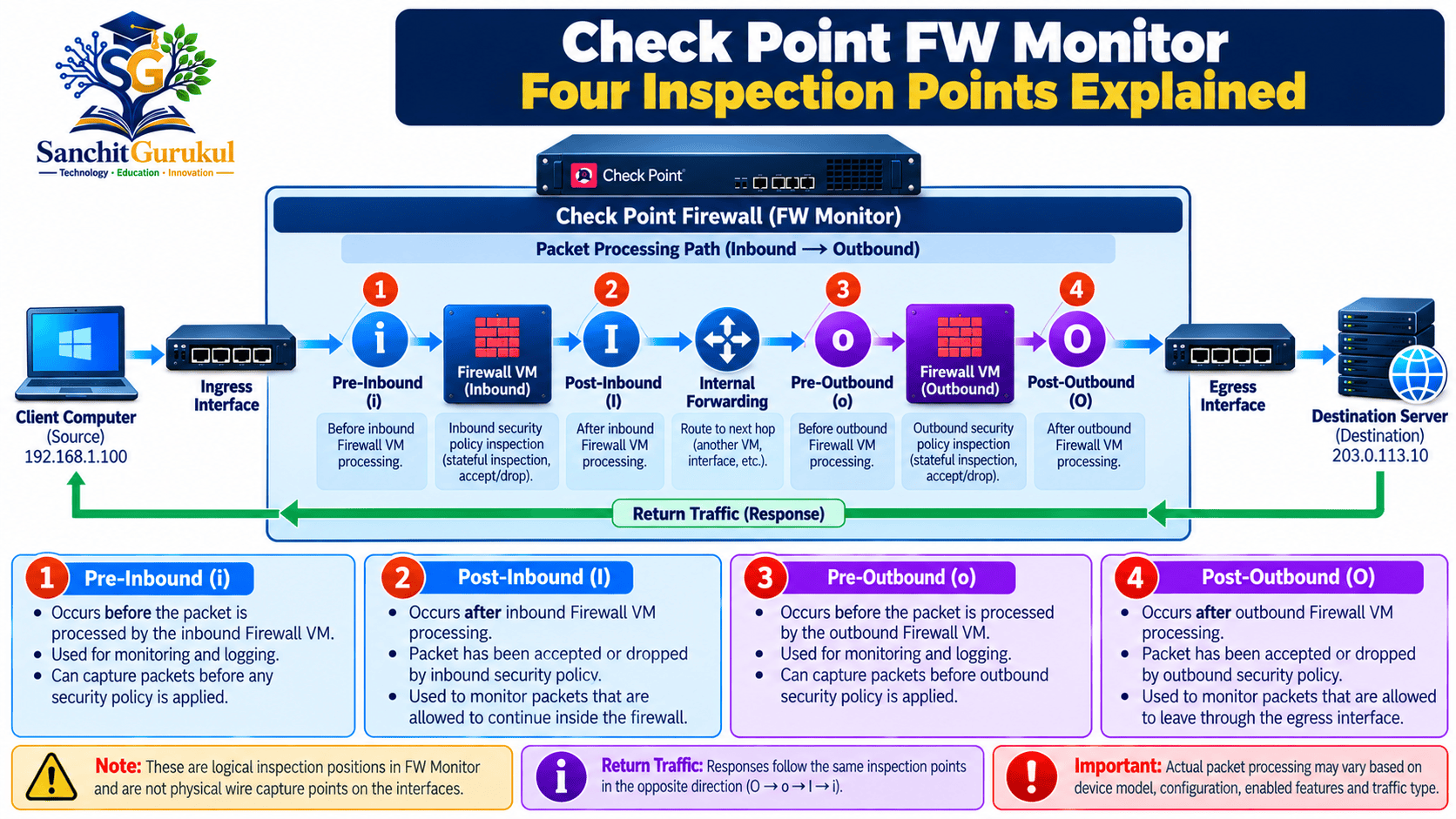
Four traditional inspection points are commonly used.
| Inspection Point | Name | Description |
|---|---|---|
i |
Pre-Inbound | Before the inbound Firewall Virtual Machine inspection position |
I |
Post-Inbound | After the inbound Firewall Virtual Machine inspection position |
o |
Pre-Outbound | Before the outbound Firewall Virtual Machine inspection position |
O |
Post-Outbound | After the outbound Firewall Virtual Machine inspection position |
The Firewall Virtual Machine, or Firewall VM, is a Check Point firewall processing component.
These inspection points describe positions relative to firewall processing modules.
They do not represent four separate physical interfaces.
For a packet passing through the traditional Firewall VM path, the logical order is:
i → I → o → O
The same inspection-point names apply to return traffic, but the physical ingress and egress interfaces are reversed.
What Do Missing Inspection Points Mean?
Consider a TCP packet traveling from a client to a server.
If FW Monitor shows:
i → I → o → O
The packet was observed at all four selected inspection positions.
Now suppose you see only:
i
This means the packet appeared at the first selected inspection point but was not observed at the remaining selected points.
Possible explanations include:
- The firewall dropped the packet.
- The packet followed a different processing path.
- SecureXL processing affected the observed capture positions.
- The capture filter did not match the packet at later stages.
- Another firewall processing function changed or redirected the packet.
A missing inspection point does not automatically identify the reason.
For example, observing i without I does not prove that the access rule or anti-spoofing protection caused the drop.
Similarly, observing I without o does not conclusively establish a routing failure.
Administrators should correlate FW Monitor observations with security logs, routing information and other capture tools.
How SecureXL Affects Packet Capturing
SecureXL is Check Point’s traffic-acceleration technology.
It allows eligible traffic to be processed without repeatedly traversing the complete Firewall Kernel inspection path.
Historically, accelerated traffic was more difficult to observe using FW Monitor.
Modern versions support accelerated traffic capture.
However, different FW Monitor filters behave differently.
| FW Monitor Filter | Accelerated Traffic | Non-Accelerated Traffic |
|---|---|---|
-e INSPECT expression |
Not filtered by this method | Supported |
-F connection filter |
Supported | Supported |
-H IP address filter |
Supported | Supported |
The older -e filter is not suitable when complete visibility into SecureXL-accelerated traffic is required.
Check Point introduced FW Monitor accelerated-traffic capture support beginning with R80.20, with capabilities evolving in later releases.
2. FW Monitor Commands and Capture Files
FW Monitor can run in supported Gaia command-line environments.
The following examples use Gaia Expert mode.
All addresses in the examples belong to documentation IP ranges.
Example 1 — Display FW Monitor Help
fw monitor -hThis displays the supported command options.
It is useful when working with different Check Point software releases.
Example 2 — Capture Traffic for One IP Address
Suppose you want to capture traffic involving:
192.0.2.10
Use:
fw monitor -H "192.0.2.10" -m iIoO -ci 100 -co 100 -TCommand explanation:
-H: Filters traffic associated with the specified IP address.-m iIoO: Selects the four traditional inspection points.-ci 100: Sets an inbound packet-count limit.-co 100: Sets an outbound packet-count limit.-T: Displays timestamps with captured packet information.
The packet-count options help prevent an unrestricted capture.
The command stops when a configured capture-count condition is reached. It does not promise exactly 100 packets in each direction.
Example 3 — Capture Traffic Between Two Hosts
Consider:
| Component | IP Address |
|---|---|
| Client | 192.0.2.10 |
| Server | 198.51.100.20 |
Capture traffic between these two systems:
fw monitor -F "192.0.2.10,0,198.51.100.20,0,0" -F "198.51.100.20,0,192.0.2.10,0,0" -m iIoO -ci 100 -co 100The -F filter uses the following structure:
Source IP,Source Port,Destination IP,Destination Port,Protocol
A value of 0 represents any value for the applicable port or protocol field.
The first filter matches client-to-server traffic.
The second filter matches server-to-client traffic.
Multiple -F filters are combined using a logical OR operation.
Example 4 — Capture Only HTTPS Communication
To capture TCP traffic associated with server port 443:
fw monitor -F "192.0.2.10,0,198.51.100.20,443,6" -F "198.51.100.20,443,192.0.2.10,0,6" -m iIoO -ci 100 -co 100Here:
443is the selected HTTPS server port.6identifies TCP.- The two filters cover both traffic directions.
This makes the capture more focused.
When NAT is configured, the source or destination address may change at different processing positions.
If required traffic is missing from the capture, verify whether the filter should include original or translated addresses.
Example 5 — Save an FW Monitor Capture for Wireshark
FW Monitor supports saving captured traffic to a file.
Use:
fw monitor -H "192.0.2.10" -m iIoO -ci 100 -co 100 -o /var/log/sg_fwmonitor.capThis command writes captured packet data to:
/var/log/sg_fwmonitor.cap
Important: FW Monitor capture-file format
FW Monitor uses the snoop capture format described in RFC 1761 for files created with the -o option.
This is different from the native PCAP format commonly produced by tcpdump.
However, Wireshark supports reading snoop-format capture files directly.
Therefore:
- FW Monitor output does not need a
.pcapextension to be opened in Wireshark. - Changing a filename extension does not convert the underlying file format.
- Use an explicit output path so the file location is known.
- If a standard PCAP or PCAPNG file is required, open the capture in Wireshark and save it using the appropriate supported format.
If you do not specify a path, FW Monitor writes the output file to the current working directory.
Check Point recommends using an appropriate location on the /var/log partition because capture files can become large.
Example 6 — Capture the Complete Packet
By default, FW Monitor captures packet-header information rather than the complete packet.
If application payload data is needed, use the -w option together with -o.
fw monitor -H "192.0.2.10" -m iIoO -ci 100 -co 100 -o /var/log/sg_fwmonitor_full.cap -wThe -w option captures complete packets instead of only the headers.
The saved file remains in FW Monitor’s snoop-compatible format.
Full-packet captures may include confidential information, such as application data, authentication information or unencrypted credentials.
Use them only when necessary.
Example 7 — Capture Only a Limited Number of Bytes
When only packet headers are required, the -l option can limit the number of captured bytes.
fw monitor -H "192.0.2.10" -m iIoO -l 128 -ci 100 -co 100 -o /var/log/sg_fwmonitor_headers.capThis requests up to 128 bytes from each selected packet.
A capture-length limit can reduce storage requirements and avoid collecting unnecessary payload information.
The required length depends on the protocols and any encapsulation headers.
Example 8 — Using the Traditional INSPECT Filter
The older FW Monitor filtering method remains useful for non-accelerated traffic.
fw monitor -e 'accept (src=192.0.2.10 or dst=192.0.2.10);' -m iIoOThe expression selects matching traffic processed through the non-accelerated inspection path.
Important: This filter does not apply to SecureXL-accelerated traffic.
Use supported acceleration-aware filters for investigations that require accelerated packet visibility.
Important FW Monitor Options
| Option | Purpose |
|---|---|
-h |
Displays command help |
-H |
Filters traffic by IP address |
-F |
Filters by source, destination, ports and protocol |
-e |
Uses an INSPECT expression for non-accelerated traffic |
-m |
Selects inspection points |
-o |
Writes captured traffic to a snoop-format file |
-w |
Captures the complete packet when used with the required option |
-l |
Limits the captured packet length |
-ci |
Sets an inbound packet-count limit |
-co |
Sets an outbound packet-count limit |
-T |
Displays timestamps in console output |
-v |
Selects a Virtual System on supported VSX platforms |
3. Using tcpdump and CPPCAP
What Is tcpdump?
tcpdump is a widely used command-line packet-capturing tool.
On supported Check Point Gaia systems, it can capture network traffic associated with selected interfaces.
It is particularly helpful for investigating:
- TCP three-way handshakes
- ICMP requests and replies
- DNS communication
- Network interface traffic
- Packet retransmissions
- Unexpected network addresses
- Protocol-level communication failures
tcpdump captures packets observed at the selected interface capture location.
However, hardware acceleration, SecureXL mode and platform-specific behavior can affect its visibility.
Example 1 — Capture Traffic for One Host
tcpdump -nn -i eth1 'host 192.0.2.10'This displays matching traffic on interface eth1.
The -nn option prevents hostname and port-name resolution.
Example 2 — Capture Traffic Between Two Hosts
tcpdump -nn -i eth1 'host 192.0.2.10 and host 198.51.100.20'This matches packets involving both specified hosts as observed at the selected interface.
Example 3 — Capture HTTPS Traffic
tcpdump -nn -i eth1 'host 192.0.2.10 and tcp port 443'This captures TCP traffic associated with port 443.
It does not decrypt encrypted HTTPS application data.
Example 4 — Save a PCAP File
tcpdump -nn -i eth1 -s 128 -c 100 -w /var/log/sg_tcpdump.pcap 'host 192.0.2.10 and host 198.51.100.20'Command explanation:
-i eth1: Captures on the selected interface.-nn: Disables name resolution.-s 128: Captures up to 128 bytes per packet.-c 100: Stops after 100 captured packets.-w: Writes the capture to a file.
By default, tcpdump writes a conventional PCAP-format capture when using its normal file-output mode.
The saved file can be opened in Wireshark.
What Is CPPCAP?
CPPCAP stands for Check Point PCAP.
It is a Check Point-developed packet-capture utility designed for Check Point Security Gateways.
It provides interface-oriented capturing similar to tcpdump while addressing certain performance and accelerated-traffic capture requirements.
CPPCAP supports SecureXL-accelerated traffic.
It is available on supported Check Point releases and platforms.
Example 1 — Display CPPCAP Help
cppcap -hThis displays the supported command options.
Example 2 — Capture Traffic for One IP Address
cppcap -i eth1 -f "host 192.0.2.10" -p 100 -o /var/log/sg_cppcap.pcapCommand explanation:
-i eth1: Selects the interface.-f: Specifies a packet-capture filter.-p 100: Limits the capture to 100 frames.-o: Saves the captured traffic to a file.
Example 3 — Limit the Captured Packet Length
cppcap -i eth1 -f "host 192.0.2.10" -c 128 -p 100 -o /var/log/sg_cppcap_headers.pcapThe -c 128 option captures up to 128 bytes from each frame.
In CPPCAP, the default capture length is 96 bytes.
Use -c 0 when complete frames are required.
This differs from FW Monitor, where the -w option is used for full-packet capture.
Comparison of FW Monitor, tcpdump and CPPCAP
| Feature | FW Monitor | tcpdump | CPPCAP |
|---|---|---|---|
| Main purpose | Inspection-chain packet capture | Interface packet capture | Optimized interface packet capture |
| Multiple firewall inspection points | Yes | No | No |
| SecureXL awareness | Supported using appropriate options | Depends on platform and packet path | Supported |
| Capture filtering | Yes | Yes | Yes |
| Save to file | Yes | Yes | Yes |
| Typical saved format | Snoop-compatible | PCAP | PCAP |
| Wireshark support | Yes | Yes | Yes |
| Main advantage | Internal firewall inspection visibility | Detailed protocol-level interface analysis | Optimized Check Point interface capture |
4. Kernel Debugging and Practical Troubleshooting
What Is fw ctl zdebug?
Packet-capturing tools show packets that can be observed at selected points.
However, they do not always explain why traffic is dropped.
Check Point provides kernel-debugging capabilities that can display information about firewall processing and certain drop conditions.
A commonly used command is:
fw ctl zdebug -m fw + dropThis enables the selected firewall kernel drop-debug output.
It can help administrators investigate problems related to:
- Firewall policy enforcement
- Connection-state processing
- Protocol validation
- Selected firewall kernel drop conditions
- Other reported processing failures
The exact output depends on the installed version, traffic and enabled processing components.
Kernel debugging does not capture ordinary network packets into a PCAP file.
It displays diagnostic messages from the selected kernel debug mechanism.
How to Stop Kernel Debugging
Press:
Ctrl+C
Stop the debug session as soon as the necessary information has been collected.
Avoid leaving a debugging process active longer than required.
Practical Example — HTTPS Connection Not Working
Suppose an employee cannot access an internal web application.
The network configuration is:
| Component | Example |
|---|---|
| Client IP | 192.0.2.10 |
| Check Point Ingress Interface | eth1 |
| Check Point Egress Interface | eth2 |
| Server IP | 198.51.100.20 |
| Application Port | TCP 443 |
All addresses and interface names are illustrative.
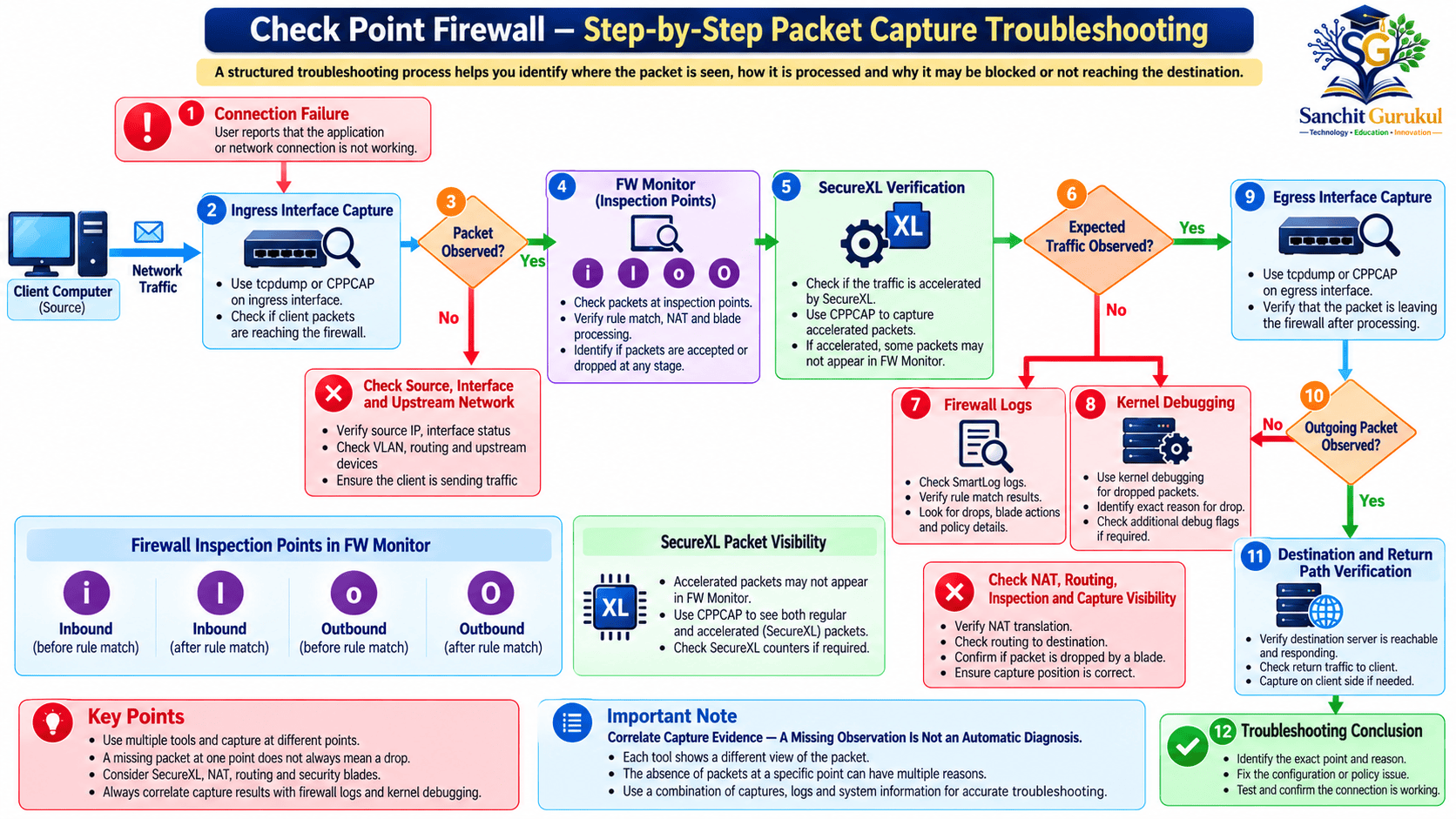
The following workflow demonstrates how an administrator can investigate the connection.
Step 1 — Verify Incoming Traffic
Start with an interface capture.
tcpdump -nn -i eth1 -c 100 'host 192.0.2.10 and host 198.51.100.20 and tcp port 443'Ask the user to reproduce the connection problem while the capture is running.
Check whether TCP SYN packets appear.
If no matching packets are captured, investigate the capture location, interface, filter and upstream network.
Do not immediately assume the client failed to send the traffic.
Step 2 — Check FW Monitor Inspection Points
Capture the traffic through FW Monitor.
fw monitor -F "192.0.2.10,0,198.51.100.20,443,6" -F "198.51.100.20,443,192.0.2.10,0,6" -m iIoO -ci 100 -co 100Observe which inspection points display matching packets.
For a packet using the traditional Firewall VM path, the expected conceptual sequence is:
i → I → o → O
If a packet disappears from the selected positions, investigate possible drop conditions, alternate processing paths and capture-filter limitations.
Step 3 — Check SecureXL Behavior
Check the acceleration status.
fwaccel statThis command helps determine the operating status of SecureXL.
If SecureXL is active, consider whether accelerated traffic processing affects the expected observations.
Do not disable acceleration simply because fewer inspection points are visible.
Step 4 — Investigate Reported Packet Drops
If security logs and packet observations suggest a firewall drop, use targeted kernel debugging if authorized.
fw ctl zdebug -m fw + dropReproduce the connection attempt.
Examine the resulting messages for the applicable connection information and any reported drop conditions.
Stop debugging using Ctrl+C.
Not all packet drops are necessarily reported by the selected debug flag.
Use the result as one part of the overall investigation.
Step 5 — Verify Outgoing Traffic
Capture traffic on the expected egress interface.
tcpdump -nn -i eth2 -c 100 'host 198.51.100.20 and tcp port 443'Compare what appears on the ingress and egress sides.
If NAT is configured, the visible source or destination addresses may differ.
If outgoing traffic is observed but no response arrives, investigate the downstream network, server and return route.
If transmission through accelerated processing cannot be observed reliably using tcpdump, use CPPCAP or an appropriate adjacent-device capture.
Step 6 — Interpret the Evidence
| Observation | Possible Cause | Next Action |
|---|---|---|
| No packet in ingress capture | Wrong capture location or upstream issue | Check interface, filter and upstream path |
Packet at i, missing from later points |
Drop or different processing path | Check logs, SecureXL and kernel debug |
Packet at I, missing from o |
Forwarding, inspection or capture limitation | Check routing, NAT and firewall processing |
Packet visible at O |
Packet reached post-outbound inspection position | Verify physical interface transmission |
| Request leaves but reply does not return | Server or return-path issue | Check destination and downstream network |
| Kernel reports a drop | Selected firewall processing rejected traffic | Correlate drop details with the connection |
| Packet capture shows changed IP | NAT may have been applied | Check translated source and destination |
The purpose of this process is to narrow down the problem using evidence.
A single missing packet or capture point does not always reveal the exact cause.
Additional Considerations for Production Environments
SecureXL
Use acceleration-aware capture methods instead of disabling acceleration as a routine first step.
VSX
Ensure that packet captures run in the correct Virtual System context.
FW Monitor provides a -v option for selecting the relevant Virtual System on supported platforms.
Maestro and Other Scalable Platforms
Capture commands may need to run in the applicable Security Group or member context.
Do not assume that a command executed on one member observes traffic handled by every member.
VPN Traffic
For encrypted VPN connections, interface captures may show encrypted outer packets while firewall inspection tools may reveal different representations of the traffic.
The visibility depends on the capture location and VPN processing stage.
System Performance
Use specific filters, short capture sessions and bounded output files.
Sensitive Data
Packet captures may contain internal addressing, authentication data and application payload information.
Store capture files securely and remove them when no longer required.
Key Takeaways
Packet-Capturing Fundamentals
- Packet capturing helps investigate network communication failures.
- Check Point provides FW Monitor, tcpdump and CPPCAP for traffic analysis.
- Different tools provide visibility at different processing locations.
- Packet captures should be interpreted together with firewall logs and routing information.
FW Monitor
- FW Monitor captures traffic at firewall inspection points.
- The four traditional points are
i,I,oandO. - Modern FW Monitor supports SecureXL-accelerated traffic.
- The
-Ffilter can capture accelerated and non-accelerated traffic. - The older
-eINSPECT expression does not filter accelerated packets. - FW Monitor’s
-ooption writes snoop-format capture files. - The
-woption enables complete-packet capture.
tcpdump and CPPCAP
- tcpdump captures traffic observed on network interfaces.
- tcpdump’s
-woption saves ordinary PCAP capture files. - CPPCAP is optimized for supported Check Point gateways.
- CPPCAP supports SecureXL-accelerated traffic.
- CPPCAP’s
-coption controls captured frame length. - CPPCAP’s
-poption limits the captured number of frames.
Kernel Debugging
fw ctl zdebugprovides selected firewall kernel diagnostic information.- The
dropflag can help investigate reported packet drops. - Kernel debugging is different from ordinary packet capturing.
- Excessive debugging can affect production firewall performance.
Troubleshooting Best Practices
- Start with the simplest appropriate capture.
- Use filters and packet-count limits.
- Verify the correct interfaces and Virtual System context.
- Check SecureXL behavior before interpreting missing inspection points.
- Correlate packet captures with firewall logs and kernel debug information.
- Do not routinely disable acceleration.
- Protect packet-capture files from unauthorized access.
Conclusion
Network packet capturing is an essential skill for Check Point firewall administrators.
When a connection fails, the first step is to understand where traffic is reaching and what happens as it passes through the firewall.
FW Monitor provides visibility into selected firewall inspection points.
tcpdump helps investigate network interface traffic and protocol behavior.
CPPCAP provides Check Point-optimized capturing with support for accelerated traffic.
Kernel debugging adds information about selected firewall processing and packet-drop conditions.
These tools work best when used together in a structured troubleshooting process.
The most important principle is simple: capture the right traffic, understand what each tool actually observes and confirm the diagnosis before changing the firewall configuration.
Next in This Series: Check Point FW Monitor Advanced Troubleshooting — NAT Analysis, Inspection Chains, SecureXL and Packet Drops in Wireshark.
Useful Links and References
SanchitGurukul Static Resources
Official External References
Your feedback matters
Was this post helpful?
Discussion
0 approved comments
No approved comments yet. You can start the discussion below.
Leave a Comment
No login is required. Name and email are used for moderation/security. Your email is never displayed publicly. All comments require administrator approval.
Discover more from SanchitGurukul
Subscribe to get the latest posts sent to your email.


