
Imagine a small organization with 50 employees, several servers and a shared internet connection.
The organization needs to protect its network against unauthorized access, suspicious connections, malware and other cybersecurity threats.
A traditional firewall can control network communication using IP addresses, protocols and port numbers.
However, modern applications frequently use the same network ports.
For example, business applications, video streaming platforms and social media services may all communicate through HTTPS using TCP port 443.
A basic port-based firewall rule cannot reliably distinguish these applications simply by examining the destination port.
This is where a Next-Generation Firewall (NGFW) provides additional capabilities.
An NGFW extends traditional firewall functions with technologies such as application identification, intrusion prevention and advanced traffic inspection.
Commercial NGFW products can be expensive, especially for students, home laboratories and small organizations.
Fortunately, several free and open-source firewall platforms provide valuable security functionality.
However, not every free firewall includes all the capabilities of a commercial NGFW.
In this article, you will learn:
- What a Next-Generation Firewall is and how it works
- How traditional firewalls differ from NGFWs
- Important NGFW security capabilities
- Which features are available in free firewall platforms
- How pfSense CE, OPNsense, IPFire and Arista NG Firewall compare
- Advantages, disadvantages and limitations of each platform
- How to select a suitable firewall for your environment
- How to build a basic firewall security lab using OPNsense

What Is a Next-Generation Firewall (NGFW)?
A Next-Generation Firewall (NGFW) is a network security platform that combines traditional firewall capabilities with additional traffic analysis, application awareness and threat-detection functions.
Traditional firewalls primarily control communication using network information and connection state.
NGFWs extend these capabilities by examining additional information about supported applications and potentially malicious activity.
Important NGFW Capabilities
1. Stateful Packet Inspection
Tracks network connections and determines whether traffic belongs to an established or permitted session.
2. Application Awareness
Attempts to identify applications using available protocol information, signatures and traffic characteristics.
3. Intrusion Detection and Prevention
Detects suspicious network activity and, when prevention is enabled, can block traffic matching configured rules.
4. Deep Packet Inspection (DPI)
Analyzes available packet contents and protocol information beyond basic IP addresses and ports.
5. Threat Intelligence
Uses supported security intelligence sources to identify potentially malicious destinations, addresses or other indicators.
6. Malware-Related Detection
Some NGFW products provide malware scanning, file analysis or integration with sandboxing systems.
These capabilities vary significantly between products.
7. URL and Domain Filtering
Allows administrators to restrict access to selected websites, domains or content categories.
8. User-Based Security Policies
Some enterprise NGFW platforms integrate with identity systems to apply policies based on authenticated users or groups.
Not every NGFW includes all these features, and some capabilities require additional subscriptions or configuration.
Traditional Firewall vs NGFW
| Capability | Traditional Stateful Firewall | NGFW |
|---|---|---|
| IP Address Filtering | Yes | Yes |
| Port Filtering | Yes | Yes |
| Stateful Inspection | Yes | Yes |
| NAT | Common | Common |
| Application Identification | Limited or optional | Common capability |
| Intrusion Prevention | Optional or separate | Often integrated |
| Threat Intelligence | Optional | Often integrated |
| URL Filtering | Optional | Commonly available |
| Malware Inspection | Usually separate | Product-dependent |
| TLS Inspection | Not a core capability | Supported by some products |
| Identity-Aware Policies | Product-dependent | Common in enterprise products |
These differences describe typical product capabilities rather than strict technical boundaries.
How Does an NGFW Inspect Network Traffic?
When traffic passes through an NGFW, the firewall evaluates the connection using its configured security policies.
The inspection process varies by product, but the main functions can include:
Network Policy Evaluation
The firewall evaluates source addresses, destination addresses, protocols, ports and other rule conditions.
Connection Tracking
The firewall checks whether packets belong to an established connection or require a new policy decision.
Application Identification
Supported detection engines attempt to identify applications using available network information.
Intrusion Inspection
An IDS/IPS engine checks traffic against enabled security rules and supported detection methods.
Security Decision
The firewall permits, denies, logs or otherwise processes traffic according to the applicable policies.

Can NGFWs Inspect Encrypted HTTPS Traffic?
Most modern websites and applications use TLS encryption.
Without decryption, a firewall may still analyze visible connection information such as IP addresses, ports and selected protocol metadata.
However, encrypted application contents are generally not available for normal payload inspection.
Some NGFW products support TLS interception or decryption.
When properly authorized and configured, this may allow additional inspection of supported encrypted connections.
However, TLS inspection has important limitations.
Examples include:
- Additional CPU and memory requirements
- Certificate trust and management requirements
- Application compatibility problems
- Certificate pinning
- Mutual TLS authentication
- QUIC and HTTP/3 inspection limitations
- TLS 1.3 and encrypted protocol metadata
- Privacy and regulatory considerations
Best Free and Open-Source Firewall Platforms
Several firewall platforms provide useful security capabilities without requiring the same initial software investment as commercial enterprise NGFW products.
Four important platforms are:
- pfSense Community Edition
- OPNsense Community Edition
- IPFire
- Arista NG Firewall, formerly Untangle
These products differ in architecture, licensing, administration and available security capabilities.
1. pfSense Community Edition (CE)
Official Website: https://www.pfsense.org/
pfSense is a firewall and routing platform based on FreeBSD.
It provides network access control, NAT, routing, VPN connectivity and other network services.
Two important editions are available:
- pfSense Community Edition: Free and open-source firewall software.
- pfSense Plus: Separately licensed software with additional capabilities and commercial offerings.
The availability of features and support depends on the selected edition.
Key Features
Stateful Firewall
Tracks active connections and enforces network access-control rules.
Network Address Translation
Supports NAT for internet access, port forwarding and other network requirements.
VPN Connectivity
Provides supported VPN technologies for secure communication between users and networks.
Intrusion Detection and Prevention
Supports Snort and Suricata through additional packages.
Application Identification
The Snort package supports OpenAppID detectors and rules for identifying selected applications.
Traffic Monitoring
Provides firewall logs, connection-state information and diagnostic tools.
Network Segmentation
Supports multiple interfaces, VLANs and security policies.
Advantages
- Free Community Edition
- Flexible firewall and routing configuration
- Extensive official documentation
- Suitable for physical and virtual deployment
- Additional IDS/IPS packages
- Useful for networking and security laboratories
Limitations
- Advanced threat detection requires appropriate packages and configuration.
- Application identification is not equivalent to every commercial NGFW capability.
- Malware sandboxing is not a standard pfSense CE feature.
- IDS/IPS rules require updates and tuning.
- Advanced configurations can be difficult for beginners.
Best Use Cases
- Home network security
- Small business firewall deployments
- Networking laboratories
- Firewall and NAT training
- VPN configuration
- Snort and Suricata learning
2. OPNsense Community Edition
Official Website: https://opnsense.org/
OPNsense is a free and open-source firewall and routing platform based on FreeBSD.
It originated as a fork of pfSense and offers a web-based management interface, extensible architecture and network security features.
It is suitable for learning firewall administration, network segmentation and intrusion detection.
Key Features
Stateful Firewall
Provides firewall rules, connection tracking and access-control policies.
Intrusion Detection and Prevention
Uses Suricata for supported intrusion detection and prevention functions.
Suricata can detect suspicious traffic and, when configured for prevention, discard matching traffic.
VPN Connectivity
Supports technologies including IPsec, OpenVPN and WireGuard through applicable components.
Traffic Shaping
Provides mechanisms for controlling network bandwidth and traffic priorities.
Network Segmentation
Supports VLANs, multiple interfaces and separate security policies.
High Availability
Supports firewall redundancy through appropriate configuration.
Additional Plugins
Allows additional services and security integrations.
Some advanced plugins or third-party services require separate licensing.
Advantages
- Free and open-source
- Web-based configuration interface
- Suricata integration
- Flexible routing and network segmentation
- Virtual machine deployment support
- Extensible plugin architecture
- Comprehensive documentation
Limitations
- Advanced application identification is not universally included.
- Some additional security plugins require subscriptions.
- Intrusion prevention requires suitable hardware and rule tuning.
- TLS decryption is not automatically available for all traffic.
- Incorrect security rules may interrupt legitimate applications.
Best Use Cases
- Cybersecurity students
- Virtual firewall laboratories
- Home networks
- Small business environments
- Suricata IDS/IPS training
- VLAN and network segmentation learning
3. IPFire
Official Website: https://www.ipfire.org/
IPFire is a free and open-source Linux-based firewall distribution.
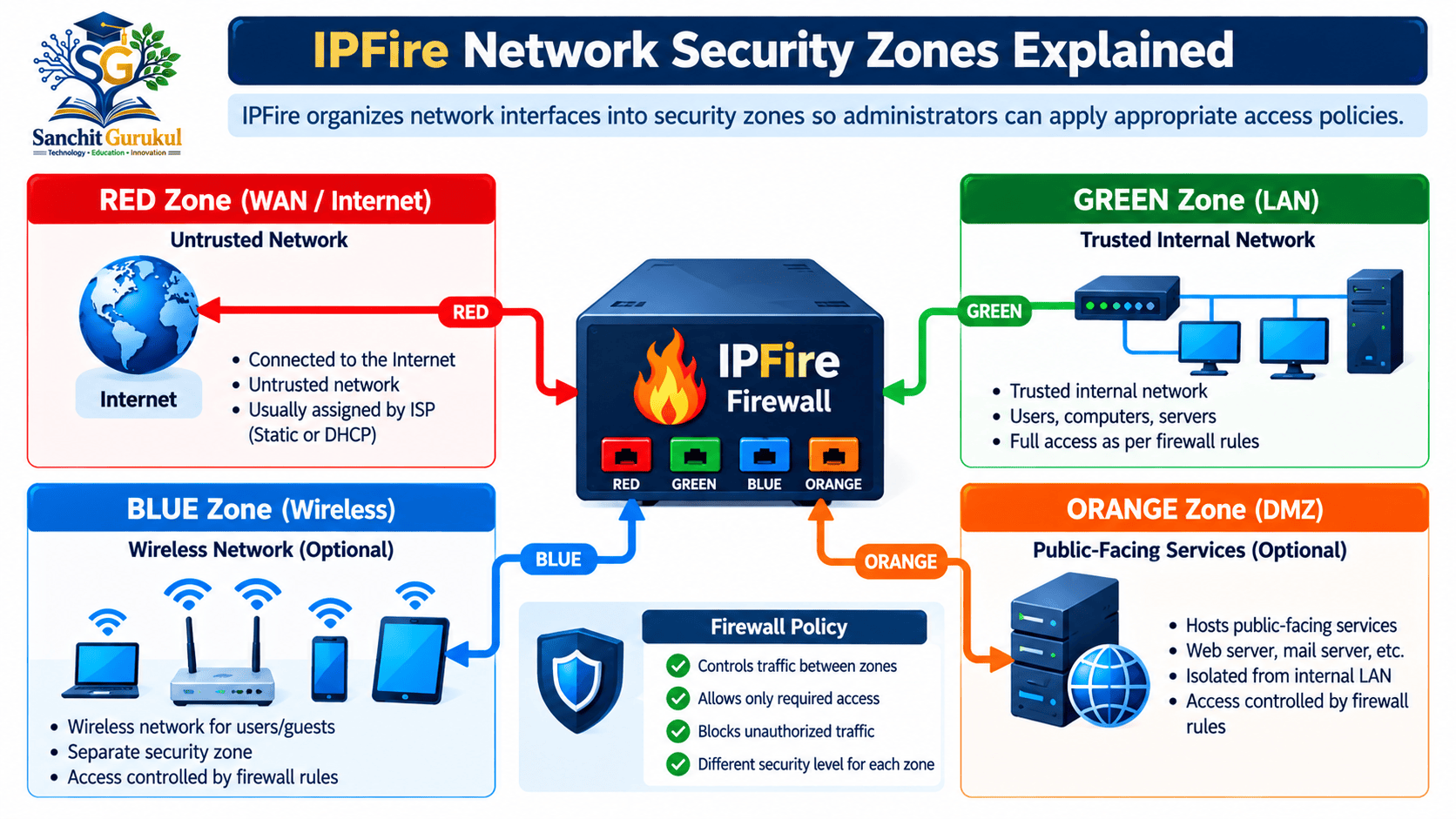
It focuses on protecting networks through firewall policies, security zones and additional security functionality.
One of its important characteristics is a zone-based network model.
IPFire Network Zones
| Zone | Purpose |
|---|---|
| RED | External or untrusted network |
| GREEN | Trusted internal network |
| BLUE | Wireless or separately controlled network |
| ORANGE | Demilitarized Zone (DMZ) |
A DMZ is a separate network segment commonly used for systems that require different access policies from trusted internal devices.
The traffic permitted between zones depends on IPFire’s policies and administrator configuration.
Key Features
Stateful Firewall
Controls network communication using filtering rules and connection tracking.
Network Zone Separation
Organizes network interfaces into trusted and untrusted security zones.
Intrusion Prevention
Uses Suricata to inspect supported network traffic and detect potentially malicious activity.
VPN Support
Provides supported VPN services for secure network connections.
Web Proxy and Filtering
Supports proxy and filtering functionality depending on the installed configuration.
DNS Security
Provides DNS-related filtering and security capabilities.
Traffic Monitoring
Includes network statistics, firewall logs and operational monitoring.
Advantages
- Free and open-source
- Clear network security zone model
- Suitable for learning segmentation
- Suricata intrusion prevention
- Dedicated firewall operating system
- Useful for small network gateways
Limitations
- Advanced application control is more limited than specialized commercial NGFW platforms.
- Encrypted payload inspection is restricted without appropriate decryption.
- IPS requires signature updates and rule tuning.
- Some advanced functionality requires additional configuration.
- Performance depends on hardware and enabled security services.
Best Use Cases
- Home internet gateways
- Small office networks
- Firewall segmentation training
- DMZ configuration
- Basic intrusion prevention
- Linux-based network security learning
4. Arista NG Firewall (Formerly Untangle)
Official Website: https://edge.arista.com/
Arista NG Firewall is part of the Arista Edge Threat Management portfolio.
It was previously known as Untangle NG Firewall.
Unlike pfSense CE, OPNsense and IPFire, Arista NG Firewall uses a commercial licensing model with restricted free functionality.
The free edition should not be confused with a complete open-source NGFW distribution.
Key Features
Depending on the installed version and applicable license, Arista NG Firewall can provide:
- Stateful firewall filtering
- Network routing and NAT
- Application control
- Web filtering
- Intrusion prevention
- VPN services
- Security monitoring
- Reporting and management
- Additional threat-protection applications
Some of these capabilities require paid licenses.
Advantages
- Centralized management interface
- Integrated firewall and security application architecture
- Commercial security functionality
- Software and virtual deployment options
- Useful for evaluating product-specific NGFW operations
Limitations
- Free edition functionality is restricted.
- Advanced security applications may require subscriptions.
- Licensing conditions must be verified before deployment.
- Commercial functionality can increase operational costs.
- Physical appliance lifecycle status must be considered.
Important 2026 Product Update
In March 2026, Arista announced the end of sale of certain Edge Threat Management NG Firewall Q-series appliances.
Affected models included:
- Q4
- Q8
- Q8W
- Q12
- Q20
The last order date for the affected appliances was June 30, 2026.
This announcement concerns specified hardware appliances.
It does not mean that the NG Firewall software itself was discontinued.
Organizations planning new deployments should verify current software availability, licensing, supported hardware and product lifecycle information directly with Arista.
Free NGFW Comparison — Features, Advantages and Selection
The following comparison summarizes important differences between these firewall platforms.
The table describes available product capabilities rather than equivalent performance or security effectiveness.
Feature Comparison
| Feature | pfSense CE | OPNsense | IPFire | Arista NG Firewall Free |
|---|---|---|---|---|
| Free Basic Firewall | Yes | Yes | Yes | Restricted |
| Open-Source Distribution | Yes | Yes | Yes | No |
| Stateful Filtering | Yes | Yes | Yes | Yes |
| NAT and Routing | Yes | Yes | Yes | Yes |
| IDS/IPS | Packages | Suricata | Suricata | License-dependent |
| Application Identification | Snort/OpenAppID | Rules/Plugins | Limited | License-dependent |
| VPN | Yes | Yes | Yes | License-dependent |
| Network Segmentation | Yes | Yes | Yes | Yes |
| Advanced Sandboxing | Not Standard | Not Standard | Not Standard | Product-dependent |
| Virtual Deployment | Yes | Yes | Yes | Supported options |
| Advanced Commercial Support | Separate | Separate | Varies | Subscription-based |
Which Firewall Should You Choose?
Choose pfSense CE if:
- You want to learn routing, NAT and firewall rules.
- You need a customizable firewall for your laboratory.
- You want to experiment with Snort or Suricata packages.
- You prefer a FreeBSD-based firewall platform.
Choose OPNsense if:
- You want a web-based firewall management experience.
- You need a free platform for learning IDS/IPS.
- You want to practice firewall rules, VLANs and VPNs.
- You are building a virtual network security laboratory.
Choose IPFire if:
- You want to learn zone-based network security.
- You need a straightforward dedicated gateway.
- You want to practice separating LAN, wireless and DMZ networks.
- You prefer a Linux-based firewall distribution.
Consider Arista NG Firewall if:
- You are evaluating its specific management and security applications.
- Its available free capabilities meet your requirements.
- You understand the licensing and subscription restrictions.
- You are considering a supported commercial deployment.
NGFW Deployment Best Practices and Security Limitations
Installing a firewall does not automatically make a network secure.
The firewall must be configured, monitored and maintained according to the organization’s security requirements.
1. Identify Security Requirements
Start by identifying which protections are necessary.
Examples include:
- Internet gateway filtering
- Internal network segmentation
- Remote-access VPN
- Site-to-site VPN
- Intrusion detection
- Intrusion prevention
- Application control
- DNS filtering
- Centralized logging
- High availability
Avoid enabling unnecessary services.
2. Apply Least-Privilege Firewall Rules
Allow only the communication required for legitimate business operations.
For example:
| Source | Destination | Recommended Policy |
|---|---|---|
| Employee LAN | Approved Internet Services | Allow Required Traffic |
| Guest Wi-Fi | Internal Servers | Block |
| Guest Wi-Fi | Internet | Allow Approved Traffic |
| Management VLAN | Firewall Administration | Allow Authorized Administrators |
| Internet | Internal Management Interface | Block |
| Application Server | Required Database Service | Allow Specific Traffic |
Actual policies should be based on network design and operational requirements.
3. Evaluate Firewall Performance
Advanced traffic inspection consumes system resources.
Consider:
- Internet bandwidth
- Firewall throughput
- Concurrent connections
- New connections per second
- CPU capacity
- Memory
- IPS rulesets
- VPN encryption overhead
- Logging requirements
A firewall’s basic routing throughput may differ significantly from its performance with advanced inspection enabled.
4. Keep the Firewall Updated
Regularly review:
- Operating system updates
- Firewall security advisories
- IDS/IPS engine updates
- Detection signatures
- VPN vulnerabilities
- Installed packages
- Product lifecycle notices
For production environments, follow change-management and rollback procedures.
5. Protect Firewall Administration
Recommended administrative controls include:
- Strong unique passwords
- MFA where supported
- Restricted management networks
- Encrypted administrative connections
- Configuration backups
- Administrative activity logging
- Separation of privileges
- Disabling unnecessary services
6. Test Intrusion Prevention Carefully
An IDS generates alerts when configured detection conditions are met.
An IPS may actively block matching traffic.
Incorrect IPS rules can cause false positives and interrupt legitimate network communication.
Start with detection-only operation when practical.
Review alerts, tune rules and validate the impact before enabling blocking.
Advantages and Limitations
| Advantage | Important Limitation |
|---|---|
| Free firewall software | Hardware and maintenance still have costs |
| Flexible network policies | Requires networking knowledge |
| Network segmentation | Incorrect policies create security gaps |
| Optional IDS/IPS | Detection rules require tuning |
| VPN connectivity | Secure configuration is essential |
| Network traffic visibility | Encrypted payloads may remain hidden |
| Centralized logging | Logs require monitoring |
| Virtual deployment | Production performance requires testing |
Practical Lab — Deploy OPNsense and Test Firewall Rules
This exercise demonstrates how a free firewall can separate networks and enforce access-control policies.
We will use OPNsense Community Edition in a virtual environment.
The objective is to understand basic firewall operations before exploring advanced intrusion detection.
Lab Objective
Build a simple firewall laboratory that can:
- Separate WAN and LAN networks
- Configure a firewall interface
- Provide a gateway for an internal client
- Test basic network connectivity
- Create a firewall blocking rule
- Review blocked traffic in firewall logs
- Explore the difference between firewall filtering and intrusion detection
Lab Requirements
- VirtualBox or another compatible hypervisor
- OPNsense Community Edition installation image
- At least 4 GB RAM allocated to the firewall VM for this example
- 20 GB virtual disk for the firewall VM
- Two virtual network adapters
- One Windows or Linux client VM
- Basic understanding of IP addressing
The example resource allocation is intended for a training laboratory and is not production sizing guidance.
Lab Topology
| Device | Interface | IP Address |
|---|---|---|
| OPNsense Firewall | WAN | DHCP |
| OPNsense Firewall | LAN | 192.168.50.1/24 |
| Client VM | LAN | 192.168.50.10/24 |
| Client Gateway | LAN | 192.168.50.1 |

Step 1 — Download OPNsense
Open the official download page:
Download an installation image compatible with the virtual machine environment.
For common x86-64 virtualization environments, select an appropriate DVD/ISO installation image.
Extract the downloaded image if required.
Step 2 — Create the Firewall VM
Create a new virtual machine with the following example settings.
VM Name: SG-OPNsense-Lab
Operating System: FreeBSD 64-bit
CPU: 2 Virtual CPUs
RAM: 4096 MB
Disk: 20 GB

Network Adapter 1:
Mode: NAT

Network Adapter 2:
Mode: Internal Network
Network Name: SG-LAB
Attach the installation image.
Start the VM and follow the official OPNsense installation instructions.
After installation, remove the installation image and reboot.
Step 3 — Configure Firewall Interfaces
Use the OPNsense console to identify the WAN and LAN interfaces.
Assign:
WAN Interface:
IPv4 Configuration: DHCP

LAN Interface:
IPv4 Address: 192.168.50.1
Prefix Length: 24
Upstream Gateway: None
Save the configuration.
Interface names may differ depending on the virtual hardware and drivers.
Step 4 — Configure the Client VM
Connect a Windows or Linux VM to the internal network named SG-LAB.
Assign the following static configuration.
IP Address: 192.168.50.10
Subnet Mask: 255.255.255.0
Default Gateway: 192.168.50.1
DNS Server: 192.168.50.1 (if DNS Resolver is enabled)
Step 5 — Verify Basic Connectivity
Open Command Prompt on the Windows client.
Run:
ping 192.168.50.1Illustrative successful output:
Pinging 192.168.50.1 with 32 bytes of data:

Reply from 192.168.50.1: bytes=32 time<1ms TTL=64
Reply from 192.168.50.1: bytes=32 time<1ms TTL=64
Actual latency and TTL values may differ.
A successful ping confirms that ICMP communication with the firewall is working.
It does not confirm that every other protocol is permitted.
Step 6 — Access the Firewall Management Interface
Open a browser from the client VM.
Enter:
https://192.168.50.1The browser may display a warning because the initial firewall management certificate is not trusted.
Verify that the address belongs to the intended laboratory firewall before proceeding.
Log in using the administrator credentials configured during installation.
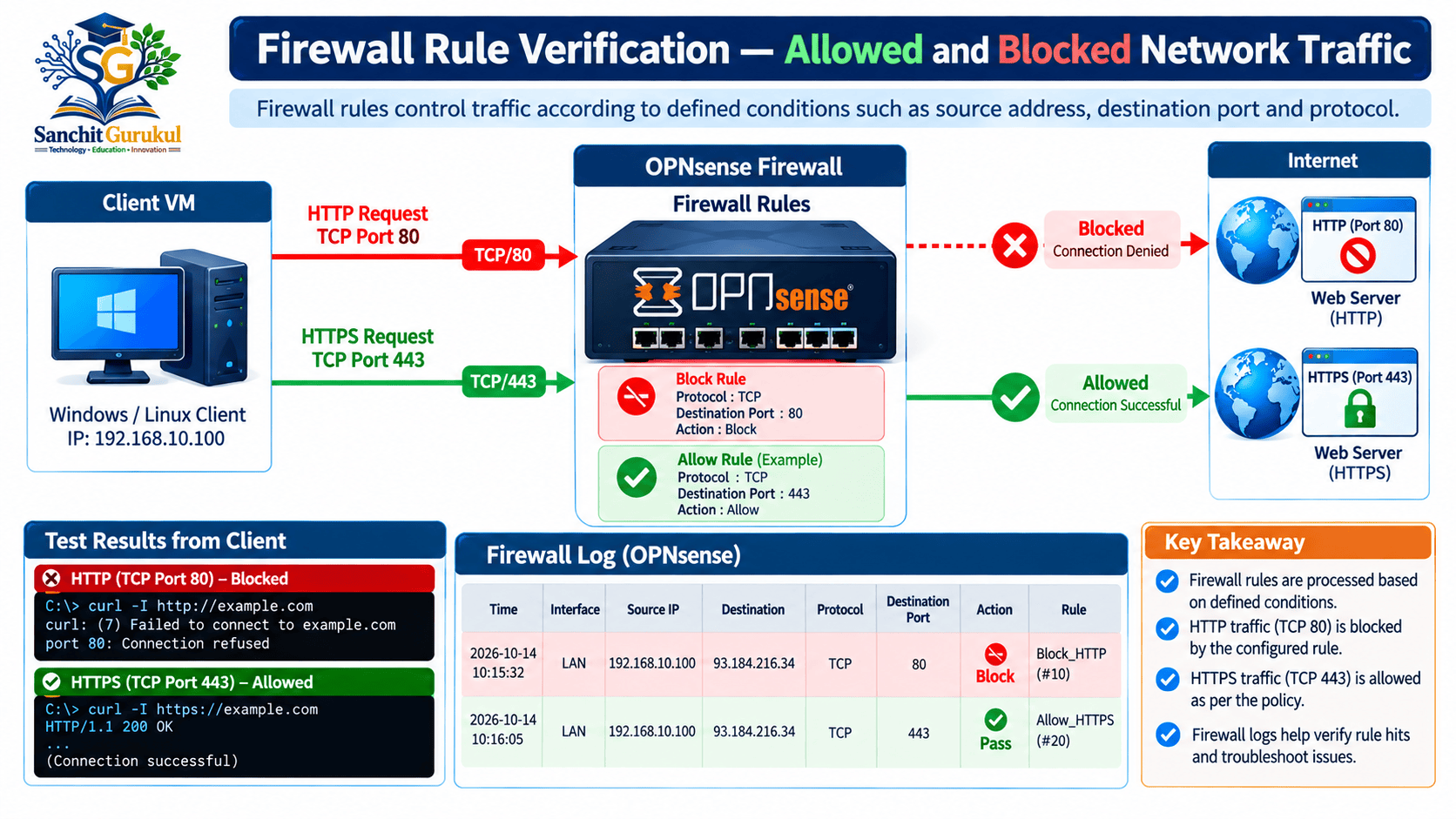
Step 7 — Create a Firewall Blocking Rule
Open the LAN firewall rule configuration page.
Depending on the OPNsense version, this can be found under the firewall rules menu.
Create a rule using the following settings.
Action: Block
Interface: LAN
Protocol: TCP
Source: 192.168.50.10
Destination: Any
Destination Port: 80
Logging: Enabled
Description: SG Lab - Block HTTP
Save the rule.
Place it above any general allow rule that would otherwise permit the same traffic.
Apply the configuration.
Step 8 — Test the Blocking Rule
If the client has external connectivity, use a suitable HTTP test destination.
On a Linux client with curl installed:
curl --connect-timeout 5 -I http://example.com/When the configured blocking policy matches the connection, the request should fail.
One possible output is:
curl: (28) Connection timed out after 5002 millisecondsThis is illustrative output. The actual error can differ depending on the environment.
The rule blocks matching TCP port 80 traffic.
It does not automatically block HTTPS traffic using TCP port 443.
Step 9 — Review Firewall Logs
Open the firewall log viewer in OPNsense.
Filter for:
- Source IP: 192.168.50.10
- Protocol: TCP
- Destination Port: 80
- Action: Block
A matching log entry should identify the denied connection if logging is enabled and the traffic reached the firewall.
Step 10 — Explore Intrusion Detection
Open the OPNsense intrusion detection configuration.
Suricata supports detection and prevention modes.
For the initial exercise:
- Enable Suricata using a supported detection-only capture mode.
- Select a suitable inspection interface.
- Download an available ruleset.
- Enable selected detection rules.
- Apply the configuration.
- Generate authorized test traffic.
- Review the alert interface.
Enabling Suricata alone does not guarantee useful threat detection.
The engine needs applicable rules and supported traffic visibility.
Do not enable broad IPS blocking until the effects of the selected rules have been evaluated.
Lab Verification Summary
| Check | Expected Result |
|---|---|
| Firewall VM | Successfully boots |
| WAN Interface | Receives DHCP address |
| LAN Interface | 192.168.50.1/24 |
| Client VM | 192.168.50.10/24 |
| Gateway Ping | Successful when ICMP allowed |
| Web Management | Accessible from authorized LAN client |
| HTTP Blocking Rule | Matching TCP/80 traffic denied |
| Firewall Logging | Blocked connection visible |
| IDS Engine | Enabled with selected rules |
| IPS Blocking | Not required for this exercise |
Key Takeaways
Core NGFW Concepts
- NGFW stands for Next-Generation Firewall.
- NGFWs extend traditional firewalls with additional inspection capabilities.
- Stateful inspection and application identification perform different functions.
- IDS generates detections; IPS can block matching traffic.
- Encrypted traffic may limit inspection visibility.
Free Firewall Platforms
- pfSense CE: Free stateful firewall with optional Snort and Suricata packages.
- OPNsense: Free firewall with Suricata integration and additional plugins.
- IPFire: Linux-based firewall with security zones and intrusion prevention.
- Arista NG Firewall: Commercial platform with restricted free functionality.
Security and Deployment
- Verify product capabilities and licensing before deployment.
- Apply least-privilege firewall policies.
- Separate trusted and untrusted network segments.
- Keep security signatures and firewall software updated.
- Monitor firewall logs.
- Test IPS rules before enabling automatic blocking.
- Evaluate performance with required inspection features enabled.
Next-Generation Firewalls are an important part of modern network security.
They extend traditional firewall functionality with additional application visibility, intrusion detection, traffic inspection and security policy capabilities.
Free platforms such as pfSense CE, OPNsense and IPFire provide valuable opportunities to learn firewall administration, network segmentation and intrusion prevention.
Arista NG Firewall offers a different commercial licensing model and should be evaluated according to its current available capabilities.
However, no firewall can guarantee complete protection against every cybersecurity threat.
Effective firewall security depends on proper configuration, software maintenance, monitoring, testing and integration with other security controls.
For learners, starting with a virtual OPNsense or pfSense CE environment is a practical way to develop the knowledge required for more advanced firewall administration.
Next in This Series: Stateful Firewall vs Next-Generation Firewall — Packet Inspection, Application Awareness, IDS/IPS and Traffic Processing.
Useful Links and References
SanchitGurukul Static Resources
Official External References
Your feedback matters
Was this post helpful?
Discussion
0 approved comments
No approved comments yet. You can start the discussion below.
Leave a Comment
No login is required. Name and email are used for moderation/security. Your email is never displayed publicly. All comments require administrator approval.
Discover more from SanchitGurukul
Subscribe to get the latest posts sent to your email.