
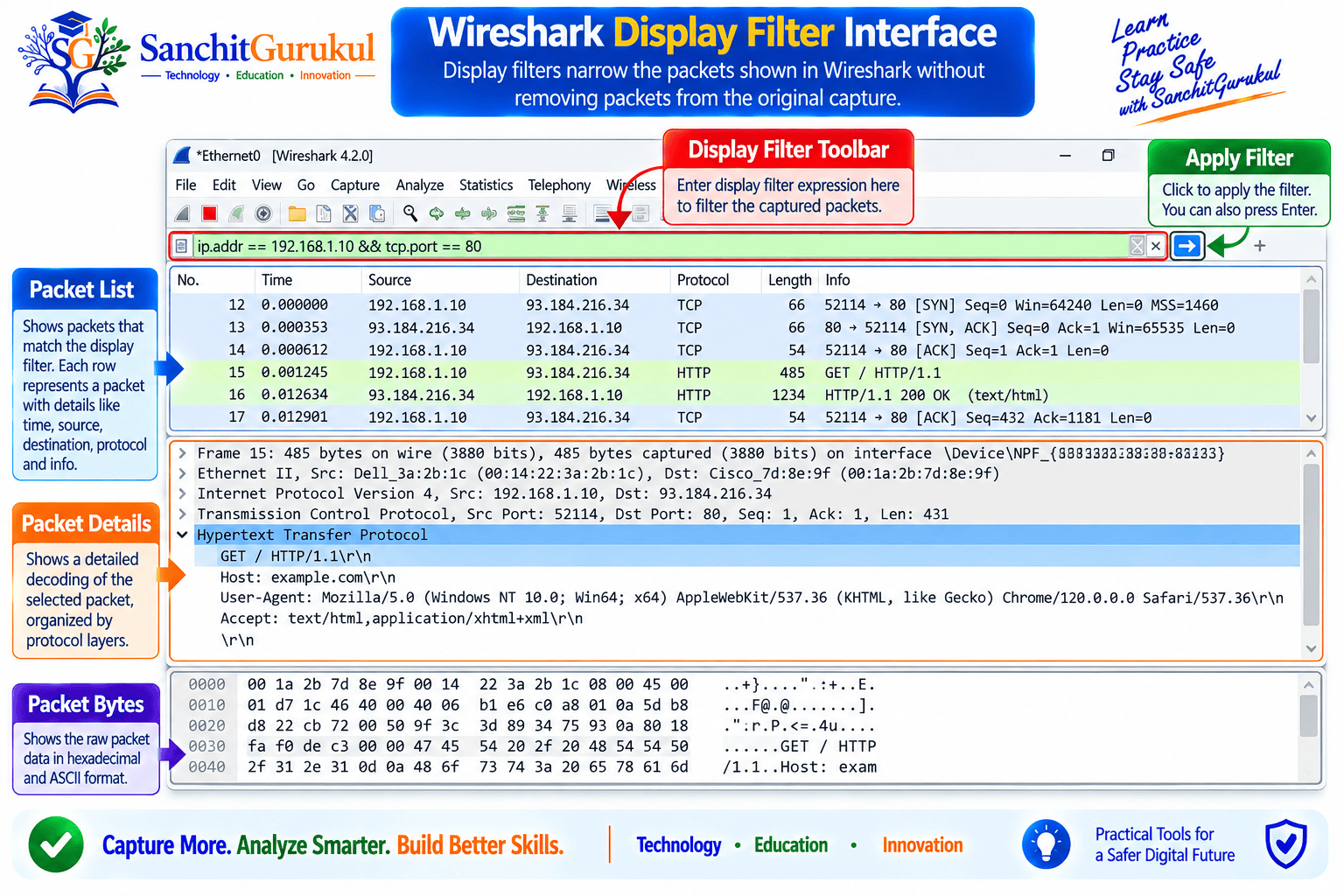
Wireshark can capture thousands of packets within seconds. On a busy network, finding the packets related to a particular problem can quickly become difficult.
Wireshark display filters solve this problem by allowing you to narrow the packets currently shown without removing anything from the original capture.
Display filters can help you isolate:
- A specific client or server
- TCP or UDP traffic
- Particular ports
- TCP connection problems
- DNS queries and failures
- HTTP requests
- TLS handshakes
- QUIC traffic
- SIP and RTP traffic
- Packet-size conditions
The important concept is simple:
A display filter changes what Wireshark displays. It does not change the packets stored in the capture file.
Capture Filters vs Display Filters
Wireshark supports both capture filters and display filters, but they perform different jobs and use different syntax.
| Feature | Capture Filter | Display Filter |
|---|---|---|
| Applied | Before or during capture | After capture |
| Purpose | Control which packets are captured | Control which packets are displayed |
| Language | libpcap/BPF-style | Wireshark display-filter syntax |
| Non-matching packets stored | No | Yes |
| Protocol-field filtering | Limited | Extensive |
| Example | tcp port 443 |
tcp.port == 443 |
Capture Filter Example
A capture filter for TCP port 443 is:
tcp port 443
Packets that do not match the capture filter are not captured.
Display Filter Example
The display-filter equivalent is:
tcp.port == 443
The other captured packets remain in the capture file. Wireshark simply hides them from the current view.
For short troubleshooting captures, capturing broadly and filtering later can preserve valuable context.
For very busy networks, long-running captures, privacy-sensitive environments, or systems with limited storage, a carefully selected capture filter may be necessary.
How Wireshark Display Filter Syntax Works
A display filter can be as simple as a protocol name.
Show TCP:
tcp
Show UDP:
udp
Show DNS:
dns
Show TLS:
tls
You can also filter using protocol fields.
For example:
ip.addr == 192.168.1.10
This shows IPv4 packets where 192.168.1.10 appears as the source or destination address.
Combine conditions with logical operators:
ip.addr == 192.168.1.10 && tcp.port == 443
This limits the display to TCP port 443 traffic associated with that host.
Common Operators
| Operator | Meaning | Example | |
|---|---|---|---|
== |
Equal | tcp.port == 443 |
|
!= |
Not equal | ip.src != 192.168.1.10 |
|
> |
Greater than | frame.len > 1500 |
|
< |
Less than | frame.len < 100 |
|
>= |
Greater than or equal | frame.len >= 1500 |
|
<= |
Less than or equal | frame.len <= 128 |
|
contains |
Field contains value | http.host contains "example" |
|
matches |
Regular-expression match | `http.host matches “example.(com | org)”` |
in |
Value exists in a set | tcp.port in {80, 443, 8080} |
Logical Operators
Wireshark supports:
and
or
not
It also supports the familiar alternatives:
&&
||
!
For example:
dns && ip.addr == 192.168.1.10
Use Parentheses for Complex Filters
For example:
ip.addr == 192.168.1.10 && (tcp.port == 80 || tcp.port == 443)
This shows TCP port 80 or 443 traffic associated with the specified host.
Use in for Multiple Values
Instead of:
tcp.port == 80 || tcp.port == 443 || tcp.port == 8080
you can use:
tcp.port in {80, 443, 8080}
Essential Wireshark Display Filters
IP Address Filters
All IPv4 traffic involving a host:
ip.addr == 192.168.1.10
Traffic sourced from the host:
ip.src == 192.168.1.10
Traffic destined for the host:
ip.dst == 192.168.1.10
Traffic between two hosts:
ip.addr == 192.168.1.10 && ip.addr == 10.10.10.20
Exclude a host:
!(ip.addr == 192.168.1.10)
Traffic involving a subnet:
ip.addr == 192.168.10.0/24
IPv6 Filters
Show IPv6 traffic:
ipv6
Traffic involving a specific IPv6 address:
ipv6.addr == 2001:db8::10
TCP Filters
Show all TCP:
tcp
TCP port 443:
tcp.port == 443
Destination port 443:
tcp.dstport == 443
Source port 443:
tcp.srcport == 443
Multiple TCP ports:
tcp.port in {22, 80, 443, 8443}
Initial TCP SYN
Show SYN packets that are not SYN-ACK packets:
tcp.flags.syn == 1 && tcp.flags.ack == 0
This is useful for locating TCP connection attempts.
SYN-ACK
tcp.flags.syn == 1 && tcp.flags.ack == 1
TCP Reset
tcp.flags.reset == 1
A reset can indicate a refused, aborted, or unexpectedly terminated TCP connection.
However, a RST packet alone does not explain why the connection was reset.
TCP FIN
tcp.flags.fin == 1
Suspected TCP Retransmissions
tcp.analysis.retransmission
Fast retransmissions:
tcp.analysis.fast_retransmission
Duplicate ACKs:
tcp.analysis.duplicate_ack
Out-of-order packets:
tcp.analysis.out_of_order
Zero-window conditions:
tcp.analysis.zero_window
Isolate One TCP Stream
If you know the TCP stream number:
tcp.stream == 5
This is one of the most useful filters for isolating a single TCP conversation from a busy capture.
UDP and QUIC Filters
Show all UDP:
udp
UDP port 53:
udp.port == 53
UDP port 443:
udp.port == 443
Where Wireshark successfully identifies QUIC:
quic
DNS Filters
Show all DNS:
dns
DNS queries:
dns.flags.response == 0
DNS responses:
dns.flags.response == 1
Query for a specific domain:
dns.qry.name == "www.example.com"
Search for part of a domain:
dns.qry.name contains "example.com"
Responses with a non-zero response code:
dns.flags.response == 1 && dns.flags.rcode != 0
SERVFAIL:
dns.flags.response == 1 && dns.flags.rcode == 2
NXDOMAIN:
dns.flags.response == 1 && dns.flags.rcode == 3
HTTP Filters
Show HTTP:
http
HTTP requests:
http.request
GET requests:
http.request.method == "GET"
POST requests:
http.request.method == "POST"
GET or HEAD requests:
http.request.method in {"GET", "HEAD"}
Requests for a specific host:
http.host == "www.example.com"
URI containing /api/:
http.request.uri contains "/api/"
Specific URI path:
http.request.uri.path == "/health"
For HTTP/2 traffic recognized by Wireshark:
http2
For HTTP/3 traffic successfully dissected by Wireshark:
http3
TLS Filters
Show TLS:
tls
TLS handshake traffic:
tls.handshake
Client Hello:
tls.handshake.type == 1
Server Hello:
tls.handshake.type == 2
TLS alerts:
tls.alert_message
Fatal TLS alerts:
tls.alert_message.level == 2
TLS traffic involving a particular IPv4 host:
tls && ip.addr == 192.168.1.10
ICMP Filters
IPv4 ICMP:
icmp
IPv6 ICMP:
icmpv6
IPv4 Destination Unreachable:
icmp.type == 3
IPv4 Time Exceeded:
icmp.type == 11
ICMP and ICMPv6 are important when troubleshooting:
- Routing
- Traceroute
- Reachability
- Firewall behavior
- MTU
- Path MTU Discovery
ARP Filters
Show ARP:
arp
Filter an IPv4 protocol address in ARP:
arp.addr.proto_ipv4 == 192.168.1.1
ARP analysis can help investigate:
- Duplicate IPv4 addresses
- ARP resolution failures
- Default-gateway resolution
- Unexpected MAC-address changes
DHCP Filters
A useful starting point is:
dhcp
Field availability can vary with Wireshark version and packet decoding.
If a filter does not behave as expected, select a DHCP packet and build the filter directly from the decoded Packet Details.
SIP and RTP Filters
Show SIP:
sip
Specific SIP Call-ID:
sip.Call-ID == "example-call-id"
Show RTP:
rtp
Packet Size Filters
Frames larger than 1500 bytes:
frame.len > 1500
Frames smaller than 64 bytes:
frame.len < 64
Be careful when analyzing packet size on endpoint captures because NIC features such as segmentation and receive offloading can affect how packets appear in the capture.
Using contains
Example:
http.host contains "example"
Another example:
sip.To contains "1001"
Using matches
Example:
http.host matches "example.(com|org)"
Regular expressions are powerful, but simple equality or contains filters are often easier to read and maintain.
Real-World Troubleshooting Examples
Scenario 1 — Slow Website or Application
Suppose a user at 192.168.1.25 reports slow access to a server at 203.0.113.20.
Start by isolating communication between them:
ip.addr == 192.168.1.25 && ip.addr == 203.0.113.20
Look for suspected retransmissions:
tcp.analysis.retransmission
Check duplicate ACKs:
tcp.analysis.duplicate_ack
Check zero-window conditions:
tcp.analysis.zero_window
Then correlate:
- TCP handshake time
- Round-trip time
- Retransmissions
- Receive-window behavior
- DNS response time
- TLS establishment
- Application response time
Scenario 2 — TCP Connection Does Not Establish
Find initial SYN packets:
tcp.flags.syn == 1 && tcp.flags.ack == 0
Narrow the request to the affected client and destination port:
ip.addr == 192.168.1.25 && tcp.dstport == 443
Look for SYN-ACK:
tcp.flags.syn == 1 && tcp.flags.ack == 1
Look for reset:
tcp.flags.reset == 1
Possible observations include:
- SYN with no response
- SYN followed by RST
- SYN and SYN-ACK but no final ACK
- Repeated SYN attempts

Scenario 3 — DNS Resolution Failure
Start with:
dns
Show queries:
dns.flags.response == 0
Show responses with non-zero RCODE:
dns.flags.response == 1 && dns.flags.rcode != 0
SERVFAIL:
dns.flags.rcode == 2
NXDOMAIN:
dns.flags.rcode == 3
Search for the application domain:
dns.qry.name contains "example.com"
Investigate:
- Did the DNS query leave the client?
- Which DNS server received it?
- Was there a response?
- What response code was returned?
- Was the query repeated?
- Was a CNAME involved?
- Did the application query the expected hostname?
Scenario 4 — TLS Connection Failure
Start with:
tls.handshake
Find Client Hello:
tls.handshake.type == 1
Find Server Hello:
tls.handshake.type == 2
Find TLS alerts:
tls.alert_message
Look for TCP resets:
tcp.flags.reset == 1

Scenario 5 — VoIP Call Has Choppy Audio
Start by isolating SIP:
sip
Filter a specific Call-ID:
sip.Call-ID == "example-call-id"
Show RTP:
rtp
Then use:
Telephony → RTP → RTP Streams
Analyze the affected stream for:
- Packet loss
- Sequence errors
- Jitter
- Timing irregularities
Do not determine voice quality solely from the presence of RTP packets.
Scenario 6 — Investigating an Unknown External Connection
Suppose a device at 192.168.50.25 repeatedly communicates with an unfamiliar external IP.
Start with:
ip.addr == 192.168.50.25
Then narrow the conversation:
ip.addr == 192.168.50.25 && ip.addr == 203.0.113.50
Investigate:
- DNS lookups
- Destination ports
- Connection frequency
- TLS negotiation
- Cleartext application traffic, where available
- Connection duration
- Data-transfer patterns
A Practical Wireshark Troubleshooting Workflow
The most effective way to use display filters is to progressively narrow the capture.
Step 1 — Identify the Endpoint
Start with the affected client or server:
ip.addr == 192.168.1.25
Step 2 — Identify the Protocol
Examples:
dns
tcp
tls
quic
Step 3 — Isolate the Conversation
For TCP:
tcp.stream == 5
Or isolate two endpoints:
ip.addr == 192.168.1.25 && ip.addr == 10.10.10.20
Step 4 — Analyze the Transport
Check for resets:
tcp.flags.reset == 1
Check suspected retransmissions:
tcp.analysis.retransmission
Check zero-window conditions:
tcp.analysis.zero_window
Step 5 — Analyze the Application
Examples:
dns
http.request
tls.handshake
sip
Step 6 — Correlate Direction and Time
Ask:
- Which endpoint sent the packet?
- What happened immediately before it?
- What response followed?
- Was there an unusual delay?
- Did the behavior repeat?
Step 7 — Save Useful Filters
Save frequently used display filters for:
- TCP handshake analysis
- TCP performance
- DNS troubleshooting
- TLS troubleshooting
- QUIC
- VoIP
- Application-specific troubleshooting

Quick Wireshark Display Filter Reference
| Purpose | Display Filter |
|---|---|
| All TCP | tcp |
| All UDP | udp |
| Specific IPv4 host | ip.addr == 192.168.1.10 |
| Specific IPv6 host | ipv6.addr == 2001:db8::10 |
| IPv4 subnet | ip.addr == 192.168.10.0/24 |
| TCP port 443 | tcp.port == 443 |
| Multiple TCP ports | tcp.port in {80, 443, 8080} |
| Initial SYN | tcp.flags.syn == 1 && tcp.flags.ack == 0 |
| SYN-ACK | tcp.flags.syn == 1 && tcp.flags.ack == 1 |
| TCP reset | tcp.flags.reset == 1 |
| TCP FIN | tcp.flags.fin == 1 |
| Suspected retransmission | tcp.analysis.retransmission |
| Duplicate ACK | tcp.analysis.duplicate_ack |
| Out-of-order | tcp.analysis.out_of_order |
| Zero window | tcp.analysis.zero_window |
| One TCP stream | tcp.stream == 5 |
| DNS | dns |
| DNS query | dns.flags.response == 0 |
| DNS response | dns.flags.response == 1 |
| DNS error response | dns.flags.response == 1 && dns.flags.rcode != 0 |
| SERVFAIL | dns.flags.rcode == 2 |
| NXDOMAIN | dns.flags.rcode == 3 |
| HTTP | http |
| HTTP request | http.request |
| HTTP GET | http.request.method == "GET" |
| HTTP POST | http.request.method == "POST" |
| HTTP/2 | http2 |
| HTTP/3 | http3 |
| TLS | tls |
| TLS handshake | tls.handshake |
| TLS Client Hello | tls.handshake.type == 1 |
| TLS Server Hello | tls.handshake.type == 2 |
| TLS alert | tls.alert_message |
| QUIC | quic |
| SIP | sip |
| RTP | rtp |
| ICMP | icmp |
| ICMPv6 | icmpv6 |
| ARP | arp |
| Large frames | frame.len > 1500 |
Key Takeaways and Summary
Key Takeaways
- Display filters control what Wireshark shows without removing packets from the capture file.
- Capture filters and display filters use different syntax.
- Start with a host or protocol and progressively narrow the investigation.
ip.addrcan match either the source or destination IPv4 address.- The
inoperator makes filters involving multiple values easier to read. - TCP flag filters help investigate connection establishment and termination.
tcp.analysis.*fields represent Wireshark analysis and must be interpreted in context.- DNS response codes do not automatically indicate infrastructure failure.
- HTTP information inside HTTPS normally requires decryption before application fields become visible.
- RTP filters isolate RTP packets, while Wireshark RTP analysis tools provide quality statistics.
- Packet captures should be correlated with other telemetry during security investigations.
- Saved display filters make troubleshooting faster and more repeatable.
Summary
Wireshark display filters transform a large packet capture into a focused troubleshooting view.
Instead of manually examining thousands of packets, you can progressively isolate:
- A host
- A conversation
- A protocol
- A TCP condition
- A DNS failure
- A TLS handshake
- An application request
The goal is not to memorize every available Wireshark field.
A better approach is to follow a repeatable troubleshooting process:
Identify the endpoint, select the protocol, isolate the conversation, analyze transport behavior, inspect the application, and correlate the evidence.
Once this workflow becomes familiar, Wireshark becomes much more than a packet viewer. It becomes a powerful tool for structured network troubleshooting, security investigation, and protocol analysis.
Useful Links and References
SanchitGurukul Static Resources
Official External References
Your feedback matters
Was this post helpful?
Discussion
0 approved comments
No approved comments yet. You can start the discussion below.
Leave a Comment
No login is required. Name and email are used for moderation/security. Your email is never displayed publicly. All comments require administrator approval.
Discover more from SanchitGurukul
Subscribe to get the latest posts sent to your email.