
Prerequisites: Configured Gaia Interfaces, Network Routing, SmartConsole Access and Established SIC
Imagine an employee sitting in the office trying to open a business website.
The computer has a valid IP address. The default gateway is correct. The Check Point Security Gateway is powered on, and the upstream internet connection is operational.
Yet the website does not open.
The network team checks the routing table and finds nothing wrong.
What could be missing?
A correctly configured and installed firewall security policy.
The Gateway needs to know which connections are permitted. If private IPv4 addresses require translation for internet connectivity, NAT must also be configured correctly.
In this article, you will learn:
- How Check Point Access Control policies work
- How to create network and host objects
- How to configure least-privilege firewall rules
- How firewall rule order affects traffic
- How Hide NAT, Static NAT and Manual NAT differ
- How to configure Automatic Hide NAT
- How to publish and install security policies
- How to review traffic logs
- How to verify firewall operation using CLI commands
- How to troubleshoot common connectivity problems
This article assumes the Security Gateway has already been registered with its Management Server and SIC communication is established.
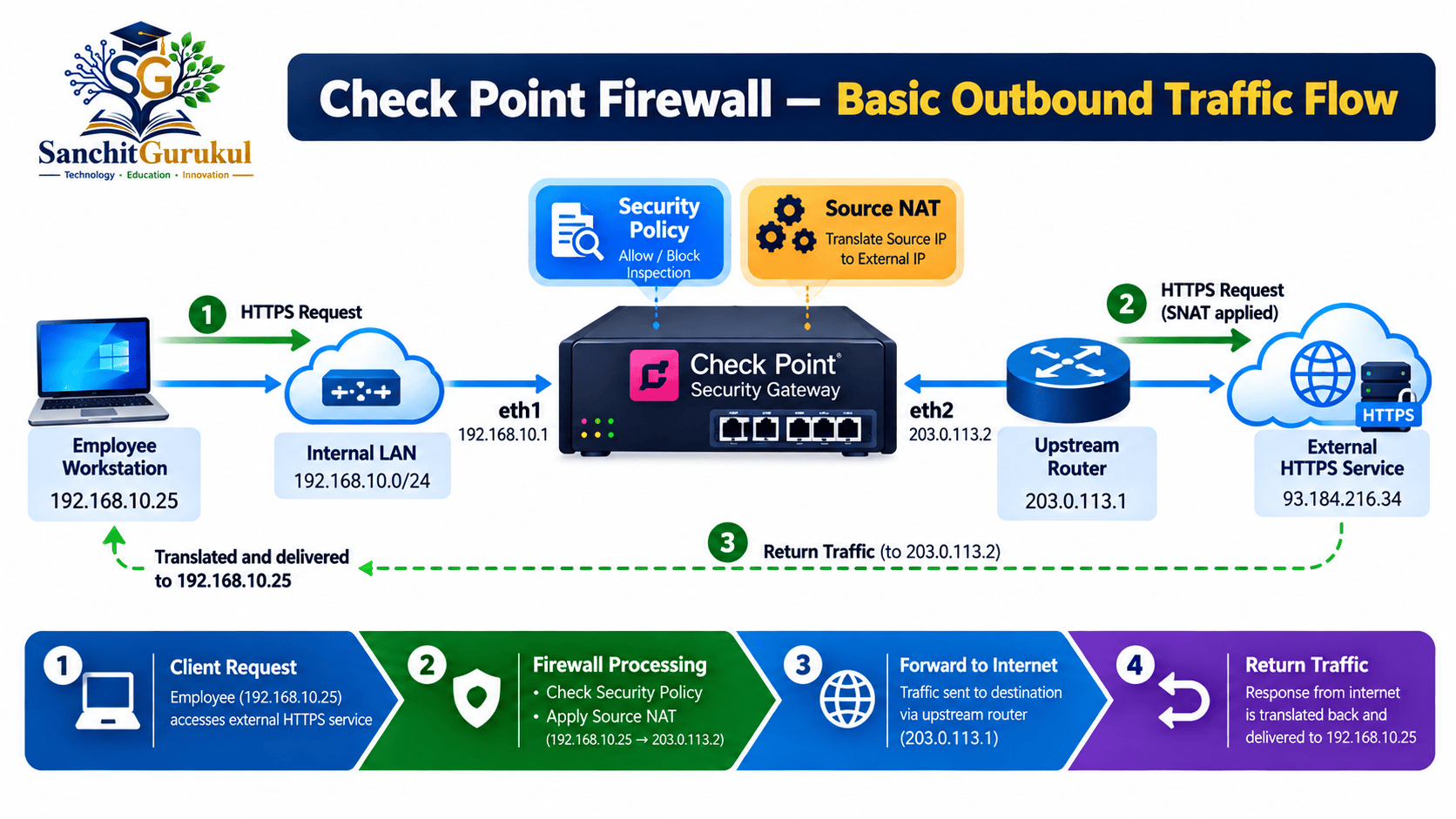
Understanding Firewall Traffic Flow
Before creating a rule, understand what happens when traffic crosses the Security Gateway.
Consider the following environment:
| Component | Address / Network | Role |
|---|---|---|
| Employee LAN | 192.168.10.0/24 | Internal network |
| Gateway eth1 | 192.168.10.1/24 | Internal interface |
| Gateway eth2 | 203.0.113.2/30 | External interface |
| Upstream Router | 203.0.113.1 | Default gateway |
| Security Management Server | 192.168.100.10 | Central management |
The external addresses are documentation examples rather than live public internet addresses.
An employee workstation uses:
192.168.10.25
The workstation attempts to access a permitted external HTTPS service.
For the connection to succeed, the environment must support:
- Correct client and Gateway IP configuration.
- An appropriate route toward the destination.
- A matching security rule permitting the traffic.
- Suitable source NAT when required.
- A valid return path.
What Is a Check Point Access Control Policy?
An Access Control Policy defines which communication a Security Gateway permits or denies.
Administrators configure the policy in SmartConsole and install it on the required enforcement targets.
Common Access Control Rule Fields
| Field | Purpose |
|---|---|
| Name | Identifies the rule |
| Source | Originating host or network |
| Destination | Target host or network |
| VPN | Applicable VPN context |
| Services & Applications | Protocols, services or applications |
| Action | Accept, Drop or another supported action |
| Track | Logging and tracking behavior |
| Install On | Applicable enforcement targets |
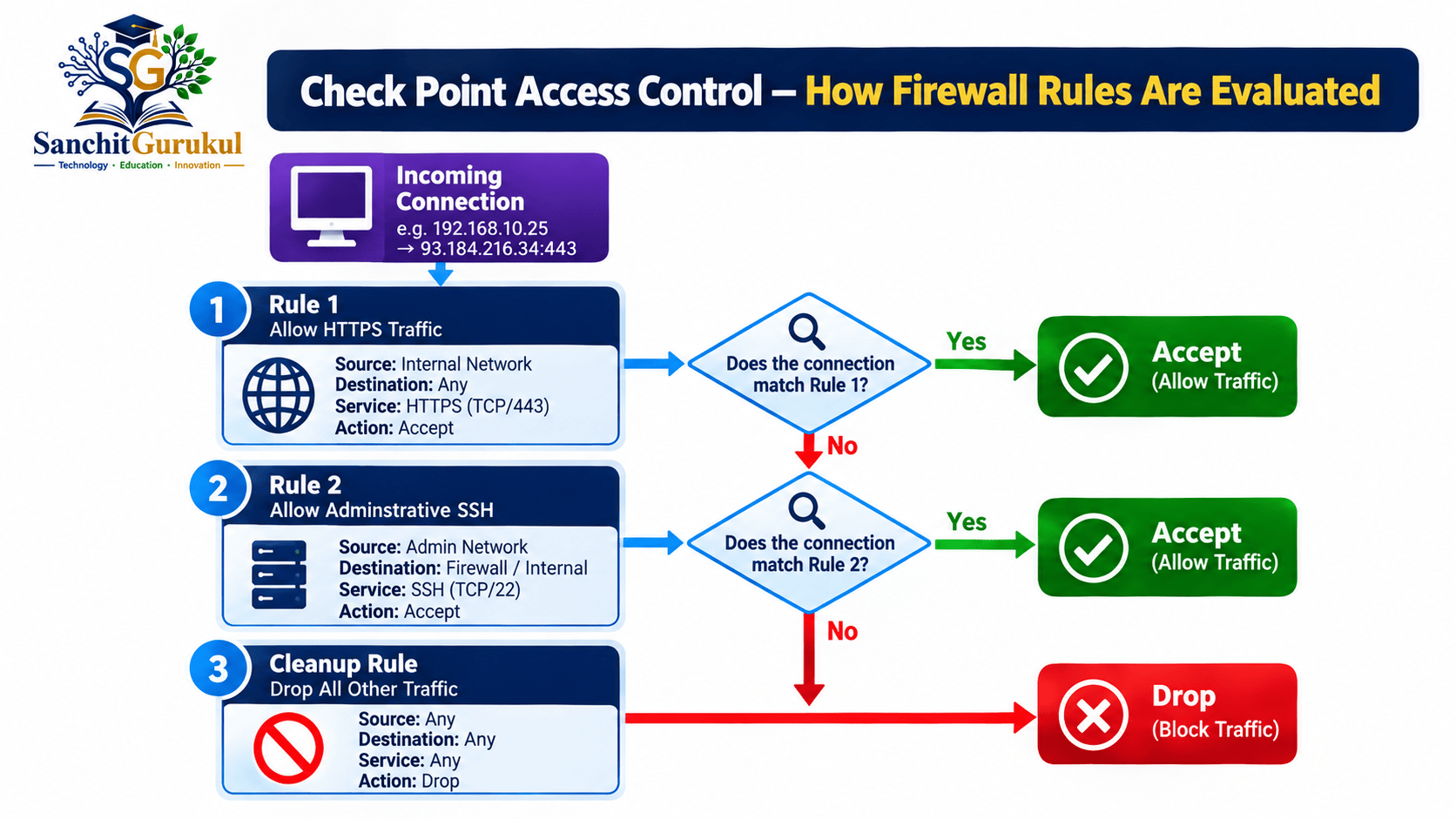
Understanding Rule Order
In a conventional ordered Access Control rulebase, the Gateway evaluates traffic against applicable rules in sequence.
The first matching rule determines the relevant Access Control action, subject to the complete policy structure and enabled features.
This means rule order is important.
Implicit Cleanup
If no applicable rule permits a new connection, the relevant implicit cleanup behavior ordinarily denies it.
An explicit cleanup Drop rule can be added when the administrator needs deliberate logging and rulebase visibility.
Step 1 — Create Network and Host Objects
Instead of entering raw IP addresses in every policy rule, create reusable objects.
Create the Internal Network
In SmartConsole:
- Open the object creation interface.
- Create a new Network object.
- Enter the name and network address.
- Configure the subnet mask.
- Save the object.
Example:
| Field | Value |
|---|---|
| Name | Internal_Network |
| Network Address | 192.168.10.0 |
| Subnet Mask | 255.255.255.0 |
Create an Application Server
For this example:
| Field | Value |
|---|---|
| Name | Application_Server |
| IP Address | 192.168.10.50 |
| Object Type | Host |
Create an Administrator Workstation
| Field | Value |
|---|---|
| Name | Admin_Workstation |
| IP Address | 192.168.10.20 |
| Object Type | Host |
Step 2 — Configure Basic Access Control Rules
Open the applicable policy in Security Policies.
Add the required Access Control rules.
Example Security Policy
| Rule | Source | Destination | Service | Action | Track |
|---|---|---|---|---|---|
| 1 | Internal_Network | Internet | HTTPS | Accept | Log |
| 2 | Admin_Workstation | Application_Server | SSH | Accept | Log |
| 3 | Any | Any | Any | Drop | Log |
This is a simplified teaching example, not a complete production rulebase.
The Check Point Internet object represents a defined destination scope and should not automatically be treated as interchangeable with Any.
A real deployment may need separately approved DNS, NTP, management and application services.
Rule 1 — Permit HTTPS Browsing
Allow approved internal users to connect to destinations matched by the Internet object over HTTPS.
Rule 2 — Permit Administrative SSH
Allow only the designated administrator workstation to initiate SSH connections toward the application server.
Rule 3 — Cleanup Rule
Drop traffic not permitted by the preceding rules.
Logging every cleanup match may create a large number of records, so adjust tracking to operational requirements.
Understanding Network Address Translation (NAT)
Many internal systems use private IPv4 addresses.
These addresses are not globally routed across the public internet.
Network Address Translation (NAT) allows a Gateway to modify selected source or destination address information.
Check Point supports Automatic and Manual NAT.
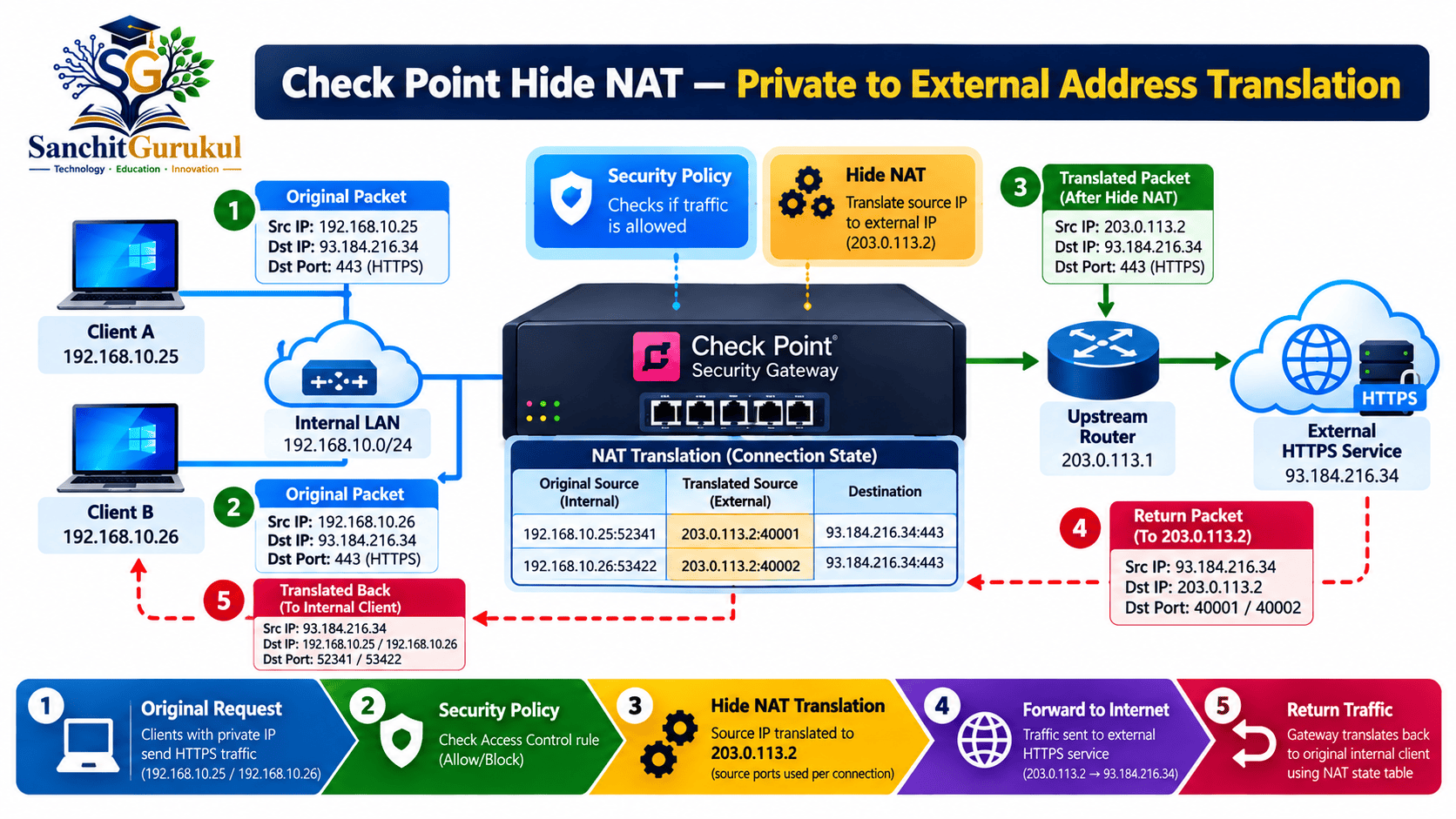
Hide NAT
Hide NAT is commonly used when multiple internal clients require outbound connectivity through a shared translated address.
The Gateway maintains translation and connection information so responses can be associated with the original clients.
Static NAT
Static NAT creates a consistent mapping between original and translated addresses.
This can be useful for servers requiring stable address translation.
Manual NAT
Manual NAT gives administrators control over translation conditions and behavior.
It can support scenarios such as customized source translation, destination translation and service translation.
NAT Comparison
| Type | Typical Purpose | Example |
|---|---|---|
| Hide NAT | Shared outbound source translation | Office internet access |
| Static NAT | Consistent address mapping | Published server |
| Manual NAT | Customized translation logic | Port forwarding or specific translation rules |
Step 3 — Configure Automatic Hide NAT
For the example network, suppose employees need permitted outbound HTTPS access.
The internal network is:
192.168.10.0/24
The Security Gateway external address is:
203.0.113.2
Configure Object-Based Automatic Hide NAT
In SmartConsole:
- Open the
Internal_Networkobject. - Open its NAT settings.
- Select Add Automatic Address Translation Rules.
- Choose Hide as the translation method.
- Select Hide behind Gateway.
- Save the object.
The Management Server creates the applicable Automatic NAT rules.
Example Translation
Gateway-Level Hide NAT
Check Point also supports the option to hide internal networks behind the Gateway’s external IP address from the Gateway object’s NAT configuration.
This is different from enabling Automatic Hide NAT on a particular Network object.
According to the documented gateway-level behavior, this option does not add a visible rule to the NAT rulebase.
Step 4 — Understand Manual NAT
Automatic NAT is suitable for many common use cases.
Manual NAT is appropriate when the translation requires more specific conditions.
For example, an administrator may need to publish one approved TCP service using a translated destination address and port.
Manual NAT Rule Fields
| Original Fields | Translated Fields |
|---|---|
| Original Source | Translated Source |
| Original Destination | Translated Destination |
| Original Services | Translated Services |
Configure a Manual NAT Rule
- Open Security Policies.
- Navigate to the applicable Access Control → NAT rulebase.
- Add a new Manual NAT rule.
- Select the original source, destination and service.
- Configure the required translated fields.
- Review rule order and installation targets.
- Install the Access Control Policy.
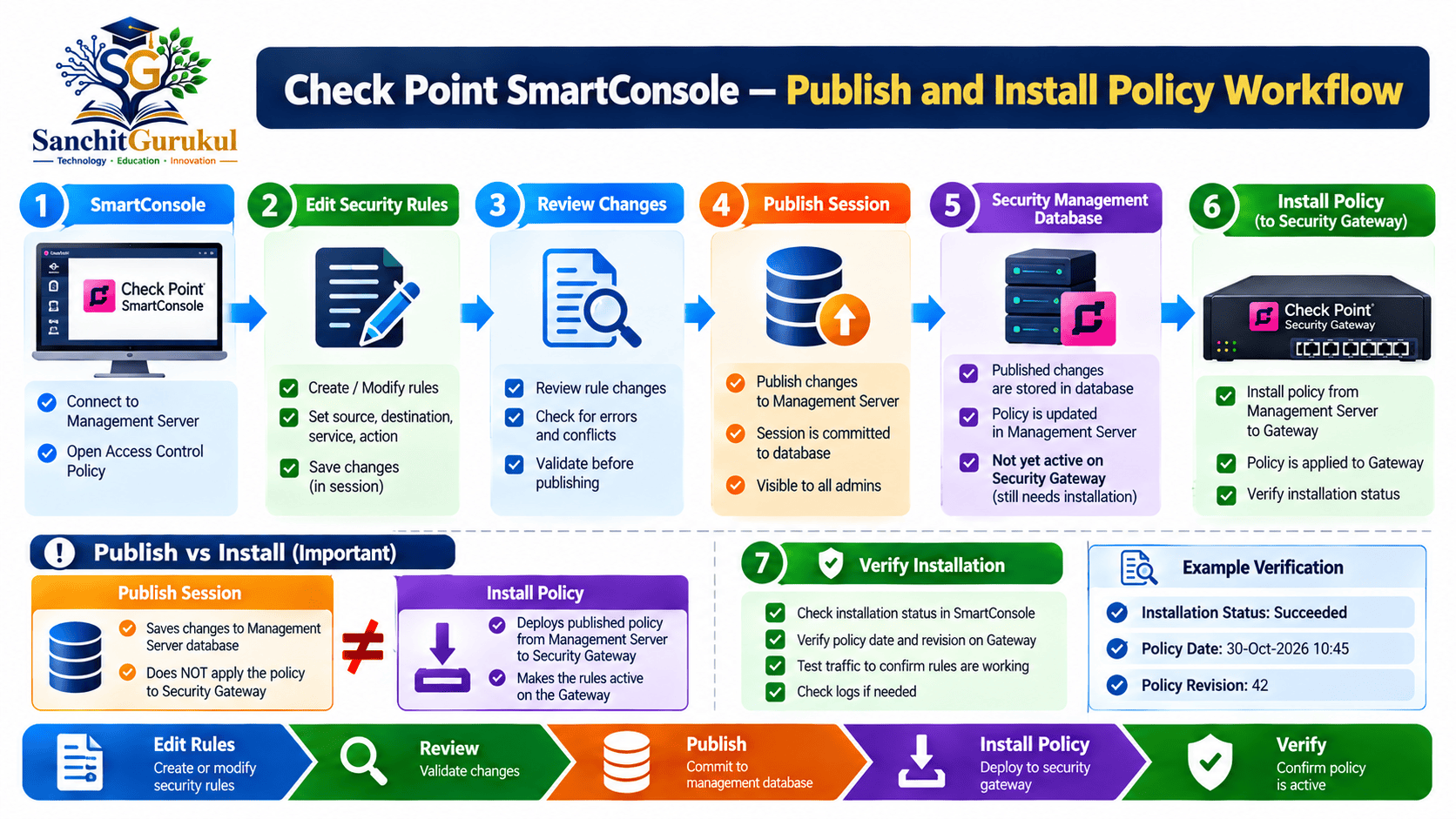
Step 5 — Publish and Install the Security Policy
Changes made in SmartConsole must be published and installed before they become active on the appropriate Security Gateway.
Publish the Changes
Publish the management session after reviewing the configuration.
Publishing commits management database changes so they are available to the relevant management environment.
Install the Policy
- Click Install Policy.
- Select the correct policy package.
- Confirm the appropriate Gateway targets.
- Select the required policy installation options.
- Start installation.
- Confirm a successful installation result.
Step 6 — Configure Logging and Monitoring
Logs are essential when determining why traffic was accepted or dropped.
In an Access Control rule, the Track field controls the configured logging or tracking behavior.
For many useful troubleshooting rules, a common setting is:
Track = Log
What Can a Traffic Log Show?
Depending on the log and enabled capabilities:
- Source IP address
- Destination IP address
- Protocol and service
- Action taken
- Matched security rule
- Security Gateway
- Event timestamp
- NAT information when available
Review Logs in SmartConsole
- Open the applicable logging or Logs & Events view.
- Select an appropriate time range.
- Search for the relevant source or destination address.
- Review the action and matching rule.
- Check additional log details when necessary.
Example Troubleshooting Scenario
Step 7 — Verify Firewall Configuration Using CLI
SmartConsole provides policy and logging visibility.
Gaia CLI and supported Check Point commands provide additional verification.
Check Interfaces
Run in Gaia Clish:
show interfaces allTo inspect one interface:
show interface eth1Check Routing
Run in Gaia Clish:
show routeCheck Installed Firewall Policy
Run in Expert mode:
fw statThis reports information about the installed firewall policy.
Check Firewall Statistics
Run in Expert mode:
cpstat fwThis reports firewall status and statistical information supported by the installed environment.
Expected verification — illustrative summary

Interfaces:
Required network interfaces are configured and operational.

Routing:
Connected networks and required upstream routes exist.

Firewall policy:
The intended policy is installed on the correct Gateway.

Traffic:
Approved connections can reach the required destinations.

Logging:
Relevant security decisions appear in the configured logging system.
The output above describes expected verification results. It is not copied command output.
Troubleshooting Common Firewall Configuration Problems
| Problem | Possible Cause | Recommended Check |
|---|---|---|
| Internal users cannot access internet | Missing security rule | Review Access Control logs |
| HTTPS allowed but connection fails | NAT, routing or application issue | Verify translation and return path |
| Connection dropped unexpectedly | Wrong rule or object | Review matching rule |
| Policy change has no effect | Policy not installed | Check installation result |
| Logs are unavailable | Tracking or logging configuration | Verify logging settings |
| External destination unreachable | Incorrect default route | Check Gaia routing |
| Published server unavailable | NAT, routing or policy mismatch | Verify inbound path |
| Legitimate traffic identified as spoofed | Incorrect interface topology | Review Anti-Spoofing settings |
| Certain connections behave inconsistently | Asymmetric routing or overlapping rules | Inspect forwarding paths and policy |
Practical Troubleshooting Sequence
When a user reports a connection failure:
- Confirm the client IP, subnet mask and default gateway.
- Verify the relevant Gaia interfaces.
- Check the routing table.
- Review SmartConsole traffic logs.
- Identify the matching security rule.
- Check NAT when translation is necessary.
- Verify the return path.
- Test again after an approved change.
Basic Check Point Firewall Security Best Practices
1. Follow Least Privilege
Permit only approved communication.
Avoid unnecessary broad rules.
2. Restrict Administrative Access
Limit Gaia Portal, SSH and management access to authorized networks and administrators.
3. Keep Topology Accurate
Ensure that interface topology and Anti-Spoofing configuration match the actual network design.
4. Review NAT
Use appropriate translation methods and avoid unnecessary exposure of internal services.
5. Configure Useful Logging
Log important security decisions while considering storage and performance requirements.
6. Maintain Supported Software
Review official Check Point security advisories, applicable updates and support requirements.
7. Verify Policy Installations
Confirm that changes are installed on the correct Gateway and produce the intended result.
Key Takeaways — Security Policy
- Access Control rules determine whether connections are permitted.
- Rule order affects how connections match security rules.
- Least-privilege rules reduce unnecessary exposure.
- An explicit cleanup rule can provide deliberate logging.
Key Takeaways — NAT
- Hide NAT is commonly used for outbound source translation.
- Static NAT provides consistent address mappings.
- Manual NAT supports specialized translation requirements.
- NAT does not replace security policy permission.
Key Takeaways — Verification
- SmartConsole provides policy configuration and traffic logs.
- Gaia Clish helps verify interfaces and routing.
fw statreports installed firewall policy information.cpstat fwprovides firewall statistics and status.- Successful troubleshooting requires checking policy, routing, NAT and the return path.
Conclusion
A Check Point firewall becomes useful when its network configuration, security policies and address translation work together correctly.
Routing determines where traffic can travel.
Access Control rules determine which communication is permitted.
NAT handles the required address translation, while logs and verification tools help administrators understand the result.
The objective is not simply to make every connection work.
It is to ensure authorized traffic works predictably while unnecessary communication is denied.
A carefully designed security policy, combined with appropriate NAT and systematic verification, creates a strong foundation for reliable firewall administration.
Useful Links and References
SanchitGurukul Static Resources
Official External References
Your feedback matters
Was this post helpful?
Discussion
0 approved comments
No approved comments yet. You can start the discussion below.
Leave a Comment
No login is required. Name and email are used for moderation/security. Your email is never displayed publicly. All comments require administrator approval.
Discover more from SanchitGurukul
Subscribe to get the latest posts sent to your email.


