
IPv6 is the current Internet Protocol designed to provide a much larger address space than IPv4.
An IPv6 address is:
128 bits long
and is normally written as eight groups of hexadecimal values separated by colons.
Example:
2001:0db8:85a3:0000:0000:8a2e:0370:7334Leading zeros inside each 16-bit group can be removed:
2001:db8:85a3:0:0:8a2e:370:7334One continuous sequence of zero groups can also be compressed using :::
2001:db8:85a3::8a2e:370:7334The :: abbreviation can appear only once in an IPv6 address.
Modern Ubuntu Server releases use Netplan to define network configuration.
This guide explains how to configure:
- Static IPv6 addressing
- IPv6 default route
- IPv6 DNS servers
- SLAAC and DHCPv6
- IPv6 connectivity
- Netplan safely on remote servers
- Common IPv6 configuration problems
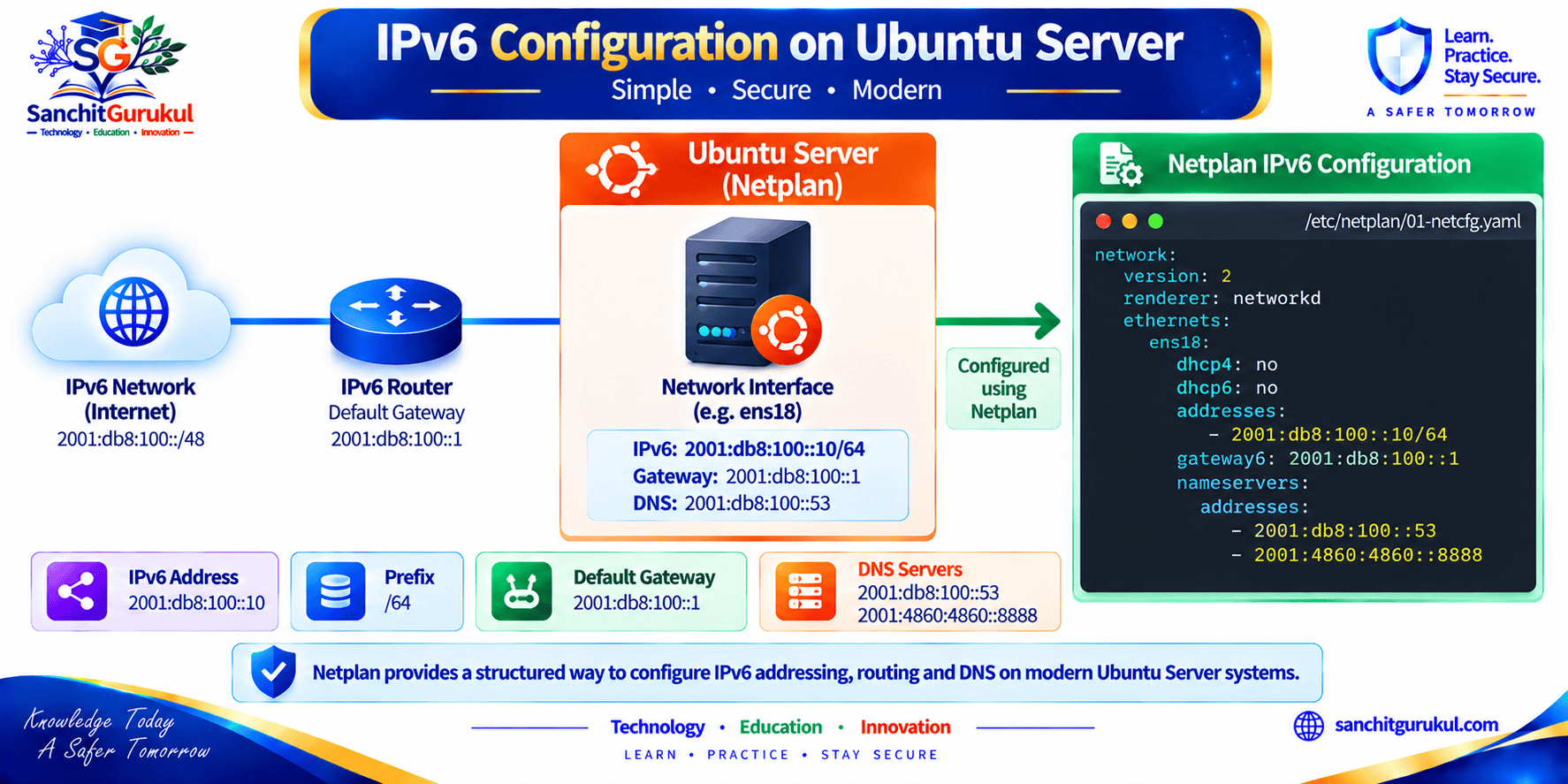
Understand the IPv6 Configuration Before Making Changes
Before modifying Ubuntu networking, collect the required information.
For a static IPv6 server, you normally need:
- Interface name
- IPv6 address
- Prefix length
- Default router
- DNS servers
- Whether Router Advertisements should be accepted
- Whether DHCPv6 is being used
Example Network
This article uses the following documentation-only example:
Interface: ens18
IPv6 Address: 2001:db8:100:10::20/64
IPv6 Gateway: 2001:db8:100:10::1
Prefix Length: /64
The prefix:
2001:db8::/32is reserved for documentation and examples.
Do not use it as a real production Internet prefix.
Replace the example values with addresses provided by your:
- ISP
- Hosting provider
- Cloud provider
- Network administrator
Common IPv6 Address Types
Global Unicast
Generally used for globally routable IPv6 communication.
Example documentation address:
2001:db8:100:10::20Link-Local
IPv6 interfaces normally have a link-local address beginning with:
fe80::/10Link-local addresses are used for communication on the local link and are important for mechanisms such as Neighbor Discovery.
Loopback
::1This is the IPv6 equivalent of IPv4:
127.0.0.1
Prefix Length
A normal IPv6 LAN commonly uses:
/64For example:
2001:db8:100:10::20/64The prefix identifies the network portion associated with the address.
Do not randomly change the prefix length.
Use the prefix assigned by the network administrator or provider.
Identify the Network Interface
Use:
ip link showA shorter view is:
ip -br linkExample:
lo               UNKNOWN
ens18            UP
In this example, the network interface is:
ens18Interface names may instead look like:
enp0s3ens33eno1eth0
Always use the actual interface name from your server.
Check Existing IPv6 Addresses
ip -6 addr showFor one interface:
ip -6 addr show dev ens18You may already see a link-local address similar to:
inet6 fe80::20c:29ff:fe12:3456/64 scope linkCheck Existing IPv6 Routes
ip -6 route showLook for a default route similar to:
default via 2001:db8:100:10::1 dev ens18Configure a Static IPv6 Address with Netplan
Modern Ubuntu Server systems normally store Netplan YAML files under:
/etc/netplan/Step 1 — Find the Existing Netplan File
ls -l /etc/netplan/Possible filenames include:
00-installer-config.yaml
01-netcfg.yaml
50-cloud-init.yaml
99_config.yaml
Do not assume the filename.
Inspect the actual files on the server.
Check the Current Netplan Configuration
sudo netplan getOn newer Netplan versions, you can also inspect runtime status:
sudo netplan status --allCloud-Init Warning
Cloud and virtual-machine installations may contain:
50-cloud-init.yamlInspect it:
sudo cat /etc/netplan/50-cloud-init.yamlSome cloud-init-generated files explicitly warn that direct changes may not persist after reboot.
If the file is controlled by cloud-init, manage networking using the appropriate:
- Cloud platform
- Cloud-init configuration
- Provisioning system
or deliberately disable cloud-init network management before taking permanent manual control.
Step 2 — Back Up the Configuration
Example:
sudo cp /etc/netplan/00-installer-config.yaml /etc/netplan/00-installer-config.yaml.backupReplace the filename with the actual file used by your server.
Step 3 — Configure the Static IPv6 Address
A complete IPv6-only static example is:
network:
  version: 2
  renderer: networkd

  ethernets:
    ens18:
      dhcp4: false
      dhcp6: false
      accept-ra: false

      addresses:
        - "2001:db8:100:10::20/64"

      routes:
        - to: default
          via: "2001:db8:100:10::1"

      nameservers:
        addresses:
          - "2001:4860:4860::8888"
          - "2001:4860:4860::8844"
Replace:
ens18- IPv6 address
- Prefix
- Gateway
- DNS servers
with values appropriate to your environment.
Understanding the Configuration
version: 2
Specifies the Netplan configuration format.
renderer: networkd
Uses systemd-networkd as the network backend.
This is common on Ubuntu Server.
dhcp4: false
Disables IPv4 DHCP for this example.
If the server also requires IPv4 DHCP, configure it according to the actual dual-stack environment.
dhcp6: false
Disables DHCPv6 because the server is using manually configured IPv6 information.
accept-ra: false
Prevents Router Advertisements from automatically adding IPv6 configuration.
This is appropriate in this example because the address and default route are explicitly configured.
Do not automatically disable RA if your network expects Router Advertisements to provide routing or SLAAC information.
addresses
Defines the server’s static IPv6 address.
routes
Creates the IPv6 default route.
Modern Netplan configuration should use:
routes:
  - to: default
    via: "2001:db8:100:10::1"
rather than the older:
gateway6:which is deprecated in current Netplan documentation.
nameservers
Defines DNS resolvers.
The example uses Google’s public IPv6 DNS servers.
Enterprise servers should normally use the organization’s approved DNS resolvers.
Static Dual-Stack Example
If the server requires both IPv4 and IPv6:
network:
  version: 2
  renderer: networkd

  ethernets:
    ens18:
      dhcp4: false
      dhcp6: false
      accept-ra: false

      addresses:
        - "192.0.2.20/24"
        - "2001:db8:100:10::20/64"

      routes:
        - to: default
          via: "192.0.2.1"

        - to: default
          via: "2001:db8:100:10::1"

      nameservers:
        addresses:
          - "192.0.2.53"
          - "2001:4860:4860::8888"
Again, the documentation addresses must be replaced with real network values.
Step 4 — Validate the YAML
Before applying it:
sudo netplan generateIf there is a YAML or configuration error, correct it first.
YAML indentation matters.
Use spaces consistently.
Do not use tabs.
Step 5 — Test the Configuration Safely
For a remote server, use:
sudo netplan tryNetplan temporarily applies the configuration and waits for confirmation.
If you lose connectivity and do not confirm the configuration, Netplan is designed to roll it back after the timeout.
Step 6 — Apply the Configuration
If testing is successful:
sudo netplan applyIf netplan try was confirmed successfully, a separate netplan apply may not be necessary.
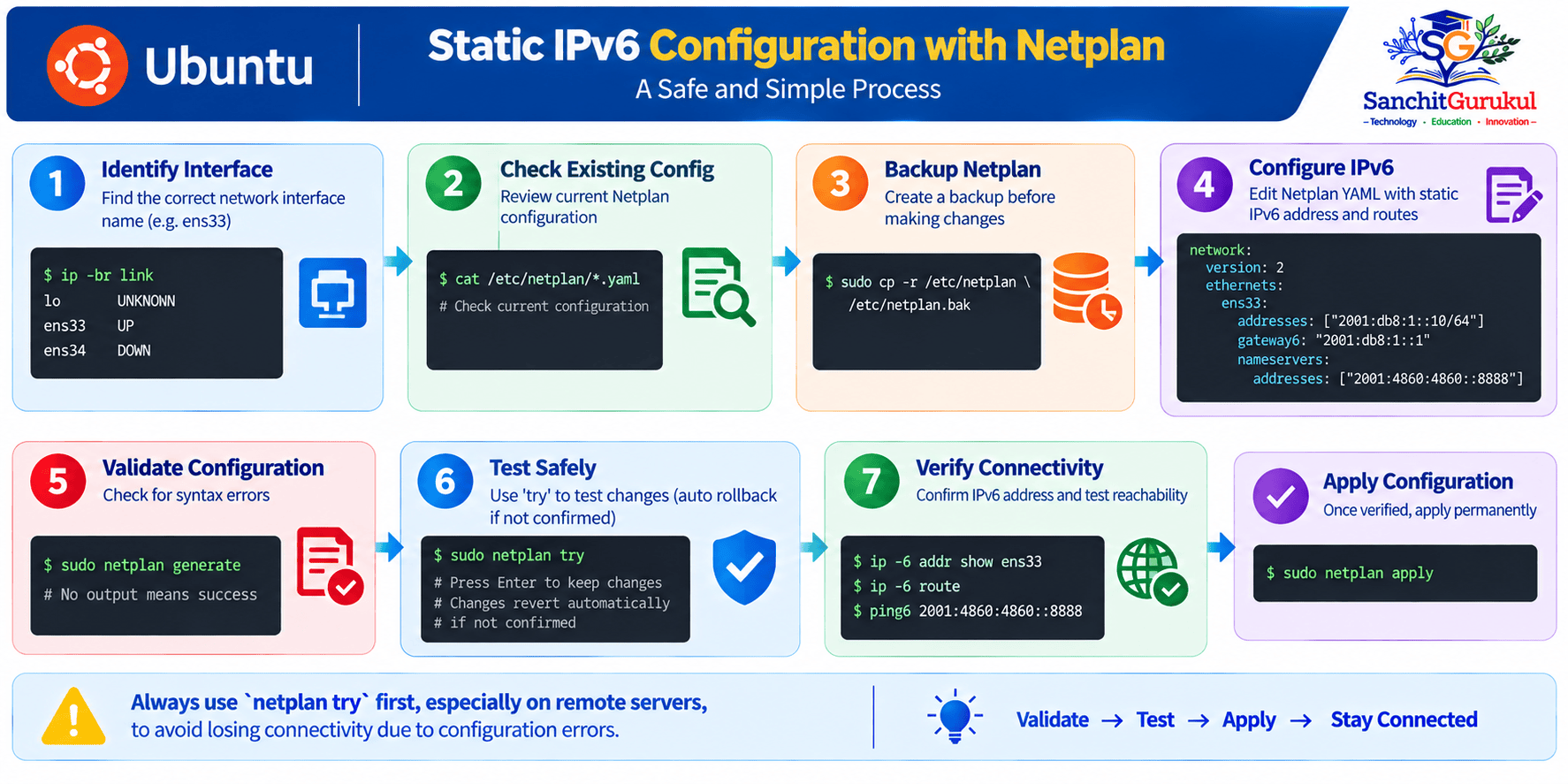
Configure SLAAC or DHCPv6 Instead of a Static Address
Not every Ubuntu server requires a manually configured IPv6 address.
IPv6 networks may use:
- SLAAC
- DHCPv6
- SLAAC with DHCPv6-provided options
- Static addressing
Router Advertisements
IPv6 hosts commonly learn important network information from Router Advertisements.
RA can provide information related to:
- Prefixes
- Default router
- SLAAC
- Whether DHCPv6 should be used
This is different from traditional IPv4 DHCP behavior.
DHCPv6 and Router Advertisements
DHCPv6 can provide:
- IPv6 address information
- DNS information
- Other configuration options
depending on the network design.
However:
DHCPv6 normally does not provide the IPv6 default router.
The default router is learned through Router Advertisements.
Dynamic IPv6 Netplan Example
A typical dynamically managed IPv6 server configuration may look like:
network:
  version: 2
  renderer: networkd

  ethernets:
    ens18:
      dhcp4: false
      dhcp6: true
      accept-ra: true
With this model, Netplan/systemd-networkd can honor Router Advertisements and use DHCPv6 when the network signals that it should.
The exact resulting behavior depends on:
- Router Advertisement flags
- DHCPv6 infrastructure
- DNS configuration
- Netplan version
- Network backend
Static Address with Router Advertisement Routing
Some environments manually configure a server’s IPv6 address but still learn the default router through Router Advertisements.
In that design, do not automatically configure:
accept-ra: falseThe correct setting depends on the network architecture.
Check Whether an Address Is Dynamic
ip -6 addr show dev ens18A dynamically generated address may show lifetime information rather than:
valid_lft forever preferred_lft foreverTemporary and Privacy Addresses
Netplan also supports IPv6 privacy addressing in appropriate environments.
However, servers usually benefit from predictable addresses for:
- DNS
- Monitoring
- Firewall policy
- Administration
Privacy addresses are more commonly useful on client endpoints than on infrastructure servers.
Verify IPv6 Addressing, Routing and DNS
After configuration, verify each component separately.
Check the Interface
ip -6 addr show dev ens18Expected example:
inet6 2001:db8:100:10::20/64 scope global
   valid_lft forever preferred_lft forever

inet6 fe80::20c:29ff:fe12:3456/64 scope link
   valid_lft forever preferred_lft forever
Understand the Two Addresses
Global Address
2001:db8:100:10::20/64Used for communication beyond the local link when routing permits it.
Link-Local Address
fe80::20c:29ff:fe12:3456/64Used only on the local link.
The actual link-local interface identifier may differ from this example.
Check the Default Route
ip -6 route showLook for:
default via 2001:db8:100:10::1 dev ens18Test the Local Gateway
ping -6 -c 4 2001:db8:100:10::1Replace the example address with the real router.
Test External IPv6 Connectivity
For example:
ping -6 -c 4 2606:4700:4700::1111If the local gateway responds but an external IPv6 address does not, investigate:
- Upstream routing
- Default route
- Firewall policy
- Provider IPv6 connectivity
Test DNS Resolution
getent ahosts example.comOr:
resolvectl query example.comThen test IPv6 by hostname:
ping -6 -c 4 example.comThis tests more than simple IP connectivity because DNS resolution is also required.
Check DNS Configuration
resolvectl statusReview the DNS servers associated with the network interface.
Check Netplan Runtime State
On supported Netplan releases:
sudo netplan status --allVerify the Selected Route
To determine how Linux intends to reach a particular IPv6 destination:
ip -6 route get 2606:4700:4700::1111Example output may identify:
- Outgoing interface
- Gateway
- Selected source IPv6 address
This is extremely useful when a server has multiple IPv6 addresses or interfaces.
Troubleshoot and Secure the IPv6 Configuration
IPv6 configuration problems are often caused by a small number of issues.
Problem — Netplan YAML Error
Validate:
sudo netplan generateCommon causes include:
- Incorrect indentation
- Tabs instead of spaces
- Wrong interface name
- Incorrect YAML hierarchy
Problem — Correct Address but No Default Route
Check:
ip -6 route showIf no default route exists, review:
routes:
  - to: default
    via: "YOUR_IPV6_GATEWAY"
Do not add a random gateway.
It must be reachable according to the actual network design.
Problem — Gateway Cannot Be Reached
Check the neighbor table:
ip -6 neigh showLook for states such as:
- REACHABLE
- STALE
- DELAY
- PROBE
- FAILED
- INCOMPLETE
FAILED or INCOMPLETE entries can indicate a local Layer 2 or Neighbor Discovery problem.
Problem — IPv6 Works by Address but Not by Name
If:
ping -6 2606:4700:4700::1111works but hostname resolution fails, investigate DNS rather than IPv6 routing.
Check:
resolvectl statusProblem — Configuration Disappears After Reboot
Inspect:
ls -l /etc/netplan/and:
sudo cat /etc/netplan/50-cloud-init.yamlIf cloud-init owns the network configuration, direct manual changes to its generated file may not be persistent.
Problem — Unexpected Extra IPv6 Address
Check whether:
accept-ra: trueor DHCPv6/SLAAC is enabled.
Linux can legitimately have multiple IPv6 addresses on one interface.
A server might have:
- Static global address
- SLAAC address
- Temporary address
- Link-local address
Determine which mechanisms are enabled before deleting addresses.
Problem — Remote SSH Disconnected After Netplan Change
Use console access if available.
Restore the backup configuration and validate it before reapplying.
This is why:
sudo netplan tryis preferable for remote changes.
Check IPv6 Firewall Policy
Configuring an IPv6 address can make services reachable through an additional protocol family.
Check listening services:
sudo ss -lntupReview the host firewall:
sudo ufw status verboseDo not assume an IPv4 firewall rule automatically provides the intended IPv6 security policy.
Do Not Block ICMPv6 Completely
IPv6 depends on ICMPv6 for important functionality including:
- Neighbor Discovery
- Router Discovery
- Path MTU Discovery
- Error reporting
A blanket ICMPv6 block can create connectivity problems.
Use appropriate IPv6-aware firewall rules.
Key Takeaways and Summary
Key Takeaways
- IPv6 addresses are 128-bit identifiers represented using hexadecimal notation.
- Modern Ubuntu Server networking is normally configured through Netplan YAML files under
/etc/netplan/. - Always identify the actual network interface before editing the configuration.
- Static IPv6 configuration normally requires an address, prefix, default route, and DNS information.
- Current Netplan configurations should use
routes:for the IPv6 default route instead of deprecatedgateway6. - Use
netplan generateto validate the configuration before applying it. - Use
netplan trywhen changing networking remotely because it provides a rollback mechanism. - DHCPv6 and Router Advertisements perform different IPv6 configuration functions.
- Verify the IPv6 address, route, gateway reachability, DNS, and selected source route separately.
- After enabling IPv6, review firewall rules and listening services because the server may now be reachable through an additional network protocol.
Summary
Configuring IPv6 on Ubuntu Server is straightforward once the required network information is known.
For a static server, the basic process is:
Identify interface → Collect IPv6 information → Back up Netplan → Configure address → Configure default route → Configure DNS → Validate → Test safely → Verify connectivity
A current static Netplan configuration typically uses:
addresses:
  - "2001:db8:100:10::20/64"

routes:
  - to: default
    via: "2001:db8:100:10::1"
After applying the configuration, verify:
ip -6 addr showip -6 route showresolvectl statusand test IPv6 connectivity using:
ping -6Most importantly, treat networking changes carefully on remotely administered servers.
Validate the YAML and use:
sudo netplan trybefore permanently committing potentially disruptive network changes.
IPv6 configuration is not complete until:
- Addressing works
- Routing works
- DNS works
- Firewall policy is correct
- Monitoring covers IPv6
That provides a reliable and secure foundation for operating Ubuntu Server in an IPv6 or dual-stack environment.
Useful Links and References
SanchitGurukul Static Resources
Official External References
Your feedback matters
Was this post helpful?
Discussion
0 approved comments
No approved comments yet. You can start the discussion below.
Leave a Comment
No login is required. Name and email are used for moderation/security. Your email is never displayed publicly. All comments require administrator approval.
Discover more from SanchitGurukul
Subscribe to get the latest posts sent to your email.


