
Imagine you are a network engineer preparing to deploy a new enterprise network.
The network includes routers, switches, firewalls and servers from different manufacturers.
Before installing these devices in production, you want to verify routing, test firewall policies and troubleshoot possible connectivity problems.
However, purchasing an entire physical network laboratory can be expensive.
How can you create and test complex networking environments without purchasing equivalent physical equipment?
One solution is GNS3 (Graphical Network Simulator-3).
GNS3 is a free, open-source network simulation and emulation platform that allows users to design, configure and test virtual network environments.
It supports both simulated networking components and emulated network devices running compatible operating-system images.
GNS3 is widely used by networking students, engineers, architects and cybersecurity professionals for practical learning, network design and troubleshooting.
In this article, you will learn:
- What GNS3 is and how it works
- Difference between network simulation and emulation
- GNS3 architecture and major components
- Supported devices and emulation technologies
- Important GNS3 features and capabilities
- How to get started with GNS3
- How to create your first virtual network laboratory
- How to configure VPCS devices and test connectivity
- Advantages, limitations and common troubleshooting methods
- Differences between GNS3, Cisco CML and EVE-NG

What Is GNS3 and How Does Network Emulation Work?
GNS3 is a graphical networking platform that connects different simulation and emulation technologies.
The name stands for Graphical Network Simulator-3.
Although GNS3 includes the word Simulator, the platform supports both simulation and emulation.
These technologies operate differently.
Network Simulation vs Network Emulation
Network simulation reproduces selected networking behaviors using software models.
Network emulation runs software environments that imitate supported network devices and operating systems.
| Feature | Network Simulation | Network Emulation |
|---|---|---|
| Technology | Software models | Virtualized or emulated platforms |
| Device Operating System | Not always required | Often requires a compatible image |
| Resource Requirements | Generally lower | Depends on virtual device |
| Configuration Commands | Depend on simulator | Depend on operating system |
| Hardware-Specific Features | Modeled where available | May be unavailable |
| Typical Use | Learning fundamentals | Configuration and interoperability testing |
GNS3 supports both approaches within the same project.
For example:
- VPCS simulates a lightweight computer.
- The built-in Ethernet switch provides basic Layer 2 switching.
- QEMU can run supported router, firewall and operating-system images.
- Dynamips emulates certain legacy Cisco router platforms.
- Docker can run containerized network services and applications.
How Does GNS3 Forward Network Traffic?
GNS3 creates virtual connections between nodes.
A node represents a device such as a router, switch, firewall or host.
When a virtual device sends a packet, its emulation or simulation engine processes the packet and sends it through the appropriate virtual link.
The receiving device then processes the packet according to its networking behavior and configuration.
Understanding GNS3 Architecture and Components
GNS3 separates network design and management from the infrastructure that runs virtual devices.
This allows projects to run locally or use remote computing resources.
The main architectural components include the user interface, controller, compute services and emulation engines.
1. GNS3 User Interface
The user interface provides the workspace used to build network topologies.
It allows users to:
- Create and open projects
- Add networking devices
- Connect virtual interfaces
- Start and stop nodes
- Open device consoles
- Inspect topology status
- Manage configurations and packet captures
GNS3 2.2 provides a desktop graphical interface and also offers web-interface capabilities.
The newer GNS3 3.1 development branch expands web-based functionality, but its prerelease features should not be assumed to be available in the current stable edition.
2. GNS3 Controller
The controller manages projects, nodes, topology information and interactions between the user interface and compute services.
It coordinates the lifecycle of network simulations.
3. GNS3 Compute Server
A compute server provides the resources required to run virtual nodes.
Depending on the deployment, compute services can run:
- On the local computer
- Inside the GNS3 VM
- On a remote Linux server
- On supported virtualization infrastructure
Remote compute resources can help support larger network laboratories.
4. GNS3 Emulation Engines
GNS3 integrates with multiple execution technologies.
| Technology | Main Purpose |
|---|---|
| Dynamips | Emulates supported legacy Cisco routers |
| QEMU | Runs supported virtual machines and network appliances |
| KVM | Accelerates compatible virtual machines on Linux |
| Docker | Runs containerized systems and applications |
| VPCS | Simulates lightweight PCs |
| VirtualBox | Integrates compatible virtual machines |
| VMware | Integrates compatible virtual machines |
The available execution method depends on the appliance and hosting platform.
5. What Is the GNS3 VM?
The GNS3 VM is a preconfigured virtual machine containing Linux-based GNS3 server components.
It provides a convenient environment for running compatible QEMU/KVM appliances and other supported backends.
The GNS3 VM is especially useful on Windows and macOS systems.
It reduces the need to configure every emulation dependency directly on the host operating system.
Local Server vs GNS3 VM vs Remote Server
| Deployment | Description | Typical Use |
|---|---|---|
| Local Server | Runs GNS3 server components on the computer | Basic laboratories |
| Local GNS3 VM | Runs backend components in a virtual machine | More advanced local labs |
| Remote Server | Runs network devices on separate infrastructure | Larger or shared environments |
For beginner labs involving VPCS and the built-in Ethernet switch, a local GNS3 server is normally sufficient.
For advanced multi-vendor appliances, the GNS3 VM or a compatible remote server is often preferable.

Supported Devices, Features and Common GNS3 Use Cases
One of GNS3’s major strengths is its ability to integrate different virtual networking technologies in a single topology.
However, the supported features depend on the appliance image, operating-system version and available compute resources.
Types of Devices Supported by GNS3
Routers
GNS3 can run supported router images from different vendors.
Examples include compatible Cisco, Juniper, Arista and open-source routing platforms.
Users can practice routing protocols such as:
- Static routing
- OSPF
- BGP
- EIGRP, where supported
- IS-IS, where supported
Switches
GNS3 includes a basic built-in Ethernet switch.
It supports simple Layer 2 connectivity and selected VLAN functionality.
For more advanced switching exercises, a compatible virtual switching appliance may be necessary.
Firewalls
GNS3 can integrate supported virtual firewall appliances.
Examples may include:
- Cisco ASAv
- Fortinet FortiGate-VM
- Juniper vSRX
- Palo Alto Networks VM-Series
- Open-source firewall distributions
Availability depends on vendor image access, system compatibility and applicable licensing.
Servers and End Devices
GNS3 supports lightweight host simulations, Linux containers and compatible virtual machines.
These can be used for testing network services.
Important GNS3 Features
| Feature | Description |
|---|---|
| Graphical Topology Builder | Create network diagrams and connect devices |
| Multi-Vendor Integration | Combine compatible virtual appliances |
| CLI Console | Configure and troubleshoot supported devices |
| Packet Capture | Inspect network traffic using packet-analysis tools |
| Network Impairment | Apply supported delay, loss and other link filters |
| Local and Remote Compute | Run nodes on different hosting environments |
| Project Management | Save and reopen networking projects |
| Appliance Templates | Simplify supported device integration |
| Automation API | Manage supported projects and resources programmatically |
Packet Capture and Wireshark Integration
GNS3 supports packet capture on virtual links.
This is useful for understanding protocols such as:
- ARP
- ICMP
- DHCP
- DNS
- TCP
- OSPF
For example, when one virtual computer sends a ping to another, packet capture can help show the ARP resolution and ICMP communication involved.
Common GNS3 Use Cases
Certification Preparation
GNS3 is commonly used for networking certification study, subject to the availability of suitable images.
Network Design
Engineers can build representative network topologies before making production changes.
Troubleshooting
GNS3 can help reproduce network behavior, inspect routing decisions and test possible configuration corrections.
Multi-Vendor Interoperability
Compatible virtual appliances can be connected to evaluate supported routing and security interactions.
Cybersecurity Laboratories
Users can create isolated environments for learning firewall policies, segmentation and security monitoring.
Network Automation
Engineers can use supported APIs and automation tools to create and manage repeatable labs.

Getting Started with GNS3 — Installation Overview
Before building a virtual laboratory, you need to install GNS3 and configure its execution environment.
For beginners, start with the stable release and a simple local-server lab.
Step 1 — Download GNS3
Open the official website:
Download the current stable release for your operating system.
As of October 2026, GNS3 2.2.61 is the stable release listed on the official website.
The GNS3 3.1 branch is under prerelease development.
Step 2 — Install the Required Components
On Windows, use the official all-in-one installer.
Depending on the selected installation options, the package can install or integrate components such as:
- GNS3 GUI
- GNS3 server
- Dynamips
- VPCS
- Packet capture drivers
- Console applications
- Wireshark integration
Review the installer options and use the supported defaults where appropriate.
Step 3 — Configure the GNS3 Server
After installation, the GNS3 Setup Wizard helps configure the server.
For a basic local laboratory, choose the option to run appliances on the local computer.
Confirm that the local server starts successfully.
For a more advanced environment, configure the GNS3 VM or a compatible remote server.
Step 4 — When Should You Install the GNS3 VM?
The GNS3 VM is recommended when you plan to use resource-intensive or QEMU-based appliances on Windows or macOS.
It can be deployed using supported hypervisors, depending on the GNS3 release.
Make sure the host supports hardware virtualization and has sufficient CPU, memory and disk resources.
For the beginner lab in this article, the GNS3 VM is not required.
Practical GNS3 Lab — Connect Two PCs Through a Virtual Switch
This lab demonstrates how to create a basic local network using GNS3.
You will connect two lightweight virtual PCs through a built-in Ethernet switch and verify communication using ping.
No proprietary router or firewall image is required.
Lab Requirements
- GNS3 installed and running
- Working local GNS3 server
- Two VPCS nodes
- One built-in Ethernet switch
- Two virtual Ethernet connections
Lab Topology
| Device | Interface | IP Address |
|---|---|---|
| PC1 | Ethernet0 | 192.168.10.10/24 |
| PC2 | Ethernet0 | 192.168.10.20/24 |
| SW1 | Ethernet0 and Ethernet1 | No IP required |
Network: 192.168.10.0/24
Both PCs belong to the same IP network.
No router or default gateway is required for this communication.
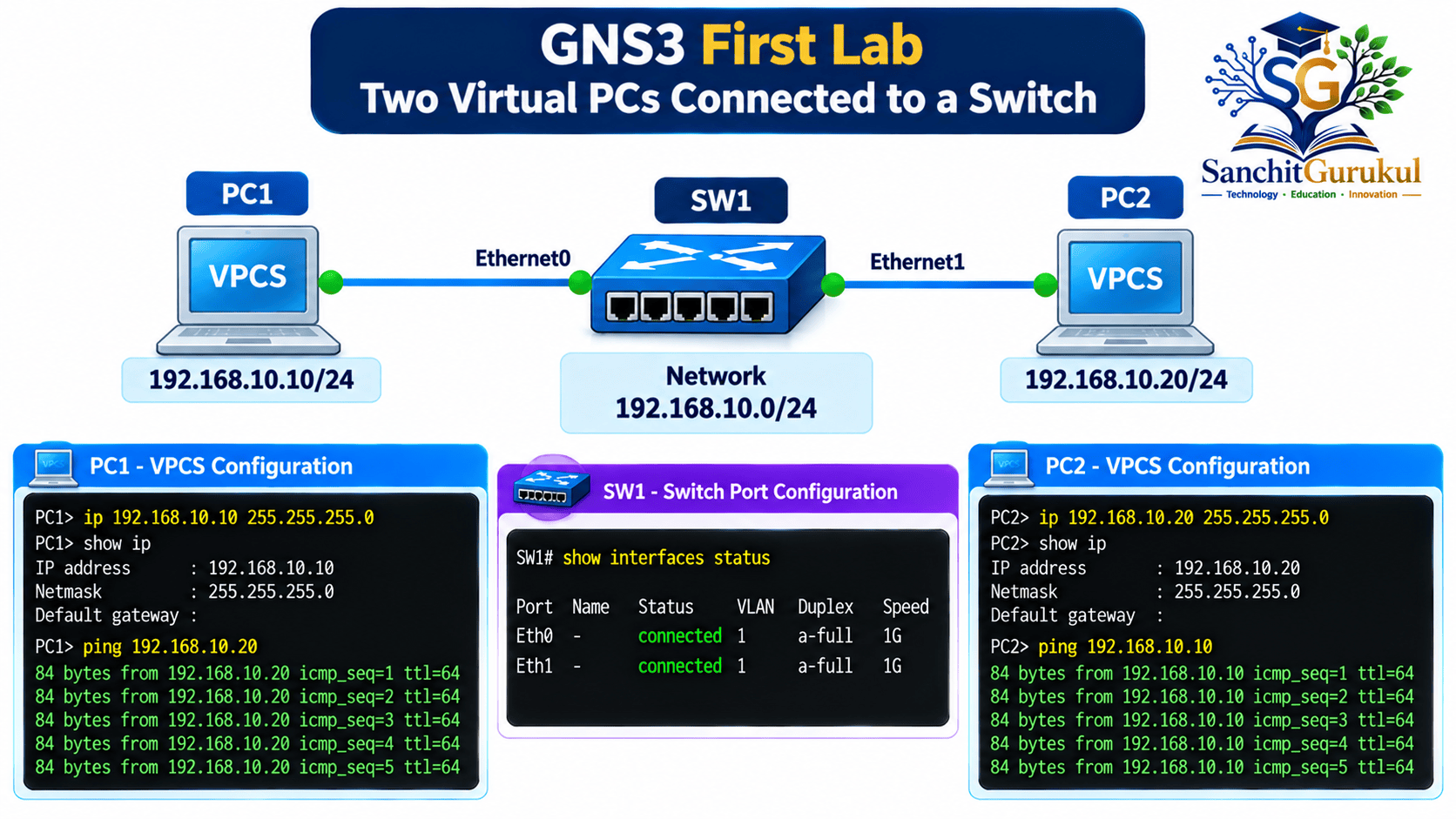
Step 1 — Create a New Project
Open GNS3.
Select:
File → New Blank Project
Enter the project name:
GNS3 First Networking Lab
Choose a suitable project directory.
Select OK.
The GNS3 workspace opens.
Step 2 — Add an Ethernet Switch
From the Devices Toolbar, select Switches.
Drag the built-in Ethernet switch onto the workspace.
Rename it SW1 if necessary.
The built-in Ethernet switch provides basic Layer 2 connectivity.
It does not offer the complete Cisco Catalyst switch CLI or every hardware switching feature.
Step 3 — Add Two VPCS Devices
Select End Devices.
Drag two VPCS nodes onto the workspace.
Rename them:
- PC1
- PC2
VPCS is a lightweight PC simulator.
It supports basic networking functions without requiring a separate Windows or Linux operating-system image.
Step 4 — Connect the Devices
Select Add a Link.
Connect:
- PC1 Ethernet0 to SW1 Ethernet0
- PC2 Ethernet0 to SW1 Ethernet1
The switch should now connect both virtual PCs.
Exit link-creation mode when finished.
Step 5 — Start the VPCS Nodes
Select the green Start button in GNS3.
Alternatively, start the VPCS nodes individually.
The built-in Ethernet switch is an integrated simulation component and does not require booting a separate operating system.
Wait until both VPCS nodes are running.
Step 6 — Configure PC1
Open the console for PC1.
Assign its IP address.
ip 192.168.10.10 255.255.255.0Illustrative output:
Checking for duplicate address...
PC1 : 192.168.10.10 255.255.255.0
Verify the configuration.
show ipConfirm that PC1 uses:
- IP address: 192.168.10.10
- Subnet mask: 255.255.255.0
Step 7 — Configure PC2
Open the PC2 console.
Configure its IP address.
ip 192.168.10.20 255.255.255.0Illustrative output:
Checking for duplicate address...
PC1 : 192.168.10.20 255.255.255.0
The PC1 text in this example reflects the internal VPCS instance identifier, which is independent of the GNS3 node name and may differ in your lab.
Verify the configured address.
show ipConfirm that PC2 uses:
- IP address: 192.168.10.20
- Subnet mask: 255.255.255.0
Step 8 — Test Connectivity from PC1
From the PC1 console, execute:
ping 192.168.10.20Illustrative successful output:
84 bytes from 192.168.10.20 icmp_seq=1 ttl=64 time=0.8 ms
84 bytes from 192.168.10.20 icmp_seq=2 ttl=64 time=0.7 ms
84 bytes from 192.168.10.20 icmp_seq=3 ttl=64 time=0.8 ms
Actual latency and packet count may vary.
Successful responses confirm that PC1 can reach PC2.
Step 9 — Test Reverse Connectivity
From PC2:
ping 192.168.10.10Successful responses confirm communication from PC2 to PC1.
Step 10 — Check the ARP Table
ARP stands for Address Resolution Protocol.
It allows IPv4 devices to resolve an IP address to a link-layer address on the local network.
After generating traffic, check PC1’s ARP table.
show arpThe output should contain a resolved MAC address for PC2 if address resolution has completed.
The exact MAC address depends on the VPCS device.
Step 11 — Save the VPCS Configuration
VPCS configurations should be saved explicitly.
On PC1:
saveExpected message:
Saving startup configuration to startup.vpc
.  done
Repeat the same command on PC2.
This helps retain the configured IP addresses when the project is reopened.
Step 12 — Test a Link Failure
To understand troubleshooting, temporarily suspend or disconnect the link between SW1 and PC2.
From PC1, execute:
ping 192.168.10.20The ping should fail while the connection is unavailable.
Restore the link and repeat the test.
Connectivity should return when the nodes and link are operational.
Lab Verification Summary
| Test | Expected Result |
|---|---|
| PC1 Address | 192.168.10.10/24 |
| PC2 Address | 192.168.10.20/24 |
| Virtual Switch | Connecting both PCs |
| PC1 to PC2 Ping | Successful |
| PC2 to PC1 Ping | Successful |
| ARP Table | Resolved peer MAC after communication |
| Link Suspended | Communication fails |
| Link Restored | Communication returns |
| VPCS Configuration Saved | Successful |

GNS3 vs EVE-NG vs Cisco Modeling Labs
GNS3, EVE-NG and Cisco Modeling Labs are commonly used for virtual networking laboratories.
All three can support networking education, testing and troubleshooting.
However, their architecture, licensing and supported appliances differ.
Comparison Table
| Feature | GNS3 | EVE-NG | Cisco CML |
|---|---|---|---|
| Primary Focus | Multi-vendor emulation | Multi-vendor emulation | Cisco-focused emulation |
| Free Offering | Yes | Community Edition | CML-Free |
| Desktop GUI | Yes | Primarily web-based | Web-based Workbench |
| Remote Server Support | Yes | Yes | Yes, deployment-dependent |
| Multi-Vendor Appliances | Broad, image-dependent | Broad, image-dependent | Supported/custom images |
| Cisco Images Included | No general proprietary Cisco image bundle | No general proprietary Cisco image bundle | Licensed reference platforms |
| Basic Network Simulation | Yes | Appliance-dependent | Yes |
| Automation Support | APIs | APIs/integrations | APIs |
| Hardware Requirements | Depend on nodes | Depend on nodes | Depend on nodes and edition |
When Should You Use GNS3?
GNS3 is useful when:
- You need a flexible desktop-based topology builder.
- You want to experiment with different vendors.
- You need integration with Linux, Docker or virtual appliances.
- You want to start with free lightweight devices.
- You need the option to run simulations on remote compute infrastructure.
When Should You Use EVE-NG?
EVE-NG may be suitable when a browser-based multi-vendor lab environment or its supported shared-lab workflows are priorities.
Features depend on the EVE-NG edition and release.
When Should You Use Cisco CML?
Cisco CML is particularly useful when official Cisco reference platform images and Cisco-focused networking exercises are the main requirements.
CML-Free provides a limited no-cost option, while paid editions support greater licensed capacity.
GNS3 Limitations, Security and Troubleshooting
GNS3 is a powerful platform, but network emulation introduces several practical considerations.
Advantages of GNS3
- Free and open-source core software.
- Supports simulated and emulated networking devices.
- Works with multiple compatible vendors.
- Provides a graphical network topology builder.
- Supports packet capture and troubleshooting.
- Integrates with local and remote compute resources.
- Useful for certification preparation and network design.
- Allows laboratories to be built without equivalent physical hardware.
Limitations of GNS3
Hardware Resource Usage
Large environments can require considerable CPU, memory and storage.
Vendor Image Licensing
Commercial appliance images must be acquired and used legally.
Hardware Emulation Restrictions
Virtual switching and routing platforms may not support all physical hardware features.
Initial Configuration Complexity
Setting up the GNS3 VM, virtualization extensions and advanced appliances can be challenging for beginners.
Performance Differences
Virtual device forwarding performance may not reflect physical networking hardware.
Common GNS3 Troubleshooting Problems
| Problem | Possible Cause | Recommended Check |
|---|---|---|
| GNS3 Server Not Running | Server configuration or service problem | Server status and logs |
| Node Fails to Start | Missing image or compute resources | Image availability, CPU and RAM |
| GNS3 VM Not Detected | Hypervisor or network issue | VM state and connectivity |
| Console Does Not Open | Terminal integration issue | Console application settings |
| Ping Fails | Wrong IP, interface or link | IP configuration and connections |
| Packet Capture Fails | Capture driver or permissions | Wireshark/Npcap configuration |
| Device Runs Slowly | CPU or memory exhaustion | Host resource utilization |
Important Troubleshooting Commands
For VPCS devices:
show ip
show arp
These commands display the configured IP information and ARP entries.
To test connectivity:
ping 192.168.10.20To view available VPCS commands:
?For routers, switches and firewalls running other operating systems, troubleshooting commands depend on the specific platform.
GNS3 Security Best Practices
GNS3 is intended for laboratory environments.
When running network experiments:
- Keep production and lab networks separated where possible.
- Restrict remote server and management API access.
- Avoid exposing unprotected management services publicly.
- Use appropriately licensed appliance images.
- Keep GNS3 and its dependencies updated.
- Back up important project configurations.
- Review firewall rules before bridging labs to real networks.
- Avoid using real production passwords or sensitive configurations in shared lab files.
Key Takeaways
Core GNS3 Concepts
- GNS3 is a free, open-source networking platform.
- It supports both network simulation and emulation.
- Users build network topologies through a graphical workspace.
- Virtual devices communicate through configured links.
Architecture and Devices
- GNS3 includes a user interface, controller and compute services.
- Dynamips supports selected legacy Cisco router emulation.
- QEMU/KVM supports compatible virtual appliances.
- VPCS provides lightweight host simulation.
- The GNS3 VM helps run advanced appliances.
Practical Networking
- Create projects and add network devices.
- Connect devices through virtual interfaces.
- Use VPCS to configure basic IP addresses.
- Use ping to verify network communication.
- Save device configurations for later use.
Security and Operations
- Commercial images require appropriate licensing.
- Hardware-specific behavior may not be reproduced.
- Larger labs need more compute resources.
- Protect remote management services.
- Keep test networks isolated from production.
GNS3 is an important tool for networking education, network design and troubleshooting.
It allows users to create virtual networking environments containing compatible routers, switches, firewalls and servers.
Understanding the GNS3 architecture helps learners choose the right simulation engines, manage compute resources and troubleshoot virtual devices.
The beginner laboratory demonstrates how to connect two virtual computers through a switch and verify communication using IPv4 and ICMP.
Once you understand these basic concepts, you can move toward more advanced routing, switching, firewall and automation exercises.
Next in This Series: GNS3 Installation and GNS3 VM Setup — Complete Step-by-Step Guide for Windows.
Useful Links and References
SanchitGurukul Static Resources
Official External References
Your feedback matters
Was this post helpful?
Discussion
0 approved comments
No approved comments yet. You can start the discussion below.
Leave a Comment
No login is required. Name and email are used for moderation/security. Your email is never displayed publicly. All comments require administrator approval.
Discover more from SanchitGurukul
Subscribe to get the latest posts sent to your email.