
Imagine you are preparing for a Cisco networking certification.
You want to configure routers, create VLANs, test routing protocols and troubleshoot network failures.
However, purchasing multiple physical Cisco routers, switches and firewalls can be expensive.
How can you practice these technologies without building an entire physical network?
One solution is Cisco Modeling Labs (CML).
Cisco Modeling Labs is a network simulation and emulation platform developed by Cisco.
It allows users to build virtual network topologies using supported Cisco operating-system images, configure devices and test how those devices communicate.
Instead of purchasing several physical routers and switches, you can create a virtual network environment on a suitable computer or server.
CML is commonly used by networking students, certification candidates, network engineers and organizations testing network configurations.
In this article, you will learn:
- What Cisco Modeling Labs is
- How network emulation works
- Important CML features and supported devices
- Differences between CML-Free, Personal, Personal Plus and Enterprise
- Hardware and installation requirements
- How to build a basic two-router lab
- How to verify connectivity and capture packets
- Advantages, limitations and common troubleshooting methods
- How CML compares with GNS3 and EVE-NG

What Is Cisco Modeling Labs and How Does It Work?
Cisco Modeling Labs is an official Cisco platform for creating and running virtual network topologies.
It provides a web-based interface called the Workbench.
The Workbench allows users to add devices, connect virtual interfaces, start network simulations and open device consoles.
Unlike basic network simulators that reproduce selected protocol behavior, CML can run supported virtual networking operating-system images.
This is generally described as network emulation.
Network Simulation vs Network Emulation
Although these terms are often used together, they have different meanings.
| Feature | Network Simulation | Network Emulation |
|---|---|---|
| Approach | Models selected network behavior | Runs virtual networking software |
| Device Software | May use simplified implementations | Can use supported vendor OS images |
| CLI Experience | Depends on simulator | Based on the virtual device OS |
| Hardware Features | Simulated where supported | May be unavailable without physical hardware |
| Typical Purpose | Learning network concepts | Configuration, testing and validation |
CML combines a topology modeling environment with virtual network device execution.
Main Components of CML
1. CML Server
The CML server hosts the platform’s management services and network simulation engine.
2. Workbench
The browser-based workspace where administrators create and manage network topologies.
3. Node
A virtual networking device or host, such as a router, switch, firewall or Linux system.
4. Virtual Link
A connection between interfaces of two nodes.
5. Reference Platform
A supported software image used to run a virtual device inside CML.
6. Console
The interface used to configure and troubleshoot a running network device.
Cisco Modeling Labs Workbench
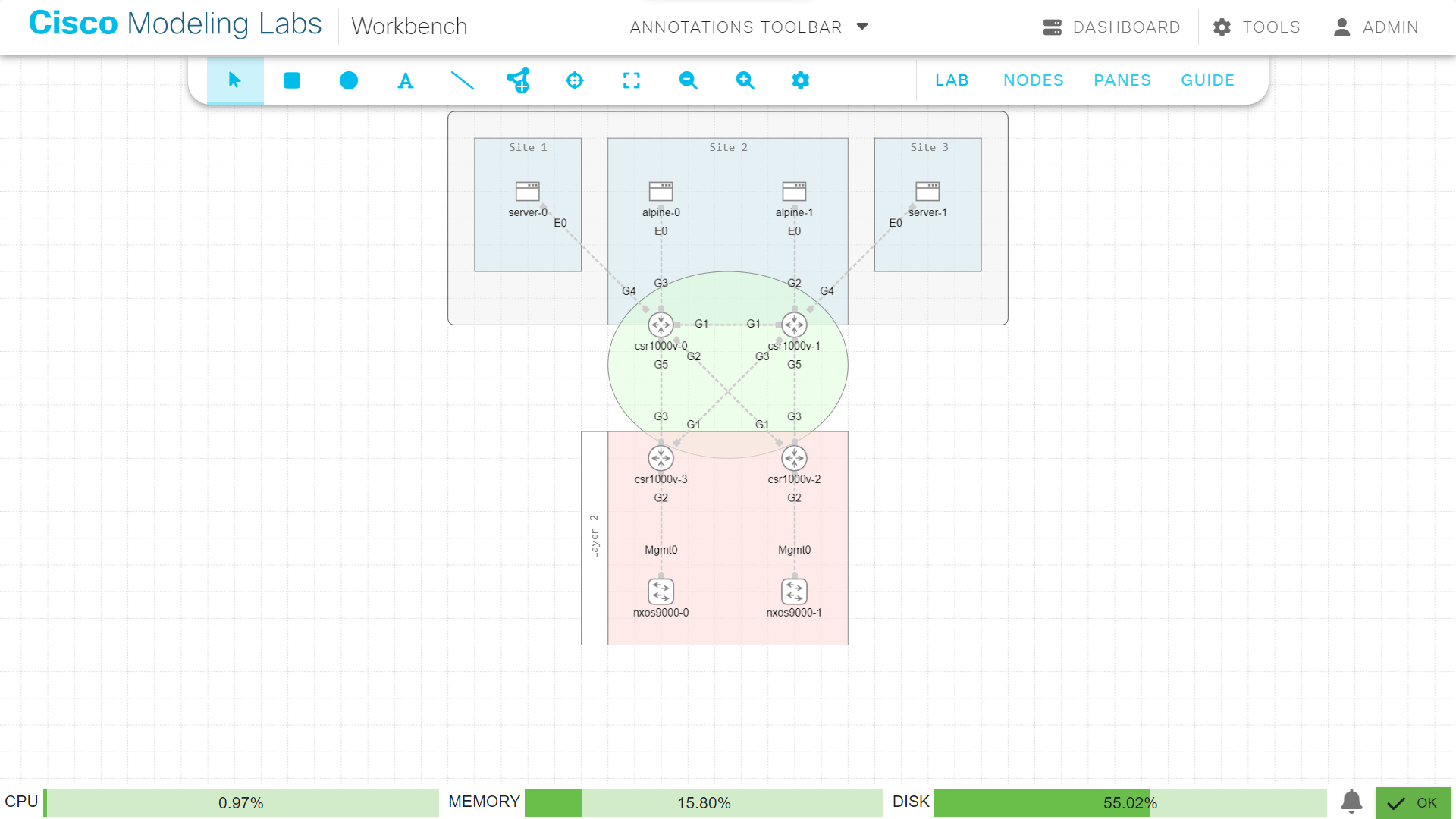
The Workbench displays the virtual network topology and provides tools for device management.
Users can select nodes, inspect interfaces, open consoles and monitor running simulations.
Cisco Modeling Labs Editions and System Requirements
Cisco provides several CML offerings for different users and organizations.
The major differences include licensing, supported reference platforms, node capacity, collaboration and deployment features.
Cisco Modeling Labs Editions
| Edition | Intended Users | Cisco Node Capacity |
|---|---|---|
| CML-Free | Beginners and individual learners | 5 counted nodes |
| CML-Personal | Individual networking learners | 20 Cisco nodes |
| CML-Personal Plus | Advanced learners and certification candidates | 40 Cisco nodes |
| CML-Enterprise | Organizations and engineering teams | Licensed capacity, expandable |
| CML-Education | Educational institutions | Depends on purchased license |
The capacities reflect Cisco’s published offerings and may change with future licensing updates.
CML-Free
CML-Free is a no-cost offering intended for individual learners.
It provides access to a limited set of supported reference platforms, including:
- IOL routing nodes
- IOL-L2 switching nodes
- ASAv firewall nodes
- Selected Linux hosts
CML-Free supports up to five counted nodes running simultaneously.
Unmanaged Switch and External Connector nodes do not count toward this limit.
Other node types, including Linux hosts, count toward the five-node limit in CML-Free.
This edition is suitable for basic routing, switching and firewall exercises.
CML-Personal and Personal Plus
CML-Personal supports larger individual lab environments.
CML-Personal Plus provides additional node capacity for more complex topologies.
These offerings are appropriate for learners preparing for Cisco certifications or engineers practicing network configurations.
Personal offerings are intended for single-user deployments.
CML-Enterprise and Education
Enterprise and Education offerings are intended for organizations that need larger or shared lab environments.
Depending on licensing and deployment design, they can provide:
- Multi-user lab access
- Shared network simulations
- Expanded licensed node capacity
- Centralized lab management
- Clustered deployments
- Automation and API integration
Enterprise node capacity is determined by licensing and infrastructure resources.
It should not be treated as automatically unlimited.
Cisco Modeling Labs Hardware Requirements
CML requires sufficient CPU, memory and storage resources to operate its management services and virtual networking nodes.
Cisco’s published CML 2.10 minimum server requirements include:
| Resource | Minimum |
|---|---|
| Processor | 4 or more physical cores |
| Memory | 8 GB |
| Disk Storage | 32 GB or more |
| Network Interface | At least one |
| Virtualization | Compatible virtualization support |
| Browser | Supported modern HTML5 browser |
These are baseline CML server requirements, not a guarantee that every lab will run comfortably.
Larger environments require additional resources.
For example, a topology containing several IOS XR or NX-OS virtual devices may require substantially more memory than a simple IOL routing lab.
Cisco identifies Intel processors as the fully supported platform for CML 2.x reference image compatibility.
CML Personal deployments on Apple Silicon are not supported through the documented Intel-based VMware Fusion deployment.
Supported Virtual Devices and Important CML Features
Cisco Modeling Labs provides multiple virtual node types for networking laboratories.
The available images depend on the CML edition, release and installed reference platform packages.
Common Virtual Device Types
| Node Type | Technology | Typical Use |
|---|---|---|
| IOL | Cisco IOS XE routing | Routing and IP services |
| IOL-L2 | Cisco IOS XE switching | VLANs and switching |
| IOSv | Cisco IOS | Traditional routing labs |
| IOSv-L2 | Cisco IOS switching | Switching practice |
| Catalyst 8000V | Cisco IOS XE | Enterprise routing |
| IOS XRv 9000 | Cisco IOS XR | Service provider routing |
| NX-OS 9000 | Cisco NX-OS | Data center networking |
| ASAv | Cisco ASA | Firewall and VPN labs |
| FTDv | Cisco Secure Firewall | Firewall security testing |
| Ubuntu / Alpine Linux | Linux | End hosts and network services |
| WAN Emulator | Network impairment | Delay, jitter and packet loss testing |
Some platforms require supplemental images, additional configuration or suitable hardware resources.
Not every node type is included in CML-Free.
Why IOL Is Useful for Beginners
IOL is a lightweight IOS XE-based node implementation.
It generally requires fewer system resources than traditional full virtual-machine router images.
Cisco also provides IOL-L2 for switching exercises.
These platforms can be used for:
- IPv4 addressing
- Static routing
- OSPF
- VLANs
- Spanning Tree
- DHCP
- NAT
- HSRP
Actual features depend on the specific node image and release.
Important Features of CML
Graphical Topology Builder
Users can create network diagrams by placing devices on the Workbench and connecting interfaces.
Interactive CLI Console
Running nodes can be configured using their supported command-line interfaces.
Packet Capture
CML can capture network packets on virtual links.
Captured traffic can be examined in the CML interface or downloaded as a PCAP file.
Bootstrap Configuration
Supported devices can receive initial configurations when they are deployed.
Lab Import and Export
Topologies can be saved, exported and imported into compatible CML installations.
Automation APIs
CML provides APIs for creating, starting, stopping and managing labs programmatically.
Custom Node Definitions
Administrators can integrate additional supported images and node definitions.
Custom image compatibility, software licensing and resource requirements must be verified.
Common CML Use Cases
| Use Case | Example |
|---|---|
| Certification Preparation | CCNA, CCNP and CCIE practice |
| Routing | OSPF, BGP and static routing |
| Switching | VLANs, trunks and STP |
| Firewall Testing | ASA security rules and permitted virtual firewall features |
| Data Center | Supported NX-OS scenarios |
| Network Automation | API-driven lab deployment and validation |
| Troubleshooting | Connectivity and protocol analysis |
| Network Design | Testing configurations before deployment |
Practical Cisco CML Lab — Connect Two Routers and Test Connectivity
This beginner-friendly lab demonstrates how to create a virtual network, configure IP addresses and verify communication.
The lab uses two IOL routing nodes.
It is suitable for CML-Free because it requires only two counted nodes.
Lab Requirements
- One working Cisco Modeling Labs installation
- Access to the CML Workbench
- Two available IOL routing nodes
- Basic Cisco IOS CLI knowledge
Lab Topology
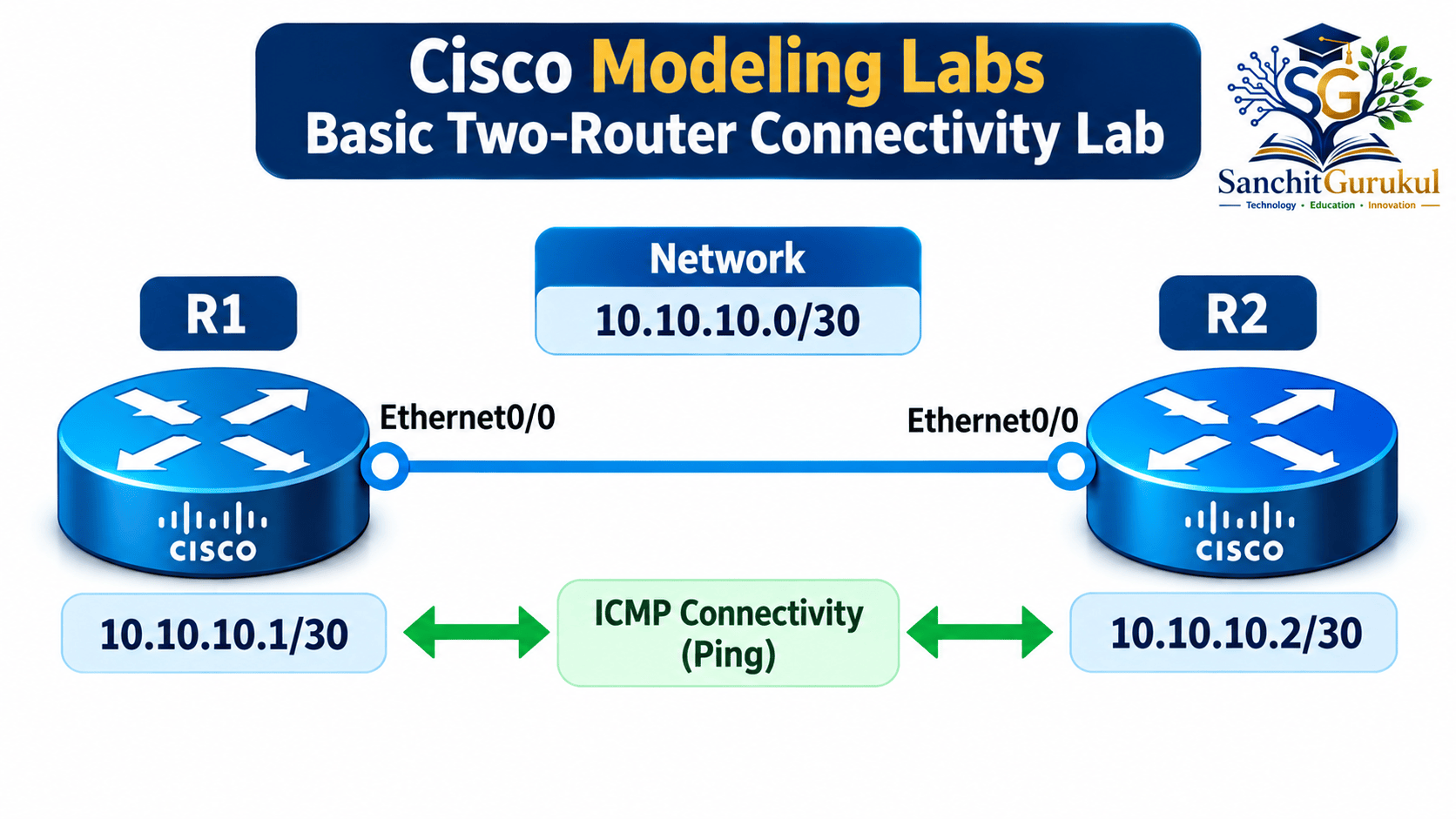
| Device | Interface | IP Address | Subnet Mask |
|---|---|---|---|
| R1 | Ethernet0/0 | 10.10.10.1 | 255.255.255.252 |
| R2 | Ethernet0/0 | 10.10.10.2 | 255.255.255.252 |
Network: 10.10.10.0/30
Both router interfaces belong to the same IP subnet.
No static or dynamic routing configuration is necessary for communication across this directly connected network.
Step 1 — Create a New Lab
Open the CML web interface.
- Log in using your authorized CML account.
- Open the Dashboard.
- Create a new lab.
- Name it
Basic Two Router Connectivity. - Open the new lab in the Workbench.
The Workbench provides a workspace for adding networking devices.
Step 2 — Add Two Router Nodes
In the Workbench:
- Select Add Nodes.
- Locate the IOL router node type.
- Drag two IOL routers onto the workspace.
- Rename the nodes R1 and R2 if necessary.
Confirm that both nodes are present.
Step 3 — Connect the Routers
Create a virtual Ethernet link between the two routers.
- Right-click R1.
- Select Add Link.
- Select R2 as the destination node.
- Choose Ethernet0/0 on R1.
- Choose Ethernet0/0 on R2.
- Select Create Link.
The Workbench should display a connection between the devices.

The available interface names depend on the node type and image.
For this lab, use Ethernet0/0 on both IOL routers.
Step 4 — Start the Lab
Open the Lab menu and select Start Lab.
Wait for both virtual routers to finish booting.
CML normally displays a green status indicator when a node is ready.
Step 5 — Open the Router Console
Right-click R1 and select Console.
Open the console connection in the Workbench.
Repeat for R2.

If an initial setup dialog appears, follow the prompts appropriate for the lab configuration.
Step 6 — Check the Router Interfaces
On R1:
enable
show ip interface brief
Identify the Ethernet0/0 interface.
Confirm that the interface is available before configuring it.
Step 7 — Configure Router R1
On R1, execute:
enable
configure terminal
hostname R1
interface Ethernet0/0
description Link-to-R2
ip address 10.10.10.1 255.255.255.252
no shutdown
end
This configuration:
- Changes the hostname to R1.
- Selects Ethernet0/0.
- Adds a description.
- Configures the IPv4 address.
- Administratively enables the interface.
Verify the configuration.
show ip interface briefIllustrative output:
Interface    IP-Address   OK? Method Status Protocol
Et0/0        10.10.10.1   YES manual up     up
The display may include additional interfaces.
The important result is that Ethernet0/0 has the expected IP address and is operational.
Step 8 — Configure Router R2
On R2, execute:
enable
configure terminal
hostname R2
interface Ethernet0/0
description Link-to-R1
ip address 10.10.10.2 255.255.255.252
no shutdown
end
Verify:
show ip interface briefIllustrative output:
Interface    IP-Address   OK? Method Status Protocol
Et0/0        10.10.10.2   YES manual up     up
Both routers should now have operational Ethernet interfaces in the same subnet.
Step 9 — Test Connectivity
From R1:
ping 10.10.10.2A successful test normally produces a result similar to:
Success rate is 100 percent (5/5)The success rate may vary during initial convergence or if connectivity problems exist.
Now test in the opposite direction.
On R2:
ping 10.10.10.1A successful ping confirms that the two interfaces can exchange ICMP traffic.
Step 10 — Verify the Connected Route
On R1:
show ip route connectedIllustrative relevant output:
C 10.10.10.0/30 is directly connected, Ethernet0/0This indicates that R1 has a directly connected route for the link network.
A separate static route is not required.
Step 11 — Save the Configuration
On each router, execute:
copy running-config startup-configIf prompted for the destination filename, accept the default.
This saves the active Cisco configuration to the device’s startup configuration.
Step 12 — Capture Traffic in CML
CML can capture packets flowing through an active virtual link.
In the Workbench:
- Select the running link between R1 and R2.
- Open Packet Capture.
- Configure a packet capture filter if required.
- Start the capture.
- Generate ping traffic.
- Inspect the captured packets.
For ICMP traffic, a Berkeley Packet Filter expression can be:
icmpThis filter selects ICMP packets.
You can download the captured packets in PCAP format and open them in Wireshark.
Download the capture before stopping the link or lab, because captures are not retained indefinitely.

Lab Verification Summary
| Test | Expected Result |
|---|---|
| Both routers start | Nodes become operational |
| R1 Ethernet0/0 | 10.10.10.1/30 |
| R2 Ethernet0/0 | 10.10.10.2/30 |
| R1 to R2 ping | Successful |
| R2 to R1 ping | Successful |
| Connected route | 10.10.10.0/30 |
| Packet capture | ICMP traffic visible |
Cisco CML Advantages, Limitations and Troubleshooting
Cisco Modeling Labs provides a realistic environment for learning and software-level network testing.
However, it is important to understand its strengths and limitations before choosing a network lab platform.
Advantages of Cisco Modeling Labs
Official Cisco Reference Platforms
CML provides access to supported Cisco virtual network images under the applicable license.
Realistic CLI Experience
Many supported platforms use command-line interfaces similar to those used on production Cisco devices.
Topology Creation
The Workbench simplifies adding, connecting and managing virtual network devices.
Network Automation
APIs and external automation tools can help create repeatable lab environments.
Protocol Troubleshooting
Users can inspect routing tables, interface states, logs and captured packets.
Certification Practice
CML can support CCNA, CCNP and advanced networking study, depending on the required technologies and available images.
Limitations of Cisco Modeling Labs
Hardware Requirements
Larger virtual networks can consume substantial CPU and memory.
Edition Limits
Different licenses restrict the number and types of devices available.
Cisco-Centric Environment
The supplied reference platforms focus mainly on Cisco networking technologies.
Hardware Feature Differences
Virtual devices cannot reproduce every feature of physical networking hardware.
Learning Curve
Beginners may need time to understand virtualization, node images and lab management.
Cisco CML vs GNS3 vs EVE-NG
| Feature | Cisco CML | GNS3 | EVE-NG |
|---|---|---|---|
| Developer | Cisco | GNS3 Project | EVE-NG |
| Primary Focus | Cisco network emulation | Flexible network emulation | Multi-vendor network emulation |
| Official Cisco Image Access | Provided according to CML license | User-supplied licensed images | User-supplied licensed images |
| Graphical Topology Builder | Yes | Yes | Yes |
| Multi-Vendor Support | Custom images with limitations | Broad, image-dependent | Broad, image-dependent |
| Automation | APIs and tools | APIs and integrations | APIs and integrations |
| Cost Model | Free and paid offerings | Free/open-source platform | Community and commercial offerings |
When Should You Choose CML?
Choose CML when official Cisco reference images, Cisco-focused testing and an integrated lab experience are priorities.
GNS3 and EVE-NG are also useful choices, particularly when a lab requires flexibility across multiple vendors.
All three platforms depend on image compatibility, legal software access and adequate host resources.
Common CML Troubleshooting Problems
| Problem | Possible Cause | Recommended Check |
|---|---|---|
| Node fails to start | Insufficient resources | CPU, RAM and disk |
| Node type unavailable | Reference platform not installed | Image and node definitions |
| Router cannot ping peer | Wrong IP or link configuration | Interfaces and IP addresses |
| Console unavailable | Device not fully started | Node status and console connection |
| License limit reached | Too many counted nodes | Active node count |
| Poor performance | Resource exhaustion | Running node resource usage |
| Expected feature missing | Virtual platform limitation | Cisco feature documentation |
Useful Cisco Verification Commands
show ip interface brief
show ip route
show running-config
show cdp neighbors
These commands can help inspect interfaces, routing information, active configuration and neighboring Cisco devices on compatible IOS-based nodes.
Command availability and syntax vary across operating systems and node types.
Key Takeaways
Core CML Concepts
- CML is Cisco’s official network simulation and emulation platform.
- It uses supported virtual network operating-system images.
- A node represents a virtual device.
- The Workbench provides topology creation and device management.
Editions and Device Support
- CML-Free supports five counted nodes.
- Personal and Personal Plus support larger individual labs.
- Enterprise and Education support organizational requirements.
- Device availability depends on licensing and installed images.
Practical Networking
- Virtual routers can be configured through their CLI.
- CML supports routing, switching and selected security labs.
- Packet captures help explain protocol communication.
- APIs can automate supported lab operations.
Operations and Limitations
- Resource requirements depend on node types.
- Some physical hardware functions cannot be reproduced.
- Use supported reference images and configurations.
- Verify virtual behavior before relying on lab results for production changes.
Cisco Modeling Labs provides a practical environment for networking students, engineers and organizations.
It combines a graphical topology builder, virtual networking operating systems, CLI access and packet analysis capabilities.
For beginners, CML-Free provides an accessible starting point for learning routing and switching.
More advanced users can expand their laboratories using licensed node capacity, additional reference platforms and automation features.
Understanding CML creates a useful foundation for network troubleshooting, certification preparation and testing supported network configurations.
Next in This Series: Cisco Modeling Labs Installation and First Lab Setup — Step-by-Step Guide.
Useful Links and References
SanchitGurukul Static Resources
Official External References
Your feedback matters
Was this post helpful?
Discussion
0 approved comments
No approved comments yet. You can start the discussion below.
Leave a Comment
No login is required. Name and email are used for moderation/security. Your email is never displayed publicly. All comments require administrator approval.
Discover more from SanchitGurukul
Subscribe to get the latest posts sent to your email.

